AI caption generator
Add Captions to Any Video with AI
Upload a video and OnVid writes the captions from the speech. Fix any word, pick a TikTok-style look, translate them if you like, and download the captioned MP4 plus SRT and VTT subtitle files.
- 1Upload a video or pick one you made
- 2Check the words, pick a style
- 3Download the MP4, SRT or VTT
- 1Upload a video or pick one you made
- 2Check the words, pick a style
- 3Download the MP4, SRT or VTT
 Kling 3 4K · cinematic
 Veo 3.1 native audio
 Seedance 2 #1 arena
 Wan 2.7 image-to-video
 Hailuo 2.3 expressive
 Hunyuan open sourceKling 3 4K · cinematicVeo 3.1 native audioSeedance 2 #1 arenaWan 2.7 image-to-videoHailuo 2.3 expressiveHunyuan open source
Why add captions to your videos
Most people scroll social feeds with the sound off. Captions are what keep them watching, and they make your video usable for anyone who can't or won't turn the audio on.
A subtitle generator made for social video
Auto captions, your edits, your style, one MP4.
Automatic transcription
The spoken language is detected on its own and every line is timed to the voice.
Edit before you pay
Check and fix the transcript, and watch a live preview of the style on your video first.
Four styles, three positions
Bold, Clean, Boxed or Pop, at the bottom, middle or top of the frame.
35 caption languages
Caption in the spoken language or translate into another one, including right-to-left and Asian scripts.
SRT and VTT included
Subtitle files come with every captioned video, at no extra cost.
Original video kept
Same length, sound and resolution; only the captions are added.
Who adds captions with OnVid
From short social clips to ads and tutorials.
TikTok, Reels and Shorts
Bold, word-by-word captions that keep muted viewers watching past the first second.
Every leading video model, one studio
Match the right engine to each idea — no extra accounts, no juggling tools.
Cinematic 4K text-to-video with native audio and multi-shot consistency.
The only model with synchronized dialogue and sound.
Film-grade generation with strong prompt adherence and synced audio.
Sharp, physically accurate motion in crisp 4K.
Native 2K motion with synced audio and omni-reference — the Hailuo 3 generation.
Expressive, characterful motion with lively faces.
Black Forest Labs' unified image + video + audio model, with clips up to ~20 seconds.
Native 4K clips up to 30s with synced sound.
Fast clips with synced native audio.
| Model | Resolution | Max length | Best for | Speed |
|---|---|---|---|---|
| 1080p | 5s / 10s | Cinematic, multi-shot | Max quality | |
| 720p / 1080p / 4K | 8s | Native audio | Balanced | |
S2 Sora 2 | 720p / 1080p | 4s / 8s / 12s | Prompt adherence | Balanced |
| 480p / 720p / 1080p | 5s / 10s | Sharp motion | Fast | |
| 768p / 2K | 5s / 10s | 2K detail with sound | Balanced | |
| 768p | 6s / 10s | Expressive motion | Fast | |
| 1080p+ | ~20s | Unified multimodal | Max quality | |
| 480p / 720p / 1080p | 5s / 10s | References + video remix | Fast | |
| 480p / 720p | 6s | Fast clips with sound | Balanced |


How to add subtitles to a video in three steps
No typing, no timeline, no software to install.
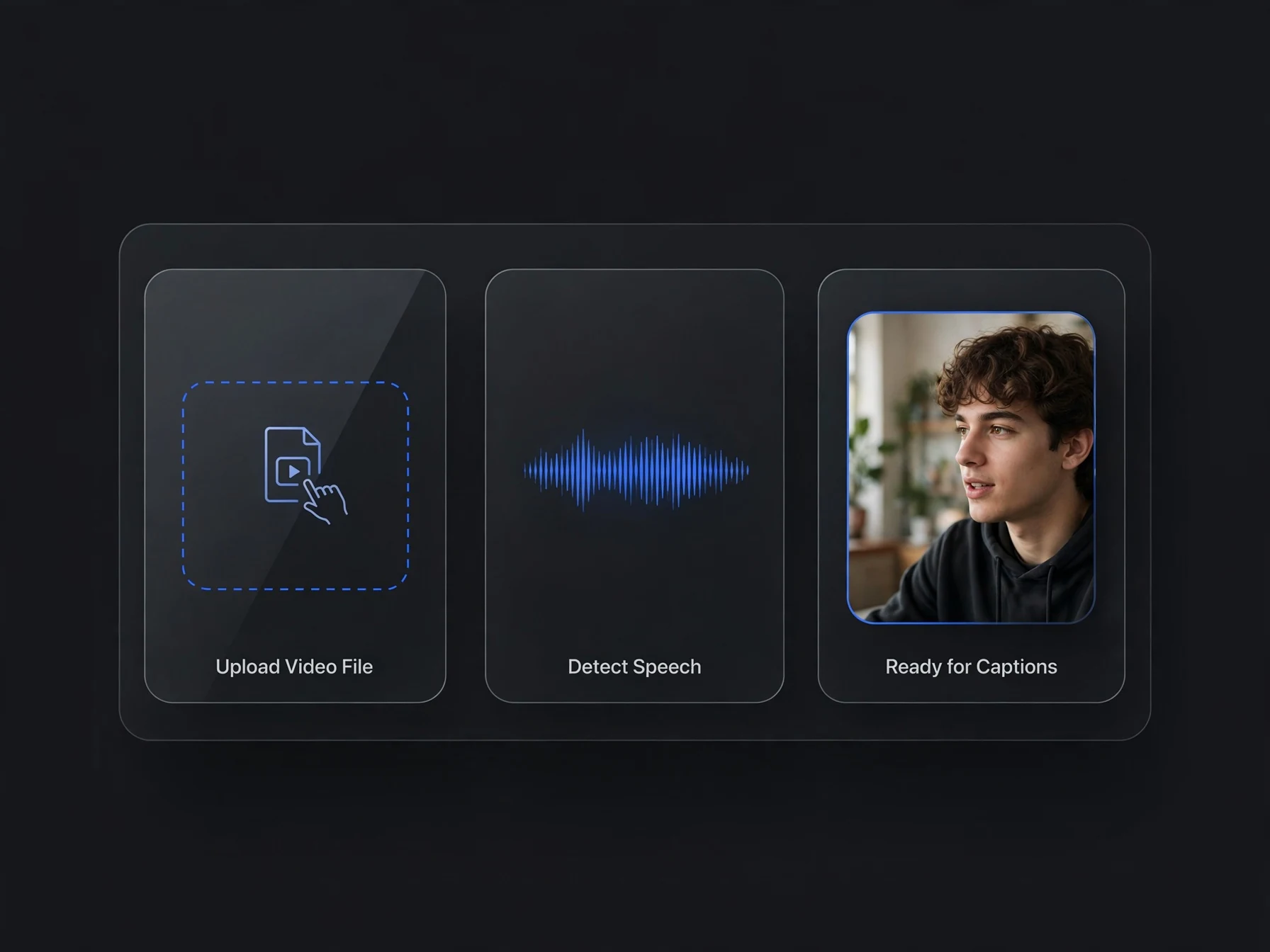
Add your video
Upload an MP4 or MOV with speech, up to 2 minutes, or pick one of the videos you made on OnVid.
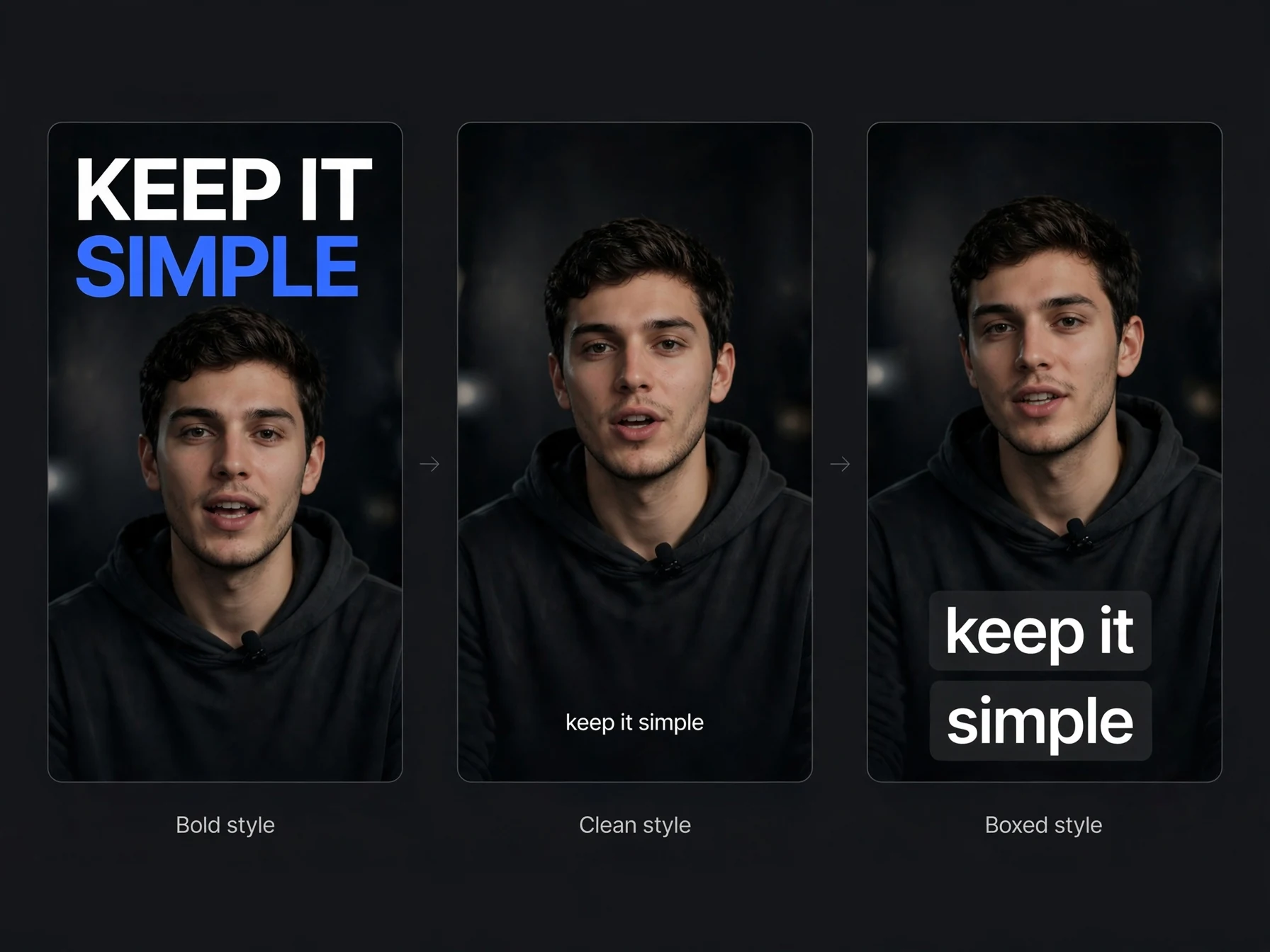
Check the words, pick a look
Fix any word in the transcript, choose Bold, Clean, Boxed or Pop and where the captions sit, and translate them if you want.
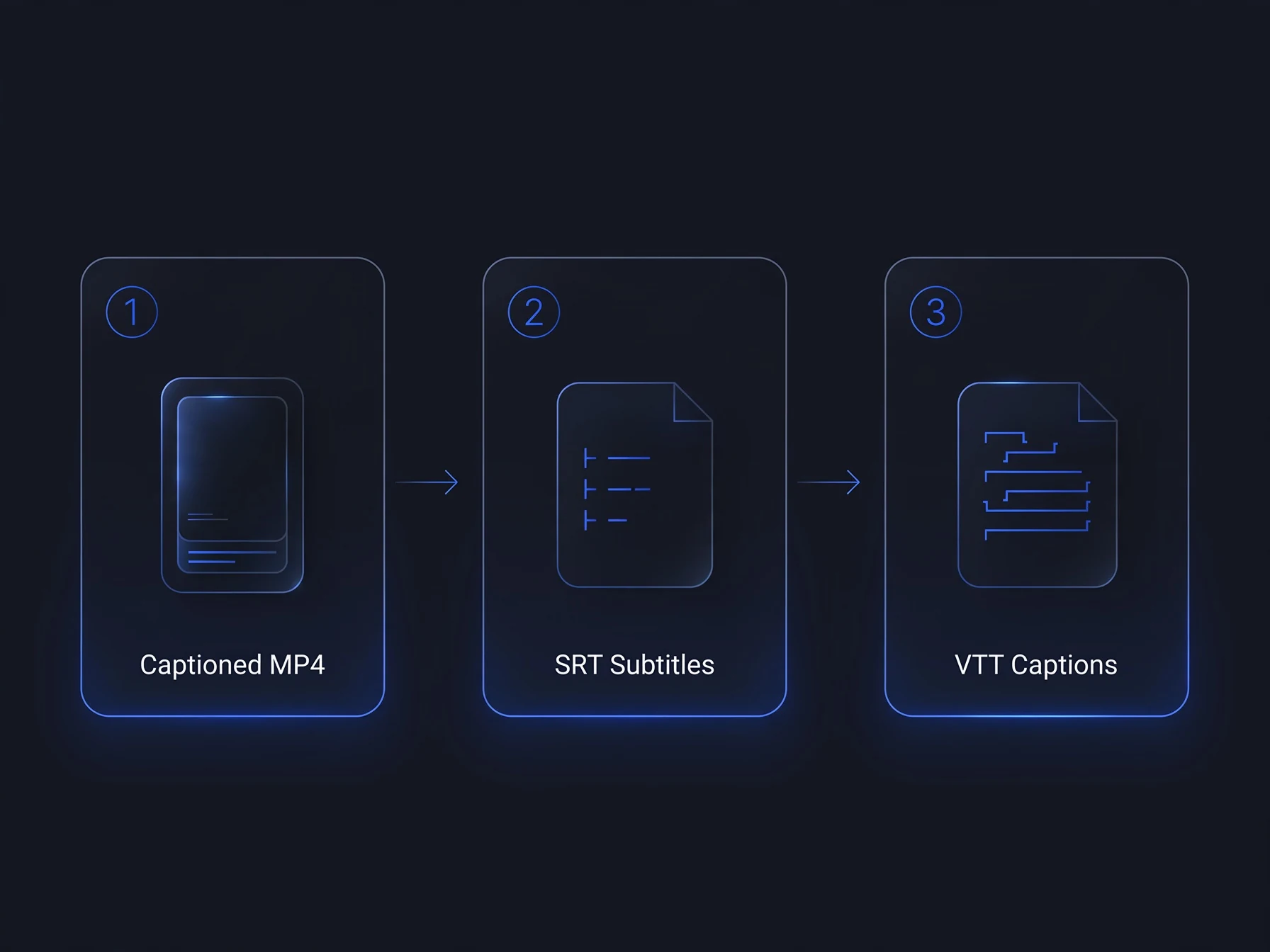
Download
Get the captioned MP4, plus SRT and VTT subtitle files for YouTube or your editor.
Captions and subtitles, explained
How auto captions work, which style to pick, and when you need an SRT file.
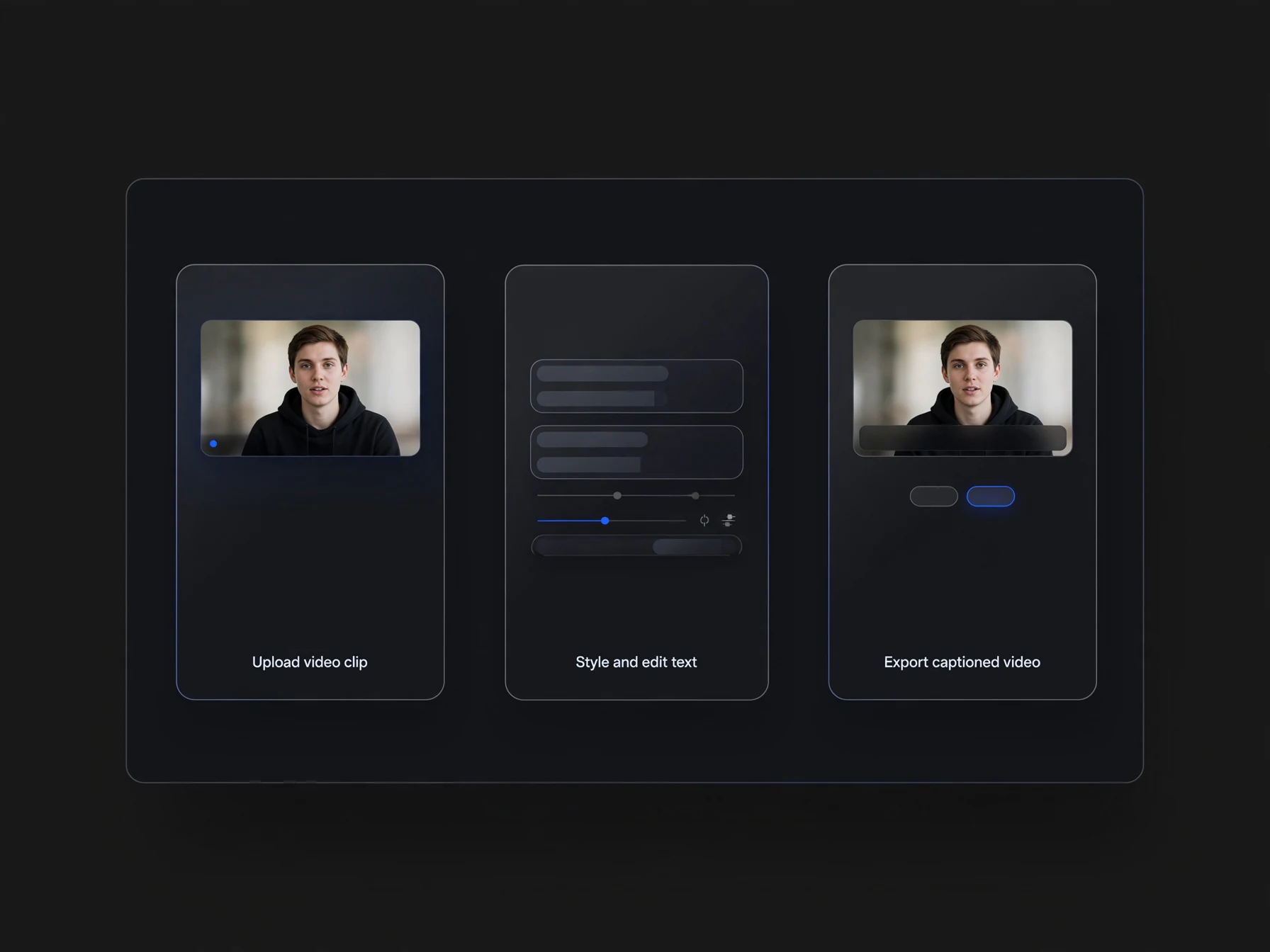
How to add captions to a video
Open the Captions tool and upload an MP4 or MOV with speech, up to 2 minutes long, or pick a video you made on OnVid. Tap Get captions to see the transcript with its timings, fix any word that came out wrong, then choose a style and where the captions sit: bottom, middle or top. The preview plays your video with the captions on top, so you see the result before you pay. Tap Add captions and the captioned MP4 appears in a minute or two, together with SRT and VTT files you can download.
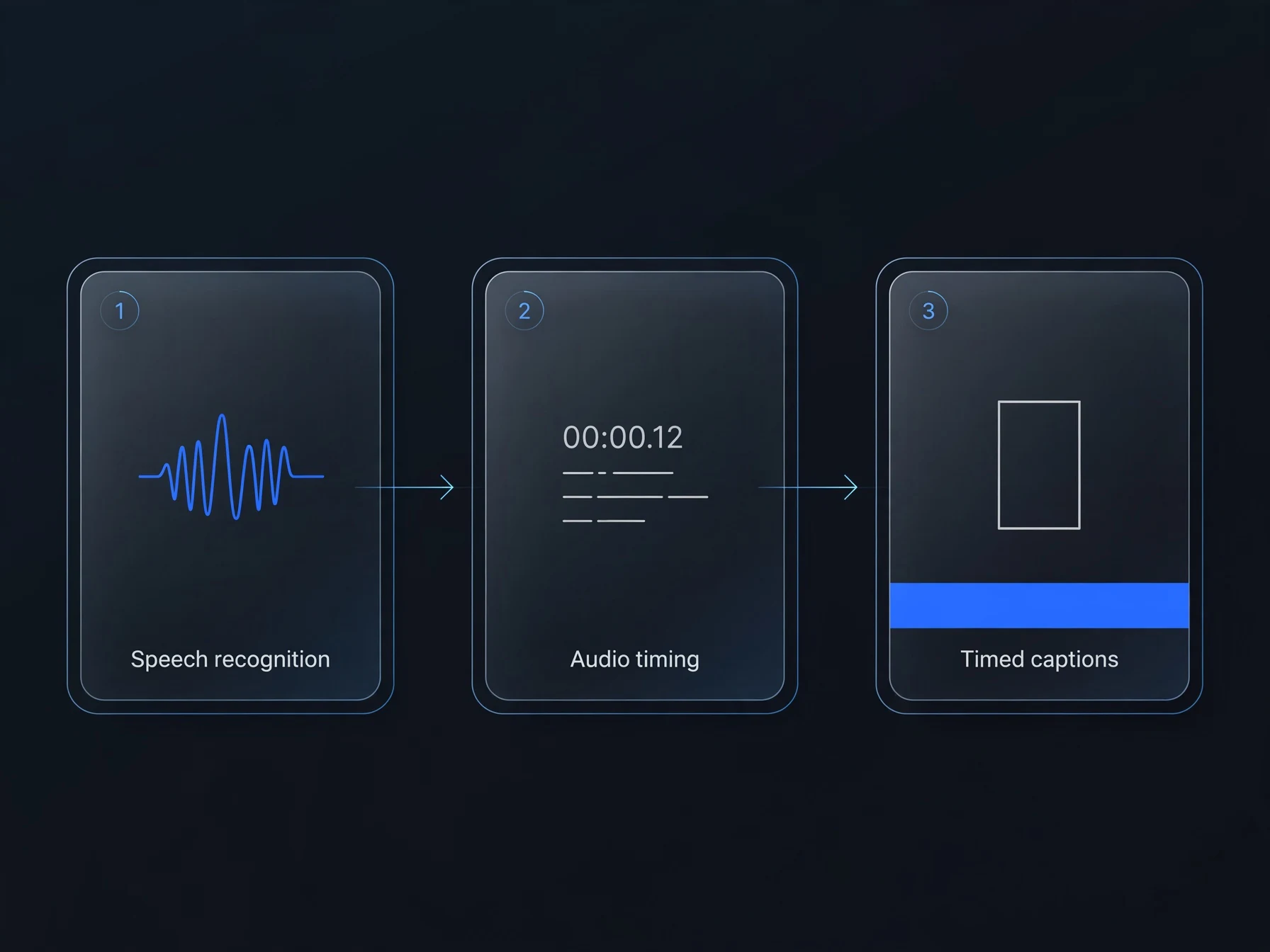
What is an AI caption generator?
An AI caption generator (also called an auto subtitle generator) listens to the speech in a video, writes it down and times each line to when it is spoken. OnVid uses a Whisper-based speech model that recognises the spoken language on its own, then splits the transcript into short, readable caption lines and draws them onto the video. Because each line is timed to the speech, the captions appear and disappear with the voice instead of sitting on screen as one block of text.
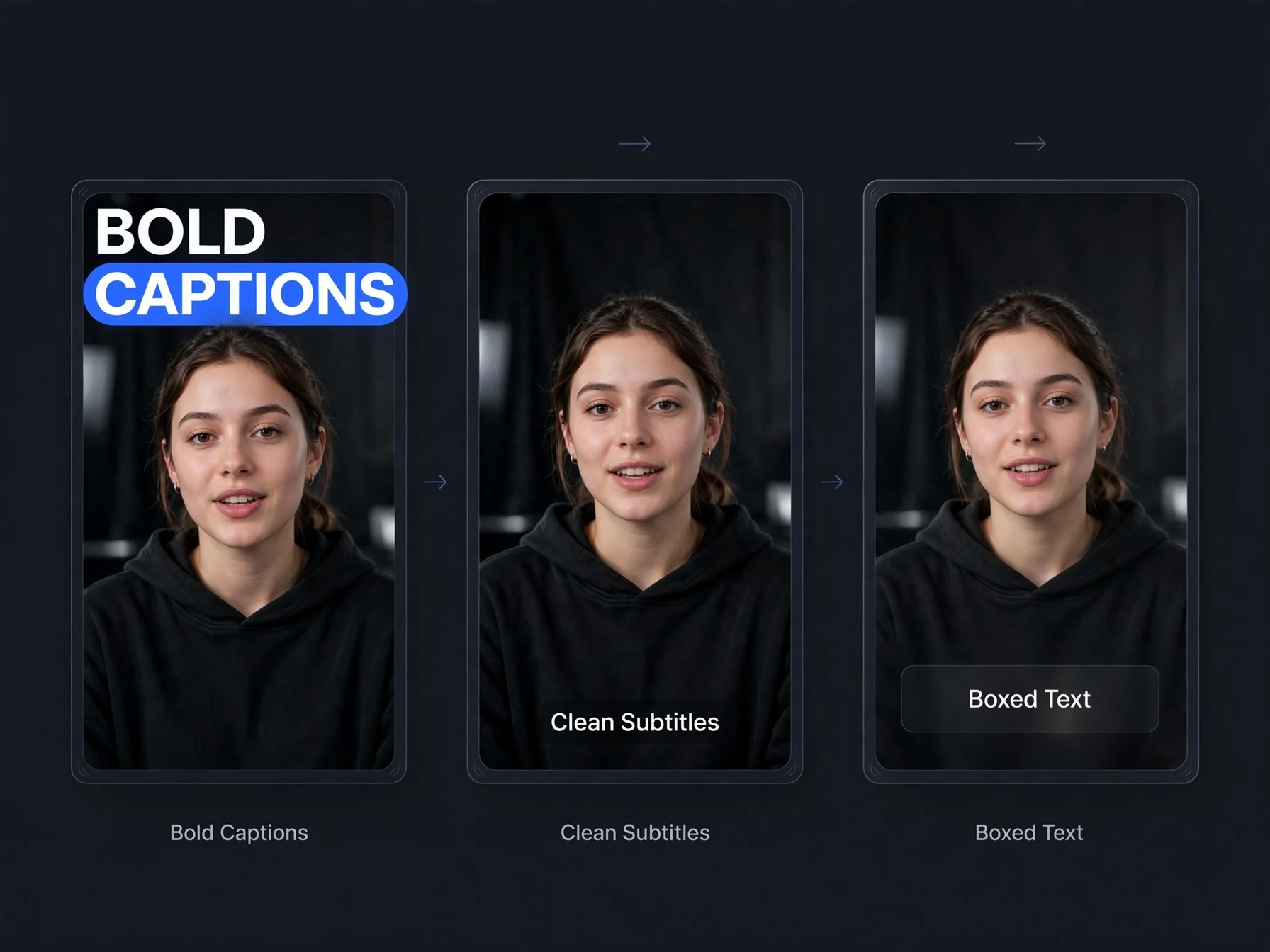
Pick a caption style: Bold, Clean, Boxed or Pop
Bold is the TikTok-style look: big uppercase words, three at a time, with the word being spoken highlighted in yellow. Clean is a classic subtitle line in white with a soft outline, good for interviews, tutorials and longer talks. Boxed puts the text on a dark rounded box so it stays readable on bright or busy footage. Pop shows one big word at a time with a quick scale-in, which suits fast, punchy edits. You can move any style to the bottom, middle or top of the frame so it doesn't cover faces or on-screen text.
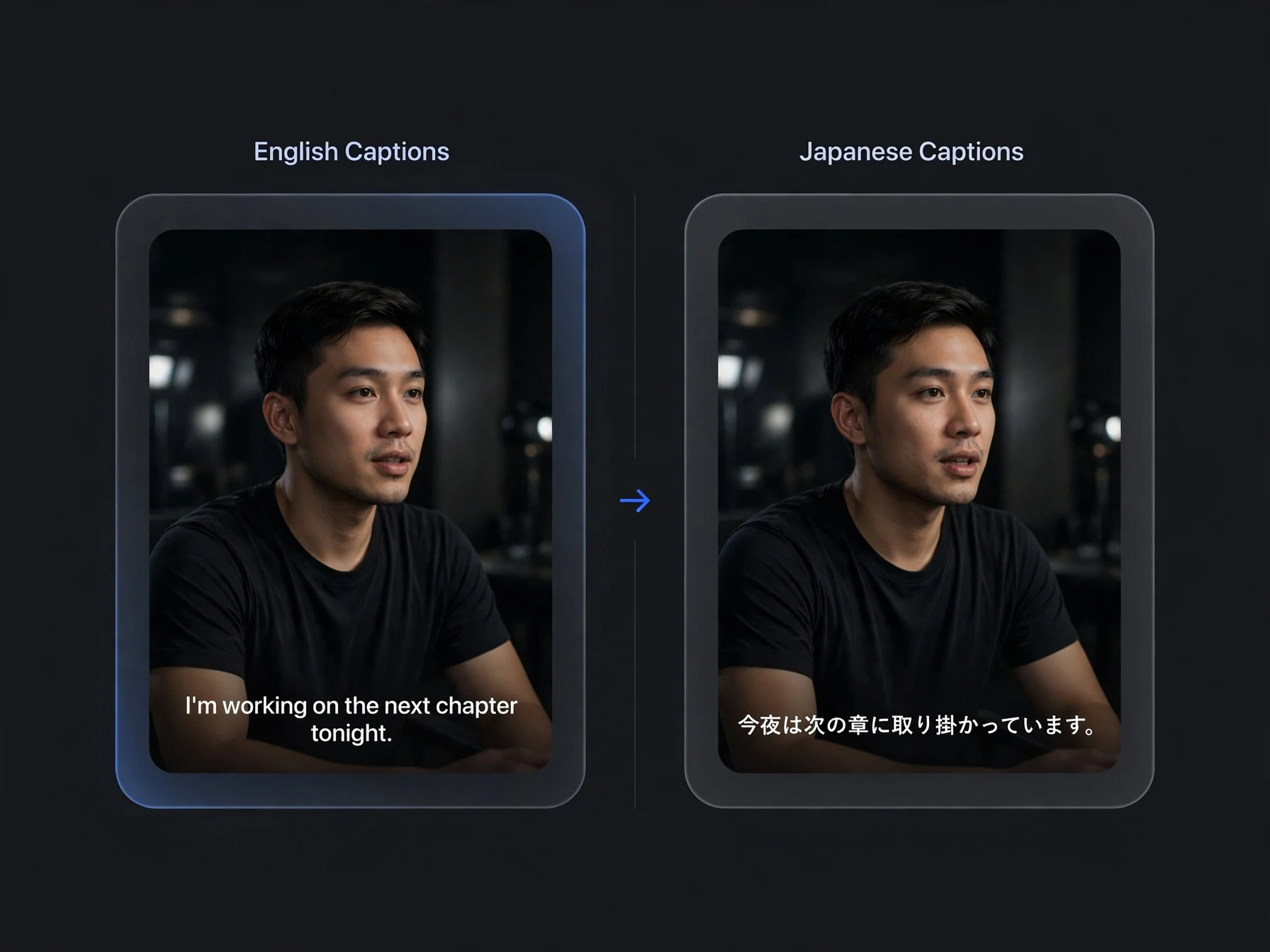
Translate captions into another language
Choose a caption language before you start and OnVid translates the subtitles while it writes them, so a video spoken in English can carry Spanish, Japanese or Arabic captions. 35 caption languages are supported, including scripts like Arabic, Hebrew, Hindi, Thai, Chinese, Japanese and Korean, drawn with fonts made for each. Translation adds 2 credits per second. If you want the voice itself in another language, with matching lip movement, use the AI video translator instead.
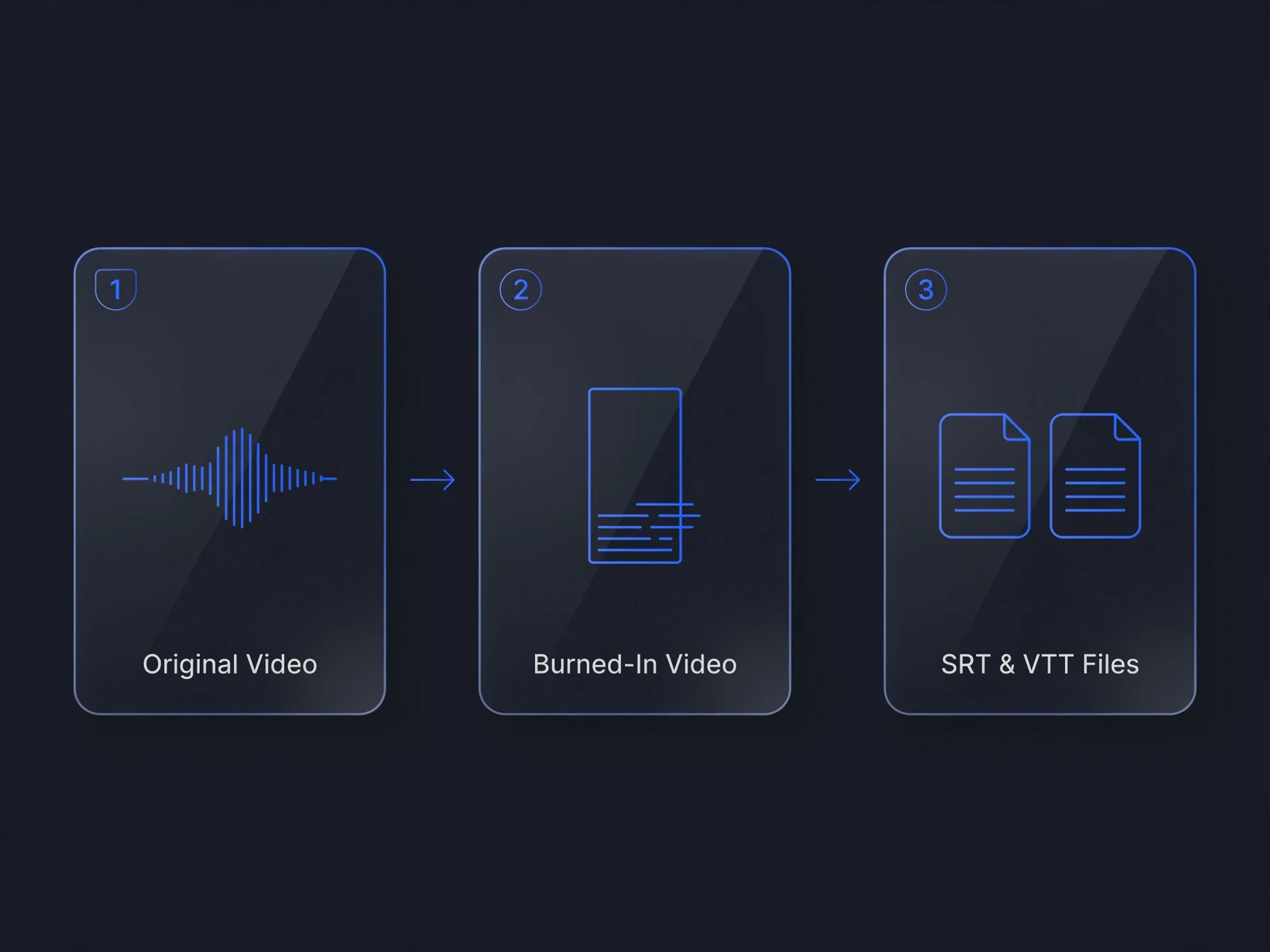
Burned-in captions vs SRT files
Burned-in captions (also called hardcoded or open captions) are drawn into the video pixels, so they show everywhere the video plays, including TikTok, Instagram and WhatsApp, and can't be turned off. An SRT or VTT file holds the same text and timings separately; YouTube, Vimeo, LinkedIn and most video editors let you upload it as closed captions that viewers can switch on or off. OnVid gives you both from one run: the captioned MP4 and the matching SRT and VTT files.
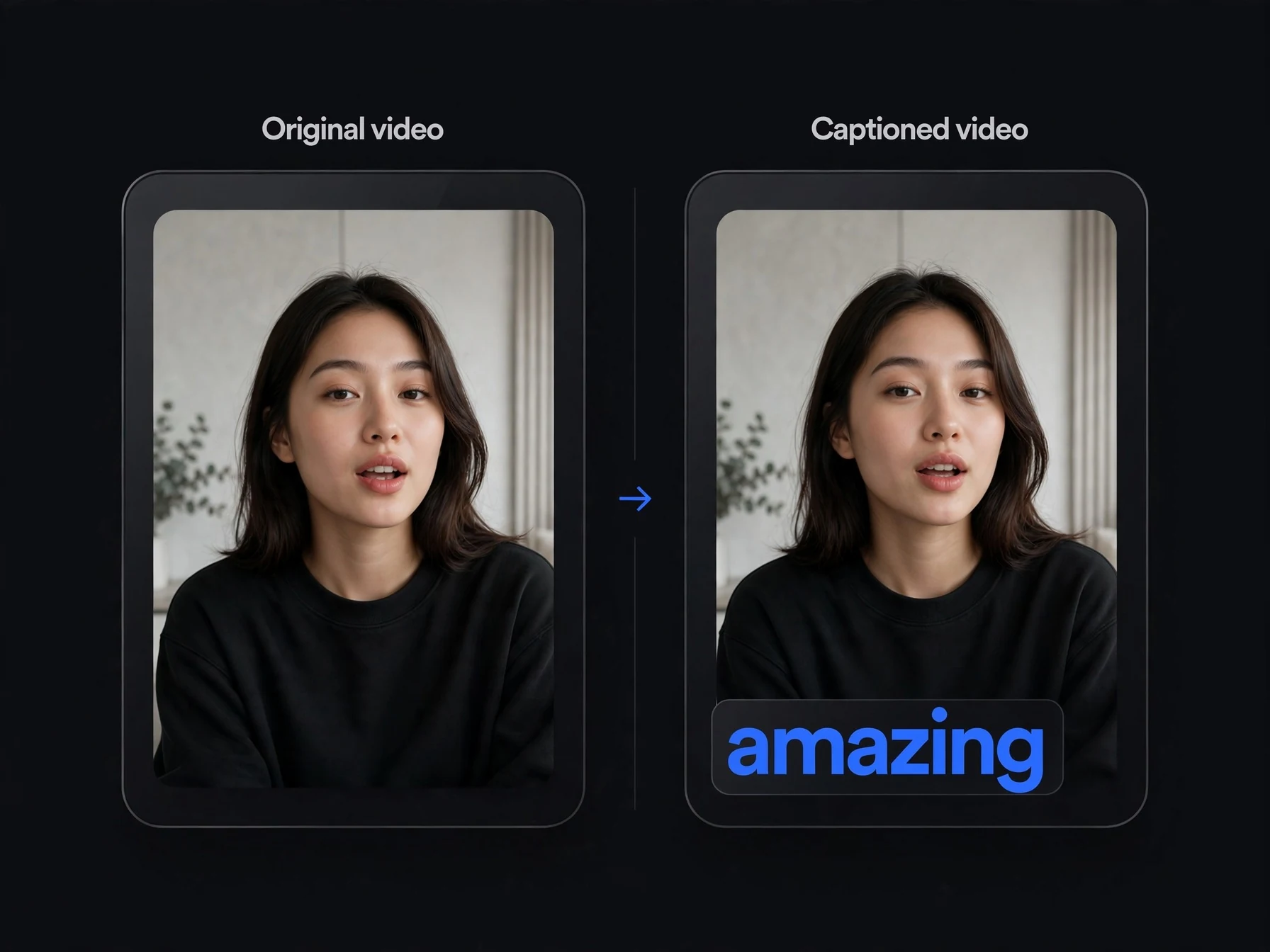
Captions for AI-generated videos
Talking avatars, AI ads and story videos made on OnVid can be captioned without downloading and re-uploading them: pick the video in the Captions tool and it is used directly. That makes it easy to add a bold, social-ready caption layer to a lip-synced avatar or a voiced-over AI ad before you post it.
Made with OnVid
Real clips generated from a single prompt — hover any card to play.
Seedance 2.0Kling 3Wan 2.7Hailuo 2.3Video captions, answered
Styles, languages, files and pricing.
How do I add captions to a video automatically?
Upload the video to OnVid's Captions tool and tap Get captions. The speech is transcribed and timed for you; check the words, pick a style and tap Add captions to get the captioned MP4.
Is the caption generator free?
Captions are part of OnVid's paid plans and use credits: 3 credits per second of video, or 5 per second when the captions are translated, with a 5-second minimum. A 30-second clip costs 90 credits. Getting and editing the transcript before you start is free.
Can I download an SRT file?
Yes. Every captioned video comes with SRT and VTT subtitle files that match the captions, ready for YouTube, Vimeo or a video editor.
How do I make TikTok-style captions?
Pick the Bold style. It shows big uppercase words a few at a time and highlights the word being spoken in yellow, the look used on most TikTok and Reels videos. Pop, with one big word at a time, is another option.
How do I add closed captions to a video?
Download the SRT or VTT file from OnVid and upload it as a subtitle or caption track on YouTube, Vimeo or LinkedIn. Viewers can then turn the captions on or off. The MP4 from OnVid has open captions, which are always visible.
Can I translate the captions?
Yes. Choose a caption language before you start and the subtitles are translated into it. 35 languages are supported. To translate the voice too, use the AI video translator.
Can I burn subtitles into a video?
Yes, that's what the MP4 is: the captions are hardcoded into the video, so they show on every app and player without a separate subtitle file.
Which languages can be captioned?
35 caption languages, including English, Spanish, Portuguese, French, German, Italian, Turkish, Arabic, Hebrew, Hindi, Thai, Chinese, Japanese and Korean. The spoken language is detected automatically.
How long can the video be?
Up to 2 minutes, in MP4 or MOV, and it needs to have speech in it. Longer videos need to be trimmed first.
Can I fix words the AI got wrong?
Yes. Before you add captions you see the full transcript with timings and can edit any line. The preview updates as you type.
What happens if captioning fails?
Your credits go back to your balance automatically.
Captions that keep people watching
Auto-generated, editable, styled and translated, with SRT and VTT files included.