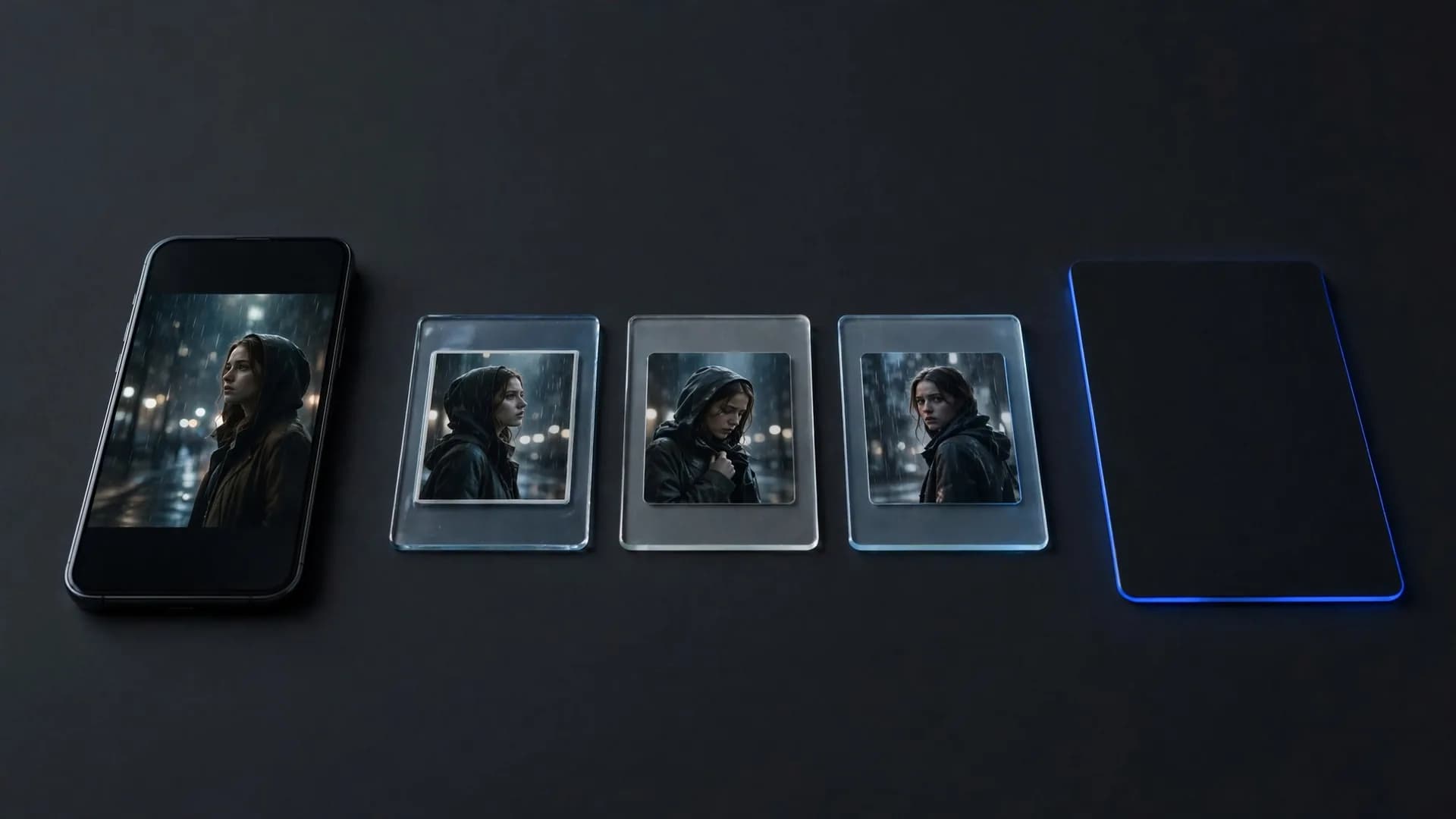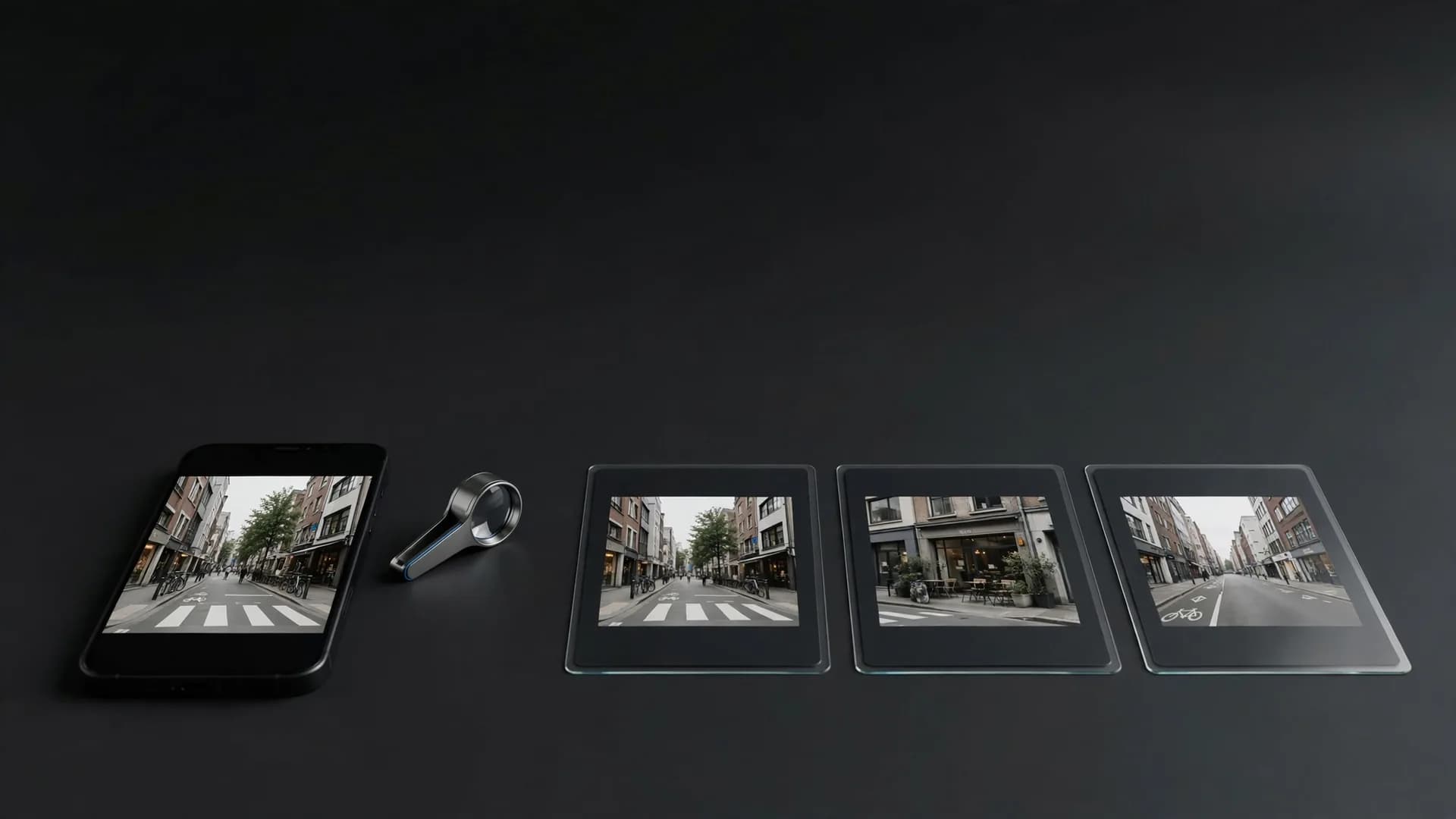

Why make a personalized video from Santa with modern AI?
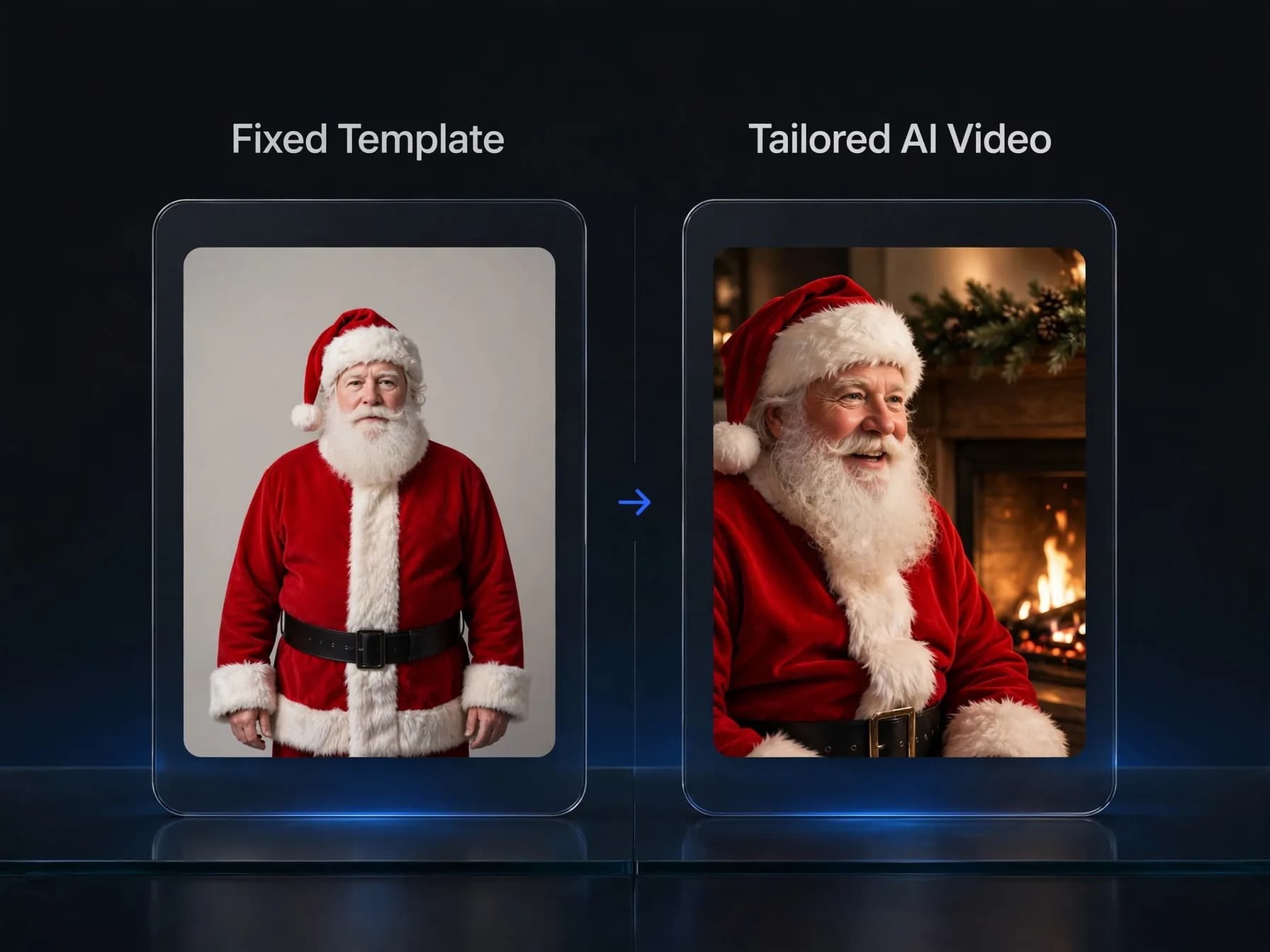
A personalized video from Santa creates a memorable holiday surprise by addressing children or family members by name, mentioning their accomplishments, and speaking directly to them. Traditional pre-recorded holiday greetings often feel generic because they rely on fixed templates and limited name banks. Modern generative tools now let you produce a custom video from Santa with specific details about your family traditions, holiday wish lists, and favorite activities on demand.
Modern generation platforms remove the need for physical costumes, rental actors, or complex video editing timelines. Using an AI avatar generator, you can take a custom holiday prompt or a portrait of Saint Nick and animate realistic facial expressions, authentic vocal cadence, and rich background scenes automatically. This flexibility allows parents and creators to deliver timely holiday cheer right before Christmas morning without spending hours in production.
Using OnVid's AI video generator, you can draft festive dialogue, pick visual styles, and produce clear, downloadable holiday clips. The entire workflow runs directly in your browser, giving you creative control over every spoken greeting. A tailored holiday message feels personal, engaging, and genuinely magical for anyone waiting on winter holiday surprises.
The ingredients for an authentic Santa AI video message
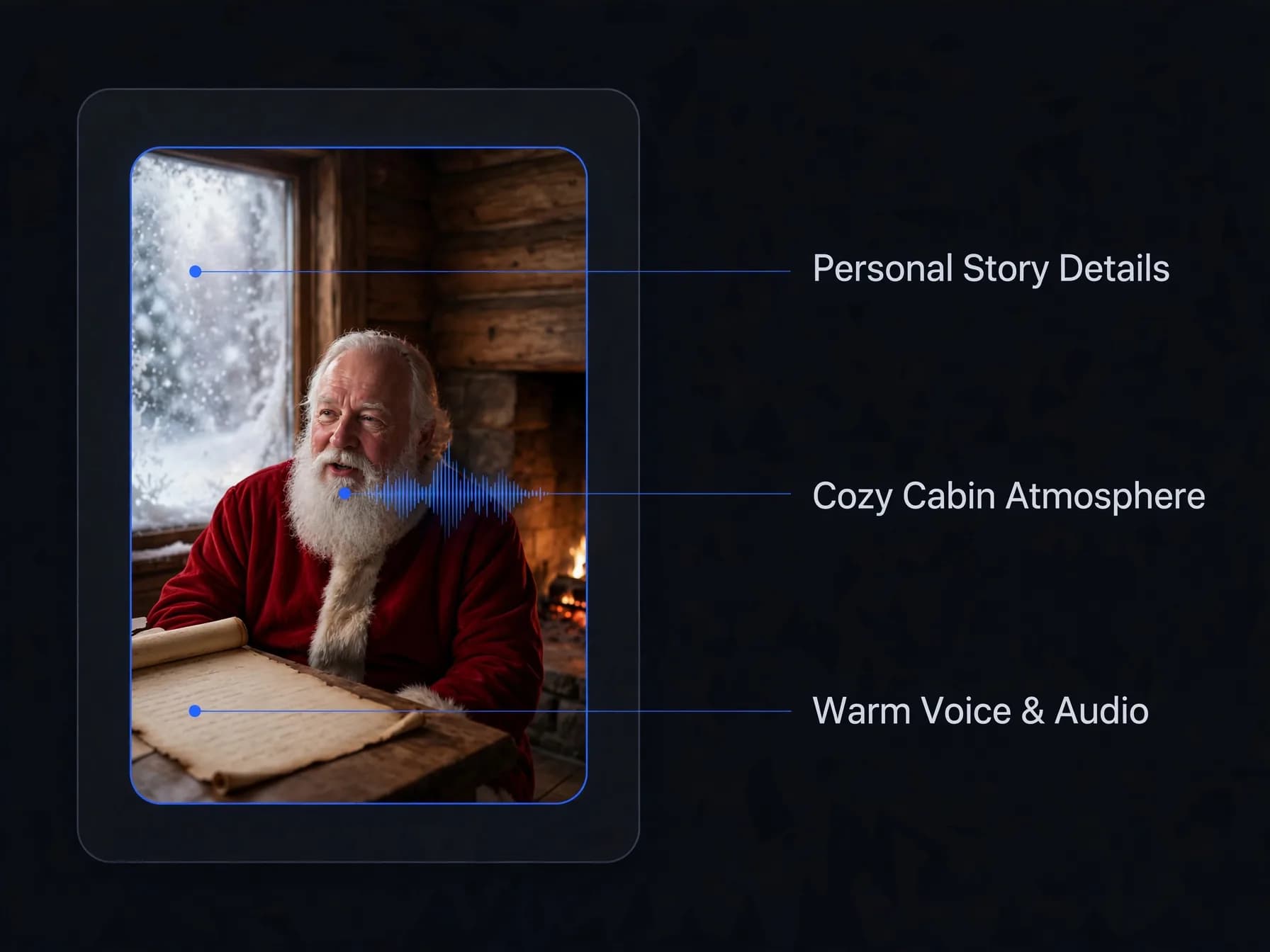
A believable Santa video message starts with genuine storytelling details rather than broad holiday statements. Include concrete highlights such as the recipient's hometown, a pet's name, a school achievement, or a kind deed performed during the year. These authentic touches make the finished holiday clip feel like Saint Nick truly knows what happened all winter.
Setting the visual atmosphere is equally important for holiday immersion. Visual prompts that describe a cozy log cabin, glowing fireplace, frosted timber windowpanes, and soft snow falling outside establish an inviting festive environment. High visual fidelity ensures the jolly character blends naturally with his Arctic surroundings instead of looking like an artificial cutout.
Audio delivery completes the illusion of Saint Nick talking directly to your loved ones. Pairing the scene with a deep, cheerful voice, gentle belly laughter, and faint background jingling turns a simple script into a festive memory. Precise AI lip sync ensures his mouth moves naturally with every spoken word. Once you establish these core elements, turning them into a polished holiday scene becomes straightforward.
How to make a personalized video from Santa in four steps
Creating your holiday greeting takes just a few practical steps from concept to final export. Just like learning how to make AI videos for everyday clips, crafting a Santa message is simple and fast.
Step 1: Write a tailored script that welcomes the viewer by name and mentions two or thr
Step 2: Choose your visual input by writing a descriptive scene prompt in text to video
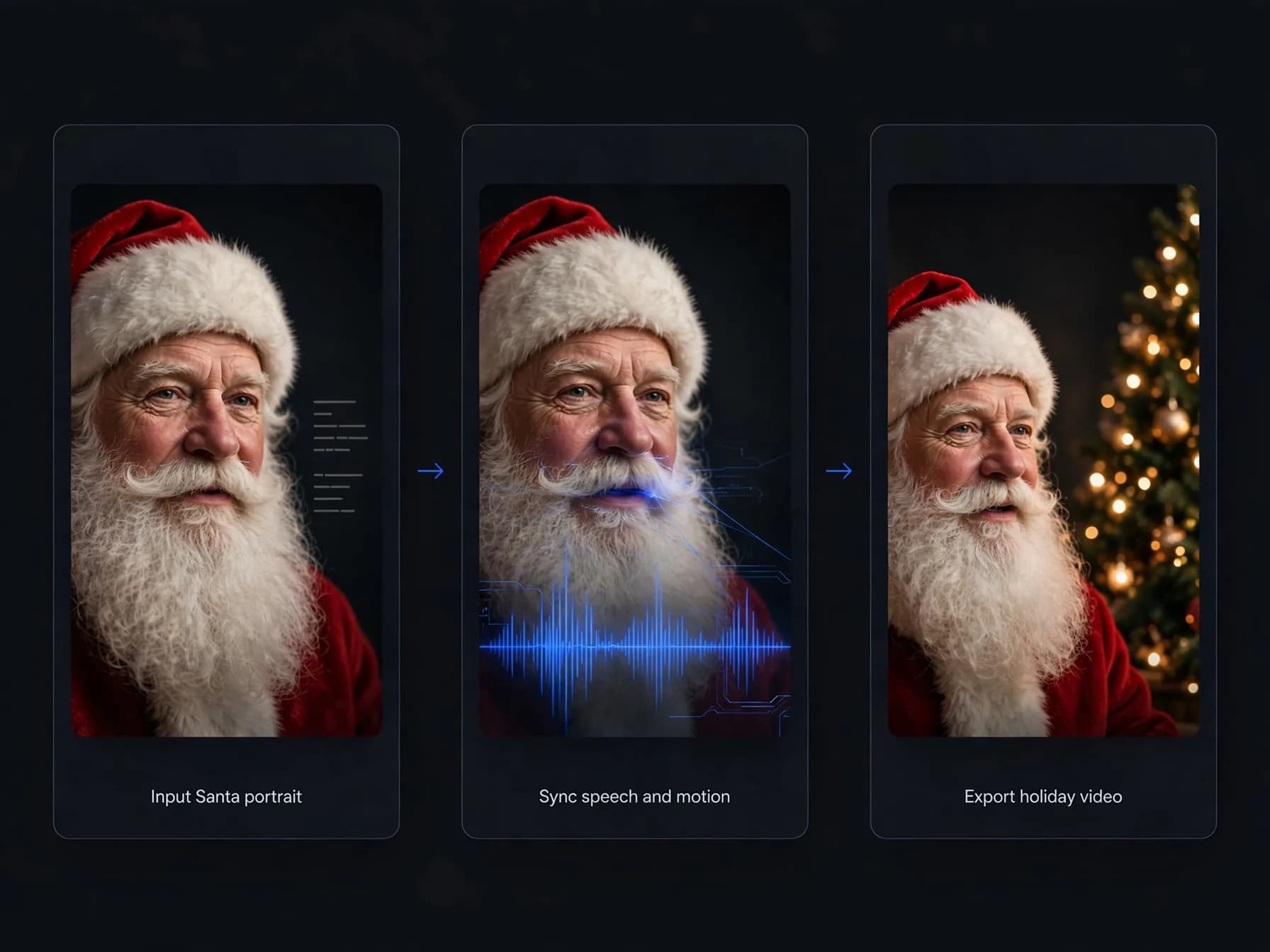
Step 3: Animate the portrait into a talking Santa video using an avatar model such as Om
Step 4: Preview the motion, ensure the speech sync matches the festive script, and downl
Writing prompts that deliver a believable AI Santa video
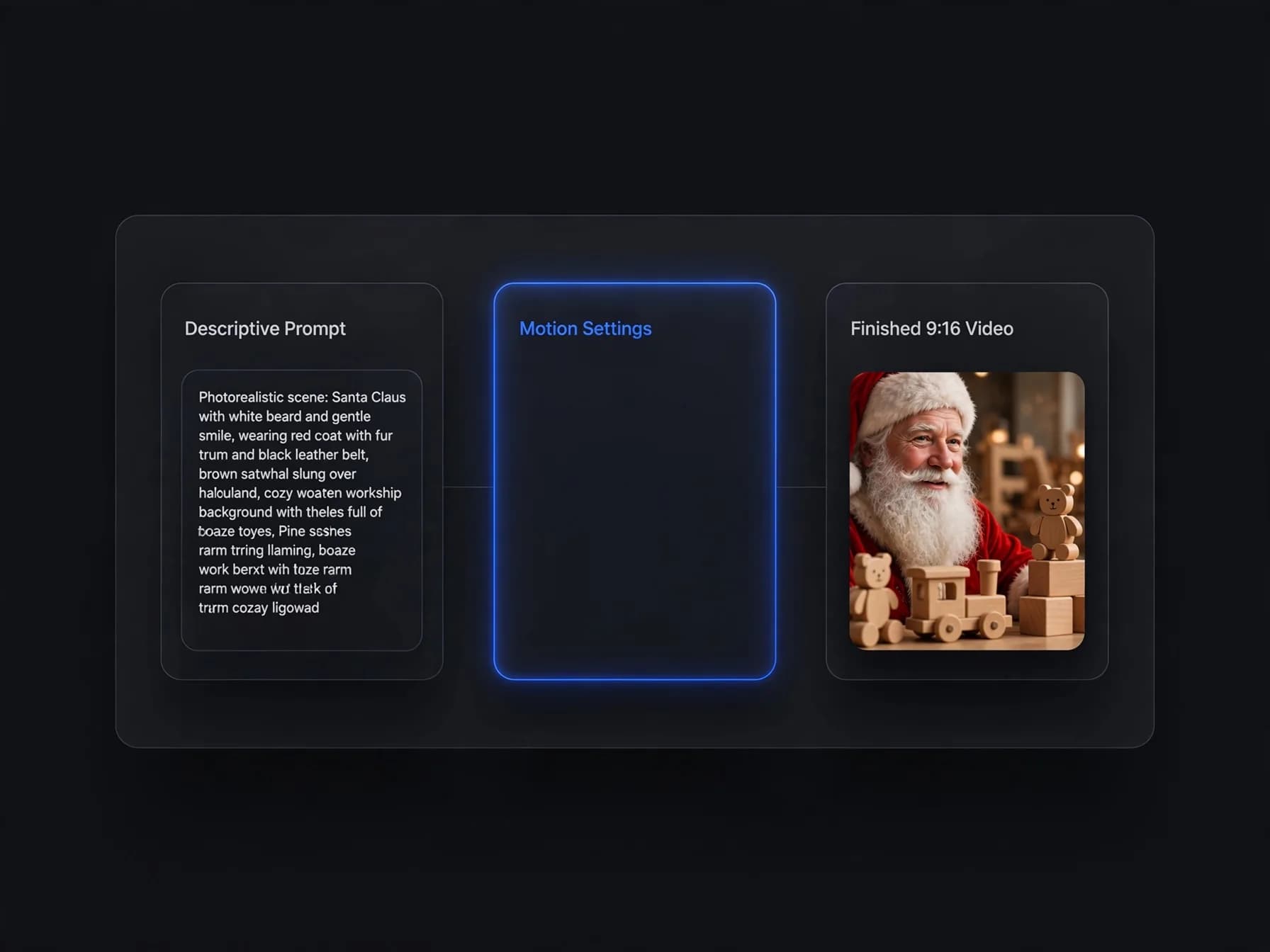
Generating an AI Santa video requires clear descriptive guidance rather than vague holiday instructions. Specify camera framing such as a medium close-up shot, along with soft portrait lighting and a shallow depth of field. Clear environmental cues, like hand-carved wooden toys on an oak workbench, prevent the background from appearing empty or generic.
Direct the motion explicitly in your prompt to capture natural character behavior. Request subtle actions like gentle chuckling, adjusting gold wire-rimmed spectacles, or a friendly nod toward the lens to make the holiday figure feel alive. Specifying slow, deliberate movements ensures the generated clip maintains smooth continuity across every frame.
Avoid overloading your prompt with contradictory visual styles or rapid camera shifts. If you want a classic folklore aesthetic, state that clearly instead of mixing animated cartoon styles with photorealistic textures. Clean, descriptive language helps the video generator render crisp fabrics, realistic beard strands, and steady facial animation.
Can you turn a family photo into a Santa AI video?
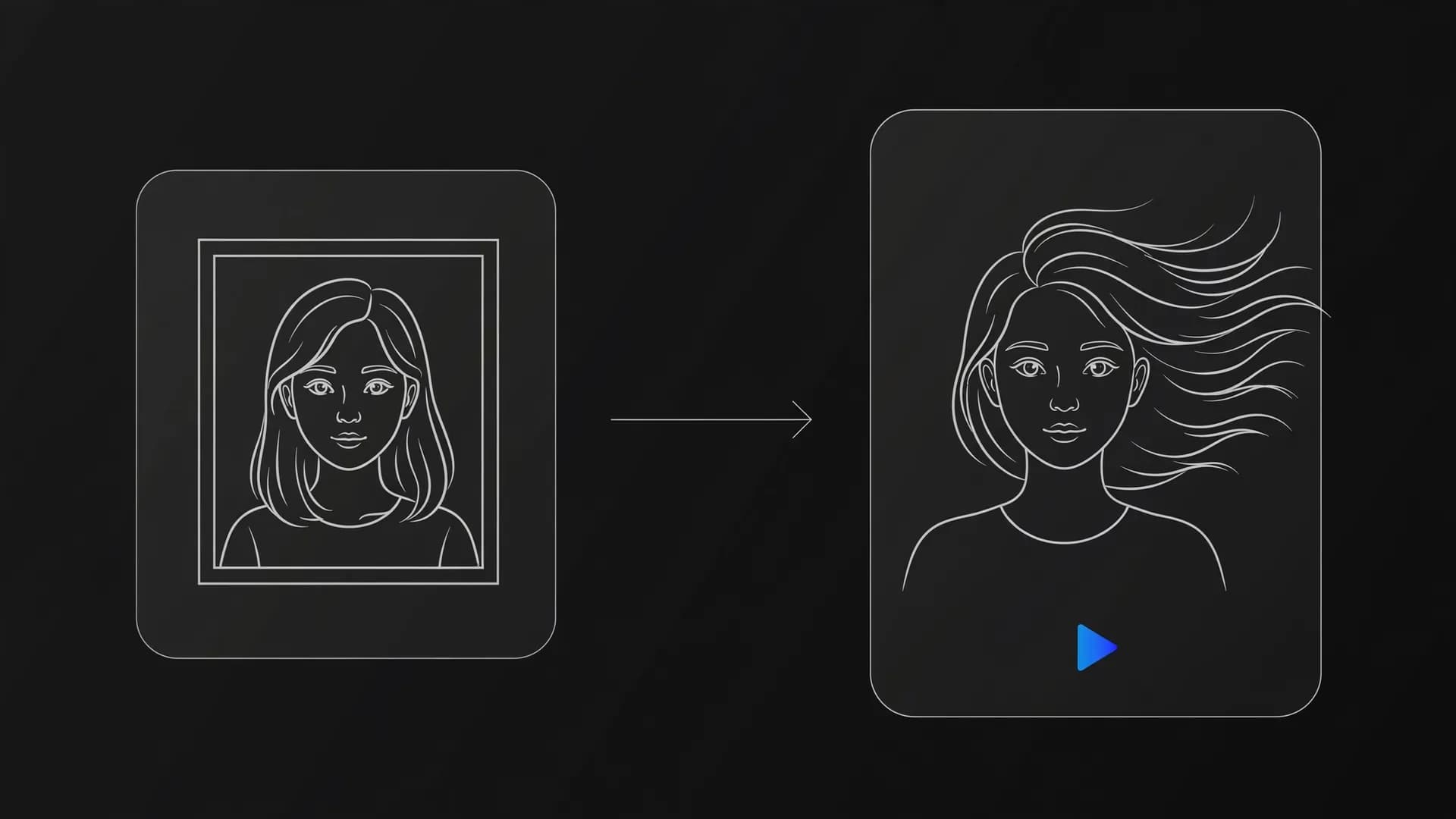
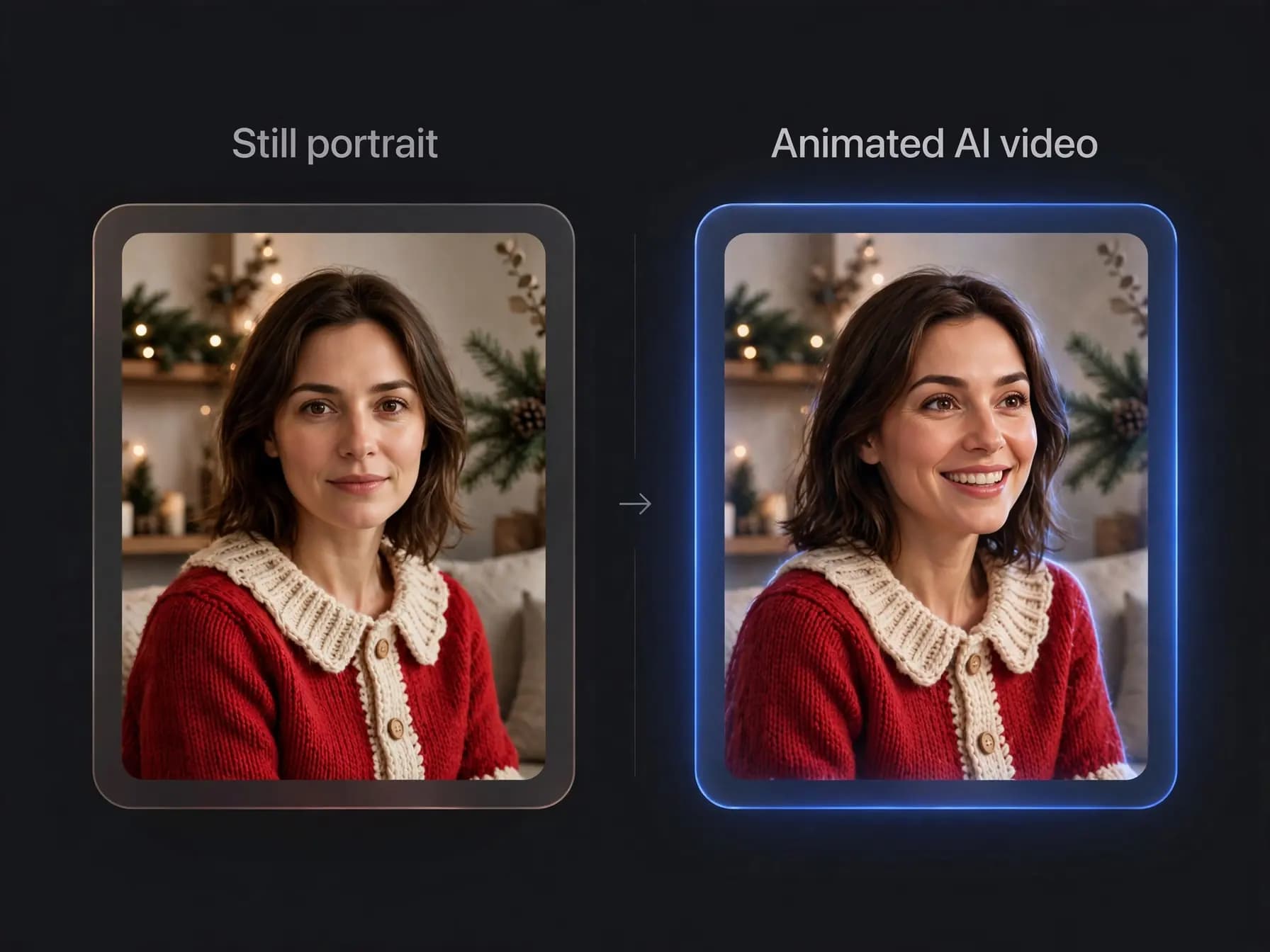
You can easily transform a stationary image into an active holiday memory using still portraits and prompt-guided motion. If you have an existing portrait of a family member dressed as Saint Nick, you can animate a photo into a dynamic scene using OnVid's image-to-video workflow. The platform analyzes your uploaded image and applies realistic head turns, smiling eyes, and gentle shoulder movements based on your motion description.
This technique is ideal for preserving handmade costumes, annual holiday traditions, or specific family keepsakes. Instead of starting from pure text generation, you keep the exact facial likeness and clothing from your original picture. Uploading a clean, forward-facing photo produces the most stable facial features when animating speech and expressions.
Creators who want to give Santa realistic spoken dialogue can explore the talking photo tool, which adds precise lip movements to still faces. Pairing that portrait with a pre-recorded voiceover produces a believable personalized Santa video that family members will treasure throughout the holidays.
What to avoid when creating your custom Santa AI video
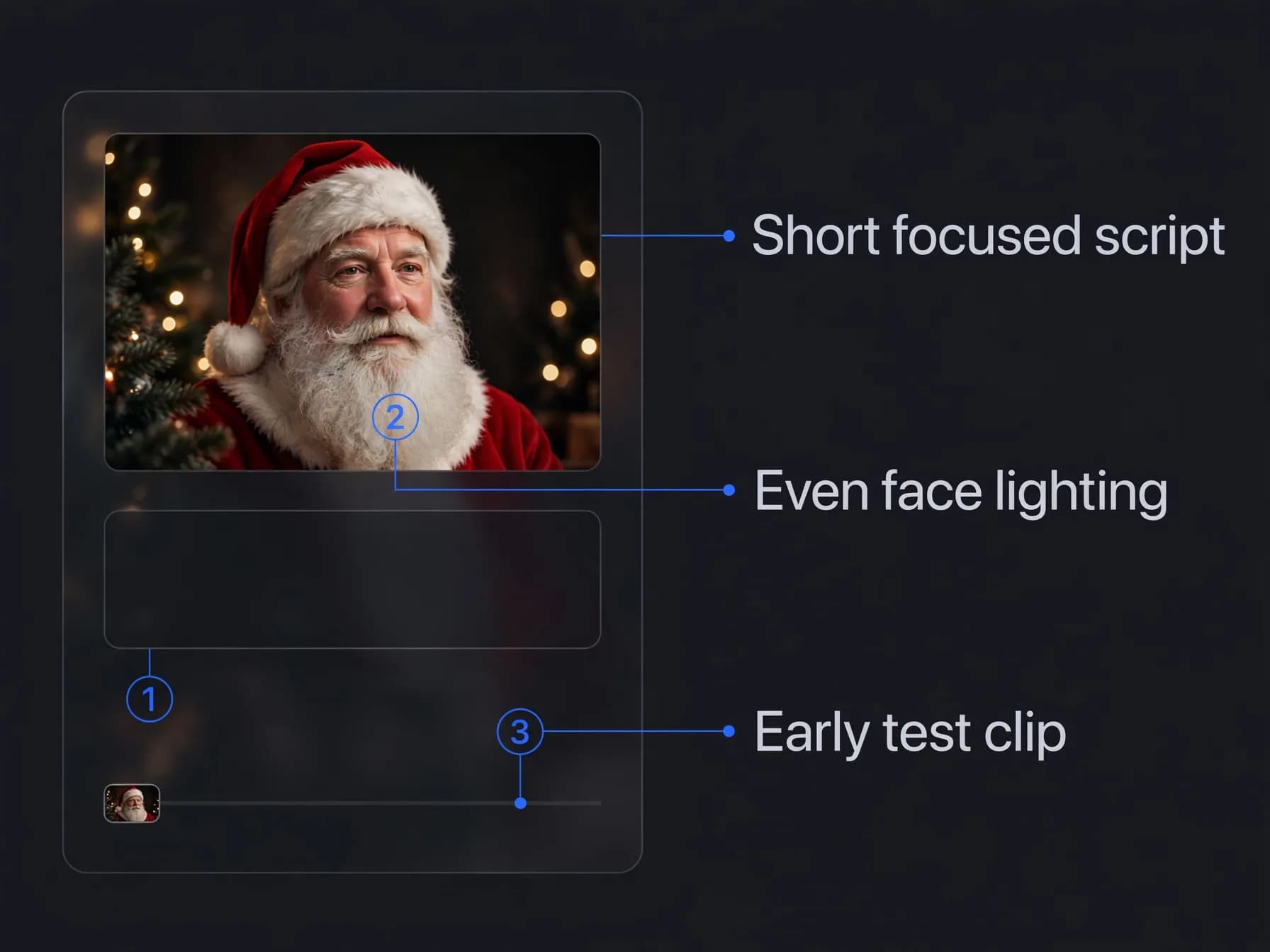
A common mistake when generating a custom video from Santa is writing a script that tries to cover too much information at once. Overly long scripts packed with dozens of names or complex stories often rush the pacing, causing speech synthesis to sound robotic and unnatural. Keeping the message centered on two key achievements ensures the vocal delivery remains warm, measured, and genuinely festive.
Another frequent issue involves using noisy, low-resolution source images for facial animation. Low-light photos or heavily filtered snapshots can cause digital distortion around the beard and mouth during motion generation. Choosing crisp, evenly lit reference pictures preserves clean facial anatomy and realistic textures across the entire clip.
Finally, avoid leaving your video generation to the last minute on Christmas Eve. Generating test clips early gives you time to fine-tune speech timing, adjust visual prompts, and download the finished high-definition clip without holiday rush. A little advance preparation ensures your custom holiday greeting is ready to surprise your family right on schedule.