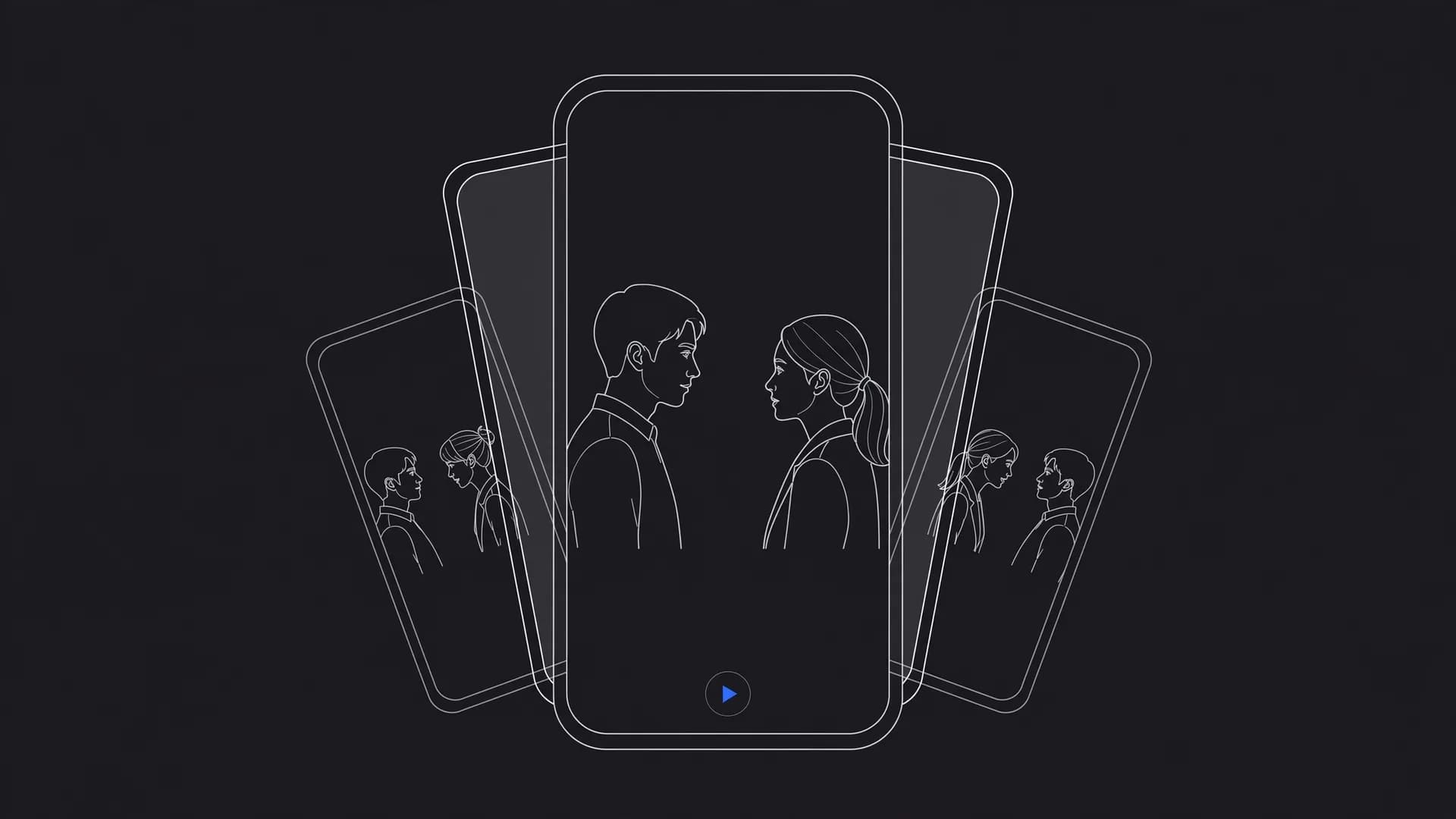
Learning how to animate a photo takes only a still image and a clear description of the movement you want to see. Modern image-to-video tools interpret depth and textures to turn static portraits, landscapes, and artwork into fluid clips in seconds.
Modern AI photo animation turns a single still capture into a moving scene in just a few seconds. Instead of slicing layers by hand in desktop editing software, neural networks study your photo and calculate natural motion paths. Anyone can learn how to animate a photo without technical training or camera rigs.
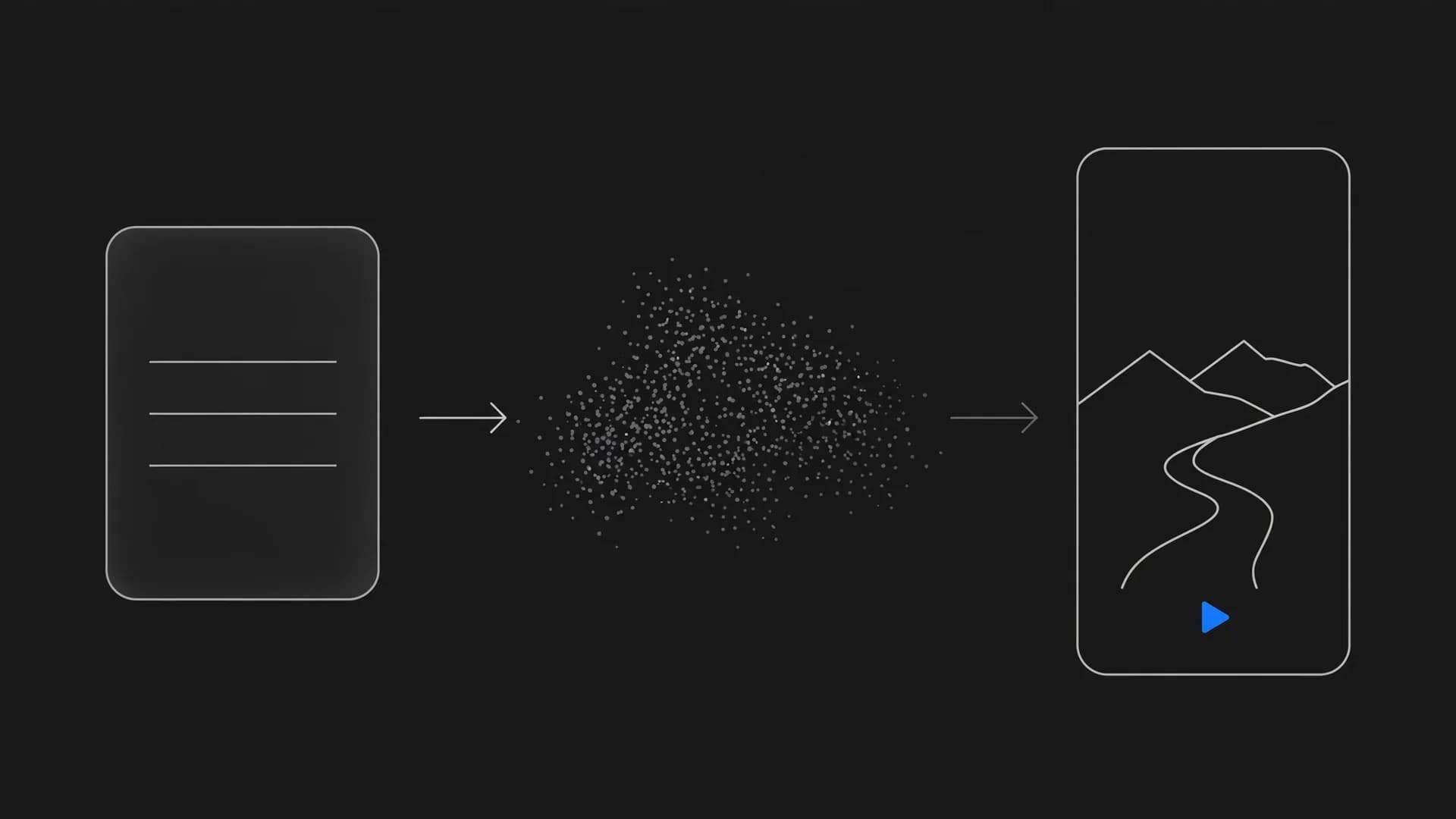
The process works by predicting what happens right after the shutter clicked. The algorithm identifies objects like water, hair, or clouds and fills in realistic movement between frames. This lets you make a photo move while keeping the core subject sharp.
You can turn portraits into living moments or add flowing atmosphere to travel landscapes. The final result is a short video file ready to share on social feeds or send directly to family.
How can I animate a photo using modern generative models?
You can animate photos through dedicated web platforms that transform still frames into fluid video clips. Many creators wonder how can I animate a photo without spending hours tweaking manual keyframes. Web tools now handle the complex rendering directly in your browser.
With OnVid's image to video tool, you simply upload a source photo and type a short description of the action you want to see. The generator analyzes your image structure and creates smooth motion based on your text prompt.
This method lets you turn photo into video files in standard formats like MP4. You get an animated clip that looks like it was captured with a physical camera track or handheld gimbal.
How to animate a photo step by step
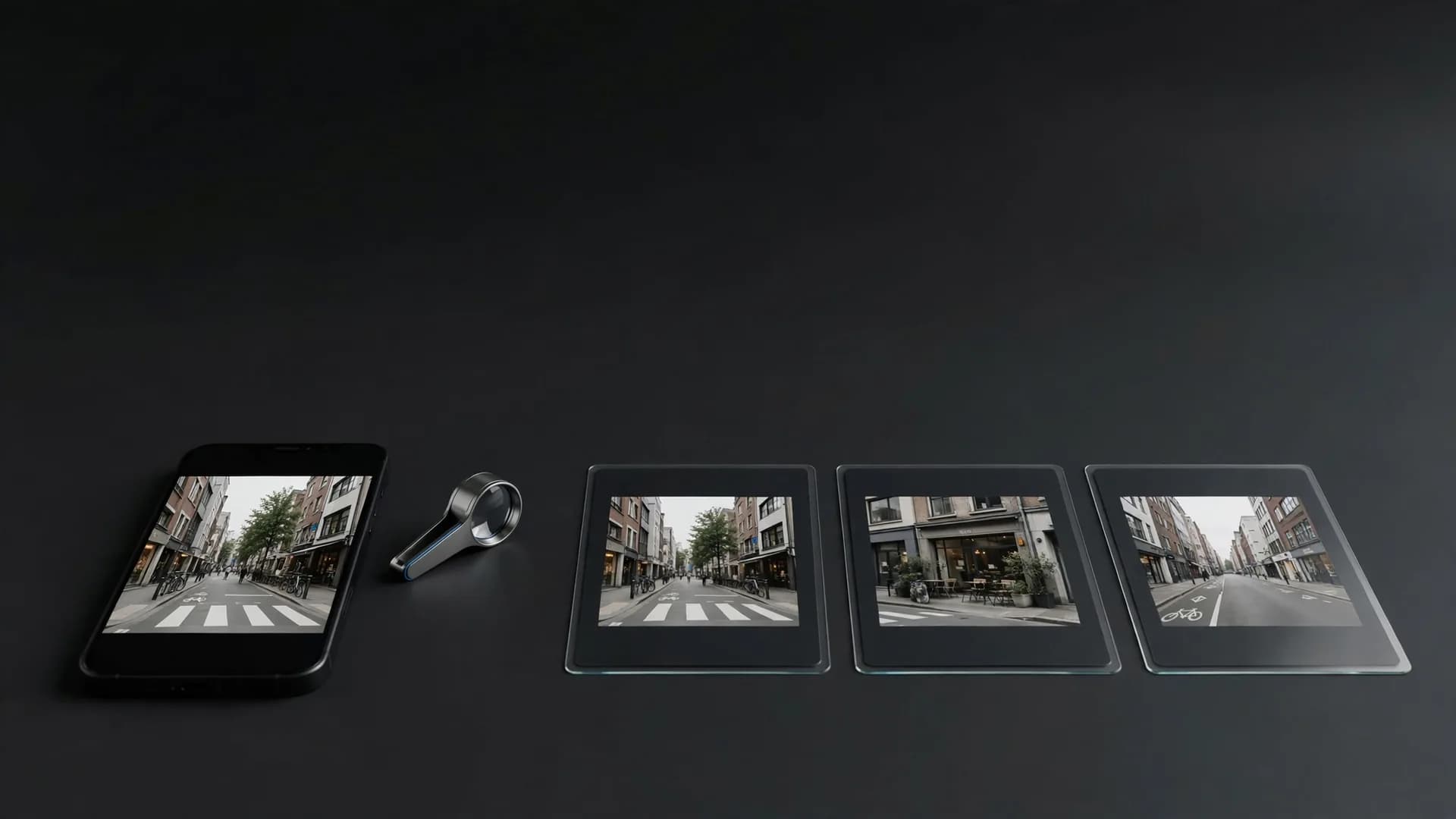
Step 1: Upload a sharp photo with clear subjects and balanced lighting into the generator
Crisp inputs give the AI clean edges to work with, making the finished motion look natural and steady.
Step 2: Write a descriptive motion prompt specifying the action you want to see
Describe camera angles, ambient wind, or gentle facial expressions so the model knows exactly how to animate the scene.
Step 3: Choose your clip duration and select generate to create your finished file
Once rendering finishes, you can preview the photo to video result and download it in high definition.
Three steps: upload a portrait photo, describe the motion, get a video of her hair moving in the breeze
Controlling camera movement and motion in AI videos
Whatever tool you use to animate a photo, focused text prompts give you the most predictable results. Describing camera movements like a slow push in or a panning shot tells the model how to adjust perspective.
Simple phrases work best when setting scene physics. Words like slow drift, fluttering fabric, or rushing water guide the background elements without distorting the primary subject.
Avoid contradictory directions such as asking a camera to zoom in while pulling back. Keeping your instructions direct helps the AI video generator produce clean, artifact-free motion.
The same beach photo with pan and zoom crop guides compared with AI-generated motion of palms and waves
Animating portraits versus landscapes in AI videos
Different subjects require distinct approaches when you animate a picture with AI tools. Portraits demand subtle facial expressions and natural blinking to avoid unnatural warping across the eyes or mouth.
Landscape shots offer more freedom for dynamic environmental effects. You can animate flowing rivers, drifting fog, or passing cloud formations to turn static vacation pictures into lively scenery.
If your goal is a talking character rather than atmospheric motion, an AI talking photo generator provides matched lip sync and natural head movements from an audio script.
Three vertical video examples made from photos: a portrait, a blue perfume bottle and a coastal wave
Common mistakes when creating an AI video from a picture
Low-resolution uploads are the most frequent cause of blurry or distorted motion. Starting with a clear, well-lit snapshot ensures the generator preserves facial features and fine textures throughout the animation.
Overcrowded prompts can also confuse the animation engine during generation. Stacking too many competing actions into one prompt often produces chaotic movement or unwanted object morphing.
Review your source image for heavy motion blur before submitting it. Clean still frames consistently produce higher quality AI videos that remain crisp across every frame.
The bottom line on animating photos
Learning how to animate a photo comes down to choosing clear source images and pairing them with specific motion prompts. Whether you add subtle environmental drift to a landscape or bring a portrait to life with natural expressions, modern image models handle the heavy lifting without manual timeline editing. Matching the right visual style to a focused camera direction ensures every still picture translates cleanly into a moving scene.
Common questions about how to animate a photo
Here are direct answers explaining how to animate a photo with AI tools, camera motion prompts, and practical export settings.
What is the basic workflow for how to animate a photo?
To animate a still photo, you upload an image file into an image-to-video tool and describe the motion you want to see. The underlying neural model detects subjects, backgrounds, and depth layers, then renders realistic movement across multiple sequential frames. Once the render finishes, you can preview the moving clip and download it as an MP4 or GIF.
Can you use photo to animation AI tools on a smartphone?
Photo to animation AI workflows run entirely in standard web browsers, meaning any modern smartphone can generate animated clips without installing heavy desktop software. You simply open the tool, select a picture from your camera roll, and enter a short motion prompt. After processing, the resulting video saves straight to your device.
Can you turn a picture into animation using prompt engineering?
Yes, prompt engineering gives you direct influence over camera direction, character actions, and atmospheric effects. Describing simple trajectories like slow zoom in, gentle breeze, or panning right prevents the AI from warping the subject. Clear lighting notes also help preserve texture and facial consistency throughout the clip.
How can I animate a photo on my iPhone?
You can animate a picture on an iPhone by using native Live Photo loop settings or by opening an online image-to-video generator in Safari. OnVid's AI video generator lets you upload any still image directly from your mobile camera roll to create high-definition moving videos. This workflow requires no specialized video editing experience.
What is the best way to animate a still photo with realistic movement?
To animate a still photo naturally, keep the requested movement subtle and grounded in natural physics. Specifying slight head turns, blinking, or gentle wind moving through hair creates smooth motion without distorting key facial features. Pushing for extreme 360-degree rotations in a single generation often causes visual artifacts.
How to make clouds moving in a photo without warping the ground?
Separating motion by naming specific elements in your text prompt prevents landscape backgrounds from distorting foreground objects. Instruct the model to apply a steady time-lapse drift strictly to the sky while keeping mountain ranges or buildings stationary. Modern diffusion models recognize horizon boundaries accurately to isolate background movement.
Can I animate a photo online with AI for free?
Many web platforms offer a few trial credits. On OnVid, creating an account is free, but animating a photo uses credits from a Pro or Max plan.
Pro supports clips up to 30 seconds and Max up to 60 seconds, so pick the plan that matches how long your animations need to run.
What models does OnVid's tool offer for image animation?
OnVid's AI video generator provides access to leading generative video engines including Seedance 2.0, Seedance 2.5, Veo 3.1, Kling 2.5 Turbo, and Hailuo 2.3 Fast. Higher-tier plans also unlock Kling 3.0 Pro and Sora 2 Pro for complex scene motions. Each engine offers distinct motion aesthetics, camera dynamics, and rendering speeds.
How to animate a simple picture into a speaking portrait?
Turning a static headshot into a speaking video requires an avatar model with specialized facial landmark tracking. Specialized tools like OmniHuman and Kling AI Avatar v2 synchronize lip shapes to recorded audio tracks or written scripts. You can explore this focused method on our AI talking photo generator page.
What video lengths can you produce when animating images?
Clip lengths typically range from 5 to 10 seconds for initial generations across standard models. On OnVid, Pro plans support videos up to 30 seconds, while Max plans enable long continuous generations up to 60 seconds. Longer videos allow for gradual camera sweeps and evolving multi-stage scene interactions.
Why do faces sometimes warp when learning how to animate a photo?
Facial warping happens when motion prompts conflict with the original camera perspective or request unnatural physical movement. Sticking to high-resolution, front-lit portraits helps the vision model track eyes, lips, and facial geometry accurately. Keeping movement prompts modest, such as soft smile or slight head tilt, prevents surreal distortion.
How do multi-image models improve animated scene transitions?
Multi-image models take two or more reference stills to interpolate coherent movement across varied camera angles or expressions. Engines like Seedance 2.5, Wan 3.0, and Kling O1 reference several visual states to maintain character identity throughout the sequence. This approach bridges the gap between static storyboarding and fluid cinematic production.
What export formats are available for animated photo projects?
Generators export finished animations as standard MP4 files compatible with video editors, social media networks, and mobile devices. If you need lightweight looping graphics, you can convert the resulting MP4 into a high-frame-rate GIF using common file utilities. Both formats preserve original frame dimensions and render fidelity.
Are generated video animations approved for commercial use?
Commercial use depends on the model that made the video; check the OnVid Terms of Service and the model's terms before commercial use. Certain foundational models permit commercial distribution on paid tiers, while others restrict output to personal use. Reviewing licensing documentation beforehand ensures compliance for client and marketing deliverables.
What is the difference between video-to-video and photo animation?
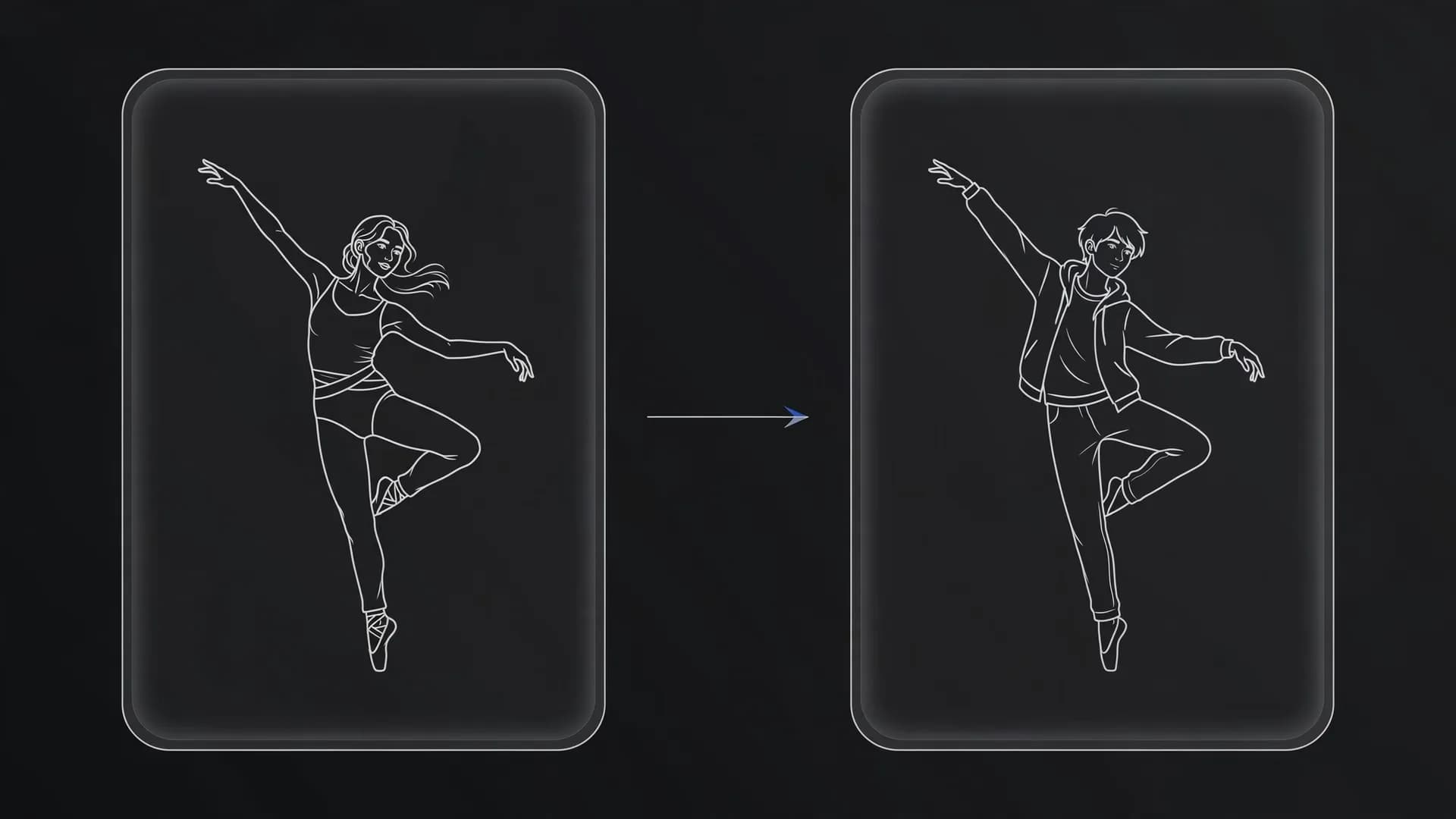
Photo animation generates new temporal motion from a single static image, while video-to-video restyles an existing video clip. If you already have reference footage of a person dancing or gesturing, video-to-video transfers that exact pacing onto your custom subject. For static creative assets, image-to-video remains the proper pathway.