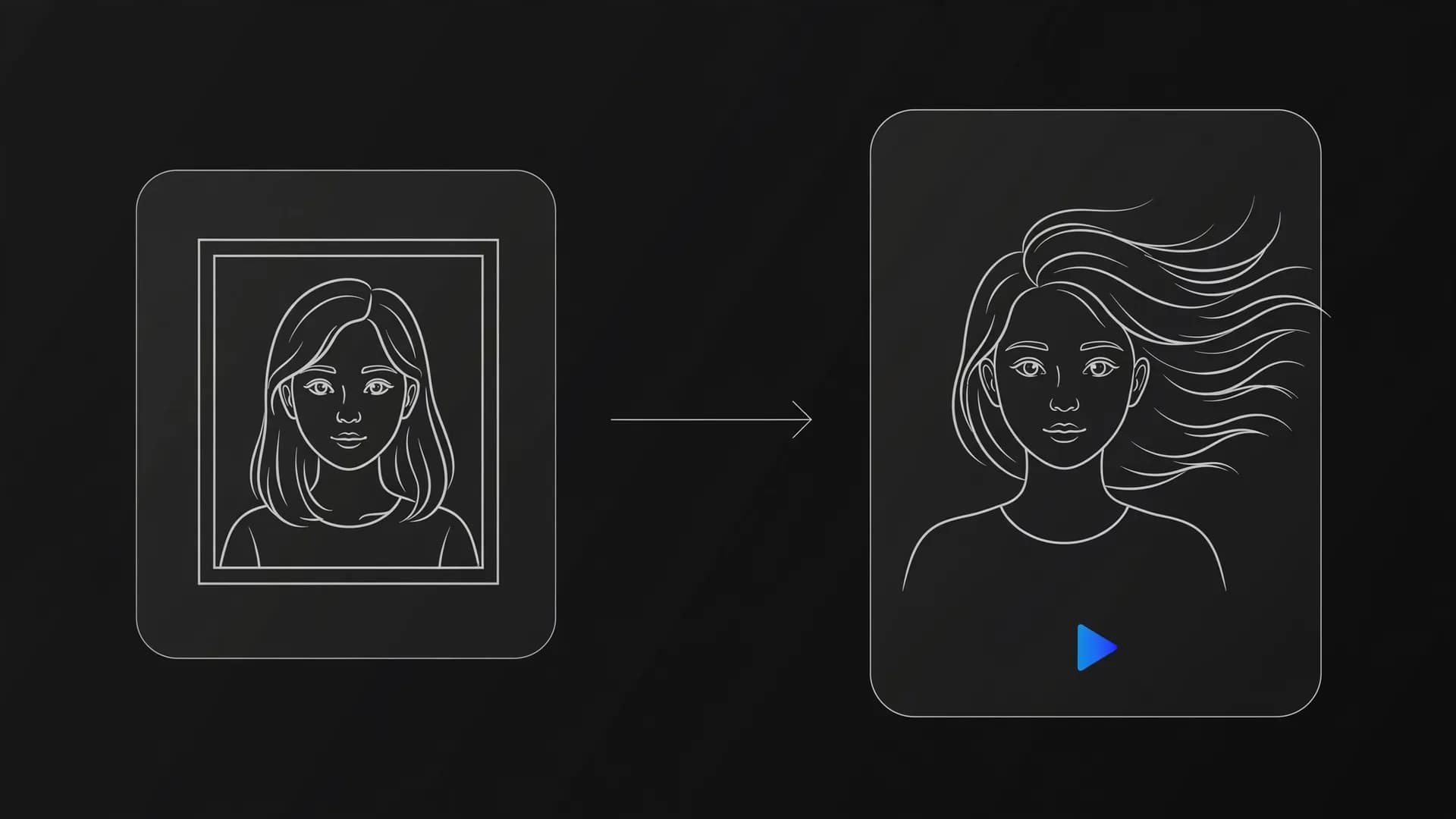
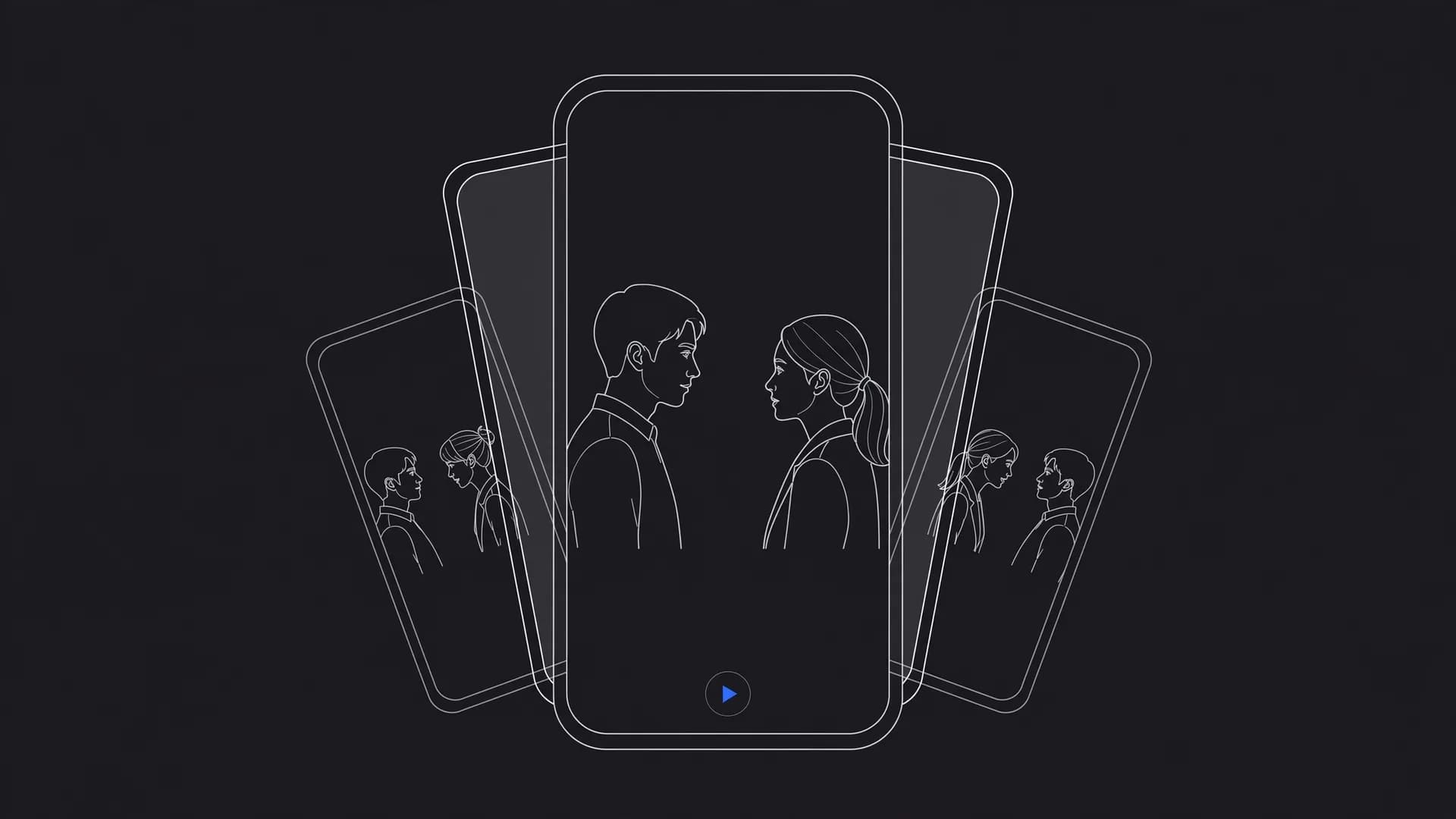
Kling motion control transfers exact movements from a reference clip onto a static character image to guide choreography and pacing. Pairing a clear motion source with a detailed character portrait lets you guide complex physical actions while keeping visual details stable across the entire video.
What is Kling motion control and how does it work?
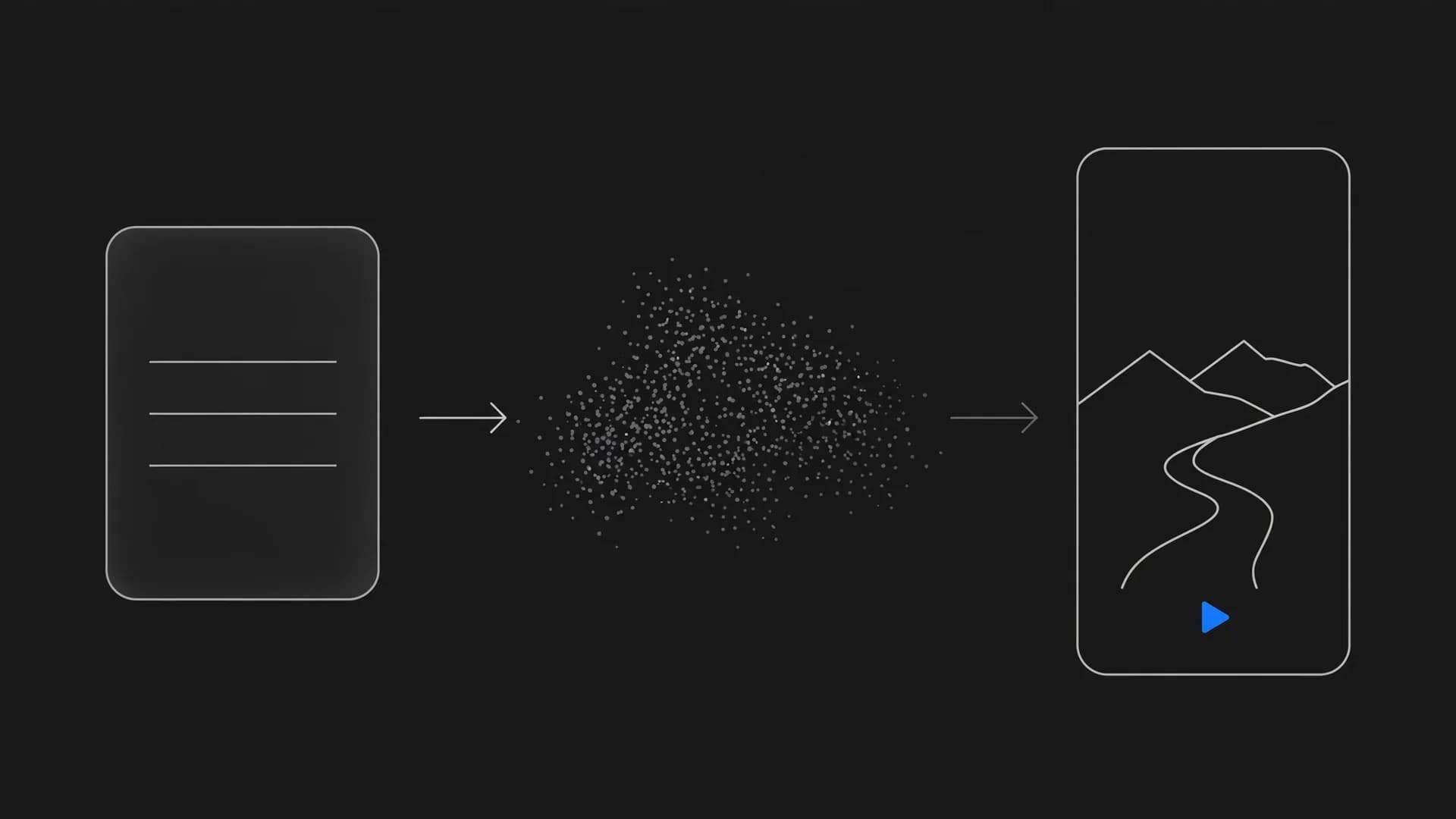
Kling motion control is a video generation feature that extracts movement, gesture pacing, and camera angles from a source clip and maps them directly onto a target character image. This technology lets creators preserve exact choreography without having to describe complex body physics in text prompts.
The system analyzes skeletal tracking and trajectory vectors across each frame of the driver footage. It acts as a dynamic Kling motion reference, transferring keyframes smoothly so the generated AI video mimics those exact bodily motions while maintaining facial structure and clothing consistency.
Users typically leverage this capability to turn static portraits into dancing performers, martial artists, or talking presenters. Understanding the balance between driver clarity and character orientation is essential for clean results.
Step-by-step workflow for Kling AI motion control
Setting up a project with Kling AI motion control requires matching your source footage carefully with your base character portrait. The process translates real-world choreography into synthetic media in three distinct stages.
Upload a clean character portrait with clear lighting and a neutral pose to establish identity boundaries.
Select your driving reference video under thirty seconds, making sure the subject performs clear actions against an uncluttered backdrop.
Write a focused text prompt specifying the scene setting and lighting while avoiding conflicting action verbs, then generate the AI video. The system synthesizes the movement track onto your character while rendering coherent physics.
Motion reference of a woman in a full-body pose next to a character image in the same pose and framing
Key updates in Kling 2.6 motion control
The release of Kling 2.6 motion control brought significant improvements to identity preservation and hand limb stability during intense physical motion. Earlier iterations often struggled with unnatural fingers or warped facial features when subjects turned rapidly.
Enhanced neural tracking in newer releases minimizes identity drift across extended camera rotations. The updated model preserves garment textures and facial geometry even when the source performer jumps, spins, or crouches.
Additionally, users notice tighter framing synchronization between vertical mobile recordings and horizontal widescreen outputs. This allows creators to map smartphone recordings onto cinematic aspect ratios without severe stretching artifacts.
Prompting techniques for AI motion transfer video
Achieving realistic results in AI motion transfer video requires splitting your prompt focus between the physical environment and character aesthetics. You should never instruct the character to run or dance in text when your driving clip already contains those actions.
Focus text prompts on visual tone, clothing fabrics, environmental lighting, and atmospheric details like fog or lens flare. Leaving kinetic guidance strictly to the reference clip prevents contradictory motion paths that distort limbs.
When planning specific perspectives, adjust Kling camera control settings rather than describing complex zooms in prose. Clear division between text styling and motion data ensures the cleanest possible render.
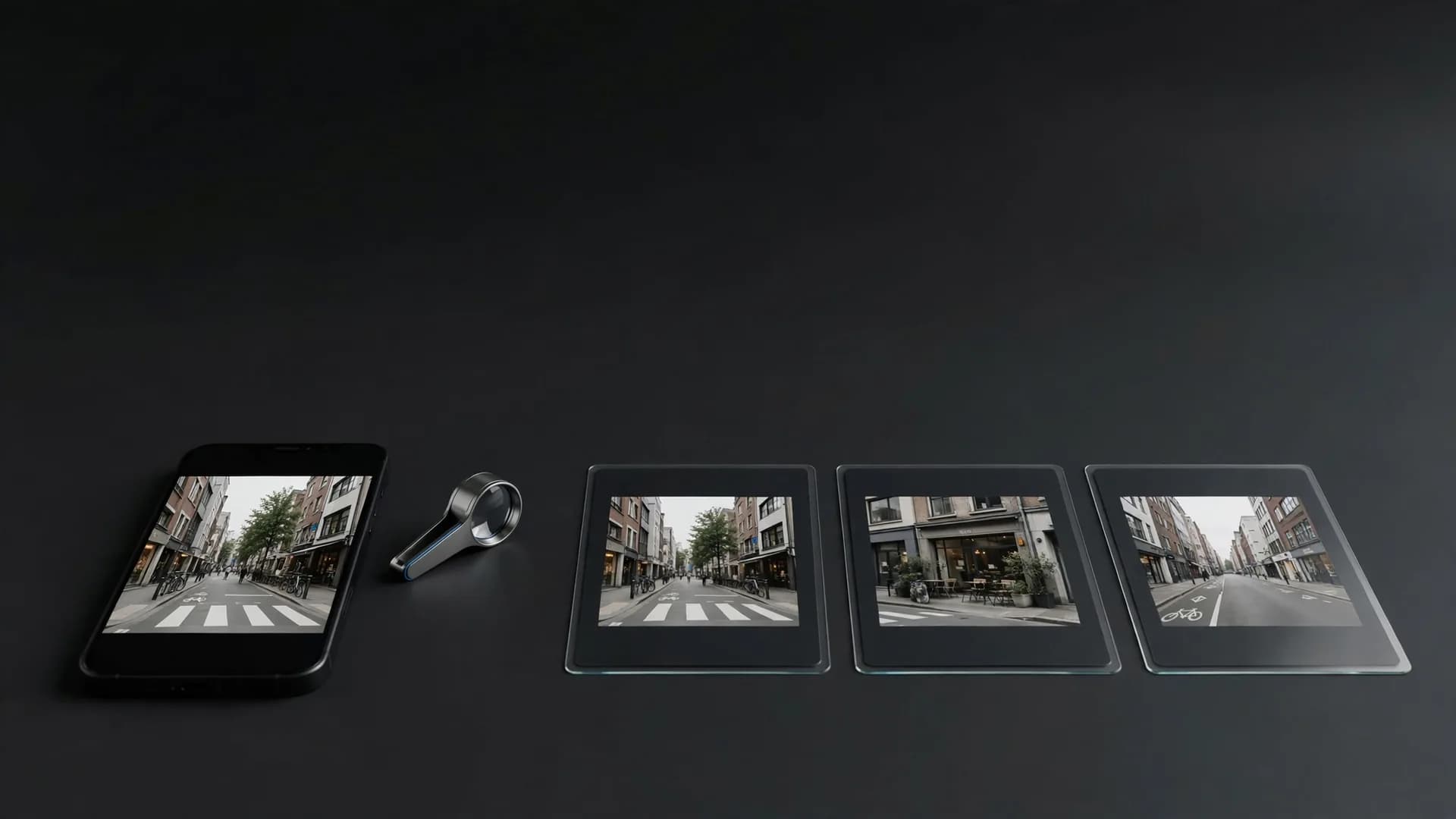
The same walking pose in three settings: daylight atrium, evening city terrace and soft haze interior
Common pitfalls that break physical realism
Most failed motion transfers stem from mismatched body proportions between the source actor and the target character. If your character photo shows a seated close-up portrait while your driving clip features a full-body sprint, the generation will distort.
Low-contrast reference clips also cause severe tracking loss around hands and feet. Ensure your motion actor wears clothing that contrasts clearly against the recording background to prevent phantom limb artifacts.
Rapid camera shakes in the driving video can confuse tracking algorithms and introduce background tearing. Using smooth, gimbal-stabilized reference clips yields stable results that keep the subject grounded in three-dimensional space.
How to create motion reference clips on OnVid
It is important to note that OnVid does not offer Kling motion control or Kling 2.6 motion control features, as those tools operate solely within Kling proprietary app and API. To copy a reference video with your own character on OnVid, use video-to-video instead.
With OnVid video-to-video tools on Pro and Max plans, you upload a reference video under thirty seconds along with reference photos to put a person or style into an existing video. Seedance 2.5 handles this transfer with native audio, while models like Wan 3.0 or MiniMax H3 Max can remix the scene.
This setup lets you replicate motion dynamics, camera pacing, and choreography without learning complex animation software. You can also animate still portraits using image-to-video models, while creators who need talking portrait clips can explore OnVid dedicated tools for AI talking photos.
Key takeaways on Kling motion control
Mastering Kling motion control comes down to pairing clean reference footage with clear, descriptive prompts that separate skeletal movement from visual styling.
When camera angles and character framing match between your input photo and reference clip, the resulting AI video preserves both identity and natural physics. Testing short clips first lets you refine motion intensity before committing credits to longer sequences.
Frequently asked questions about Kling motion control
Find straightforward answers to technical details, credit limits, and creative workflows when exploring Kling motion control to guide your next AI video.
What is Kling motion control and how does it work?
Kling motion control is a video generation feature that maps the movement, pacing, and posture from an uploaded reference video directly onto a source character image. The underlying model separates the skeletal motion of the driver video from the visual identity of your target image, transferring gestures while preserving facial features and styling. Using Kling motion control allows creators to direct specific choreography, walks, and physical actions without relying entirely on descriptive text prompts.
Where can you find a reliable Kling motion control tutorial?
A good Kling motion control tutorial starts inside the official Kling AI interface under the motion control tab. You begin by uploading a clear character portrait alongside a driving video that contains distinct, well-lit human movement. Following structured tutorials ensures you configure orientation settings, preserve aspect ratios, and prevent character distortion before generating your final clip.
How should you format a Kling motion control prompt for natural movement?
When writing a Kling motion control prompt, describe the character appearance, ambient lighting, and camera angle rather than restating the physical movements already shown in your driving video. Focus on texture details such as clothing fabric, environment reflections, and hair physics so the prompt complements the motion reference. Over-specifying body gestures in text can conflict with the driving clip and cause motion artifacts.
Does Kling AI allow users to test motion features without paying?
Kling offers a free tier powered by daily login credits that reset every day at midnight. Free generations export at 1080p resolution and include a visible platform watermark. Paid membership tiers like Standard, Pro, Premier, and Ultra provide monthly credits that unlock watermark-free downloads and 4K output options.
Can you use Kling 2.6 motion control on mobile devices?
You can access Kling 2.6 motion control through supported mobile web browsers as well as Kling's mobile interface. Performance depends on having a steady connection to upload reference clips and source images cleanly. For best results, trim your driving video to under thirty seconds before uploading it from a smartphone camera roll.
What is the difference between Kling AI motion control and standard image-to-video?
Standard image-to-video animates a still picture using only text prompts and predictive physics, which often results in unpredictable camera pans or posture shifts. By contrast, Kling AI motion control binds the animation to an exact reference video, forcing the character to copy specific choreography. Creators using a flexible AI video generator rely on motion guidance whenever an unguided prompt cannot reproduce exact timing.
Does Kling 3.0 motion control support multi-shot video generation?
Kling Video 3.0 supports multi-shot story generation and up to 15-second outputs across its primary generation modes. When using motion transfer, however, generations remain anchored to the continuous movement of your primary driving reference. If you require multiple camera angles, you can generate consecutive shots with matched character references and cut them together in post-production.
How does a tool handle motion transfer compared to Kling?
A modern AI video generator uses pose estimation networks to track joint positions and facial landmarks across reference frames. Some platforms run proprietary motion modules, while others employ video-to-video pipelines with character reference images. Both methods aim to keep the character identity stable while following the mechanical trajectory of the source video.
Can you transfer complex dance movements using AI motion transfer video workflows?
Complex dances work best when the driver video features a full-body view, high contrast between dancer and background, and minimal motion blur. Fast limb crossovers and rapid spins can occasionally cause visual tearing or limb blending in an AI motion transfer video clip. Keeping the subject centered and choosing a driving clip with clean lighting yields the most realistic choreography transfer.
How does motion control AI video handle hand and finger stability?
Fine motor tasks such as finger tapping, holding props, or playing musical instruments remain challenging for any motion control AI video model. Small joints can warp if the source resolution is low or if the hands pass behind objects in the reference video. You can improve hand fidelity by using reference clips with clear close-ups and stable, well-lit finger positions.
Can you run Kling motion control directly inside OnVid?
OnVid does not offer Kling's proprietary Motion Control feature, which runs only in Kling's own app and API. For copying a reference video with your own character on OnVid, use video-to-video instead.
What video resolutions and aspect ratios work best for motion-guided clips?
Matching the aspect ratio of your reference video to your character image is crucial for preventing stretched proportions or unwanted cropping. Kling outputs 1080p on its free tier, while paid plans unlock 4K exports for sharper texture details. Common formats include 16:9 widescreen for cinematic scenes and 9:16 vertical video for mobile social feeds.
How do credit refunds work if a motion generation fails?
Kling automatically refunds credits for generations that fail due to server timeouts or internal processing errors. Free daily credits reset every night at midnight and do not accumulate, whereas membership credits remain valid for one month from distribution. Purchased top-up credits stay active in your account for up to two years.
Can you add synchronized lip sync to a motion-guided character clip?
Motion transfer pipelines prioritize full-body movement and head orientation rather than precise phonetic lip movement. To produce speaking dialogue, creators usually run the generated video through a dedicated avatar model such as OmniHuman or Kling AI Avatar v2. Combining full-body movement clips with specialized audio-driven lip sync creates natural dialogue scenes.
Are motion-controlled AI videos permitted for commercial use?
Commercial use depends on the model that made the video; check the OnVid Terms of Service and the model's terms before commercial use.
How does directed camera movement differ from character motion control?
Directed camera movement controls the virtual lens, dictating zooms, horizontal pans, tilts, and tracking paths through a 3D scene. Character motion control dictates the physical body mechanics and skeletal movements of the person inside the frame. Combining smooth camera paths with steady character movement creates the most natural cinematic compositions.
OnVid's video-to-video takes a reference clip under 30 seconds plus your photos and remakes it with models like Seedance 2.5, Wan 3.0 and MiniMax H3 Max.