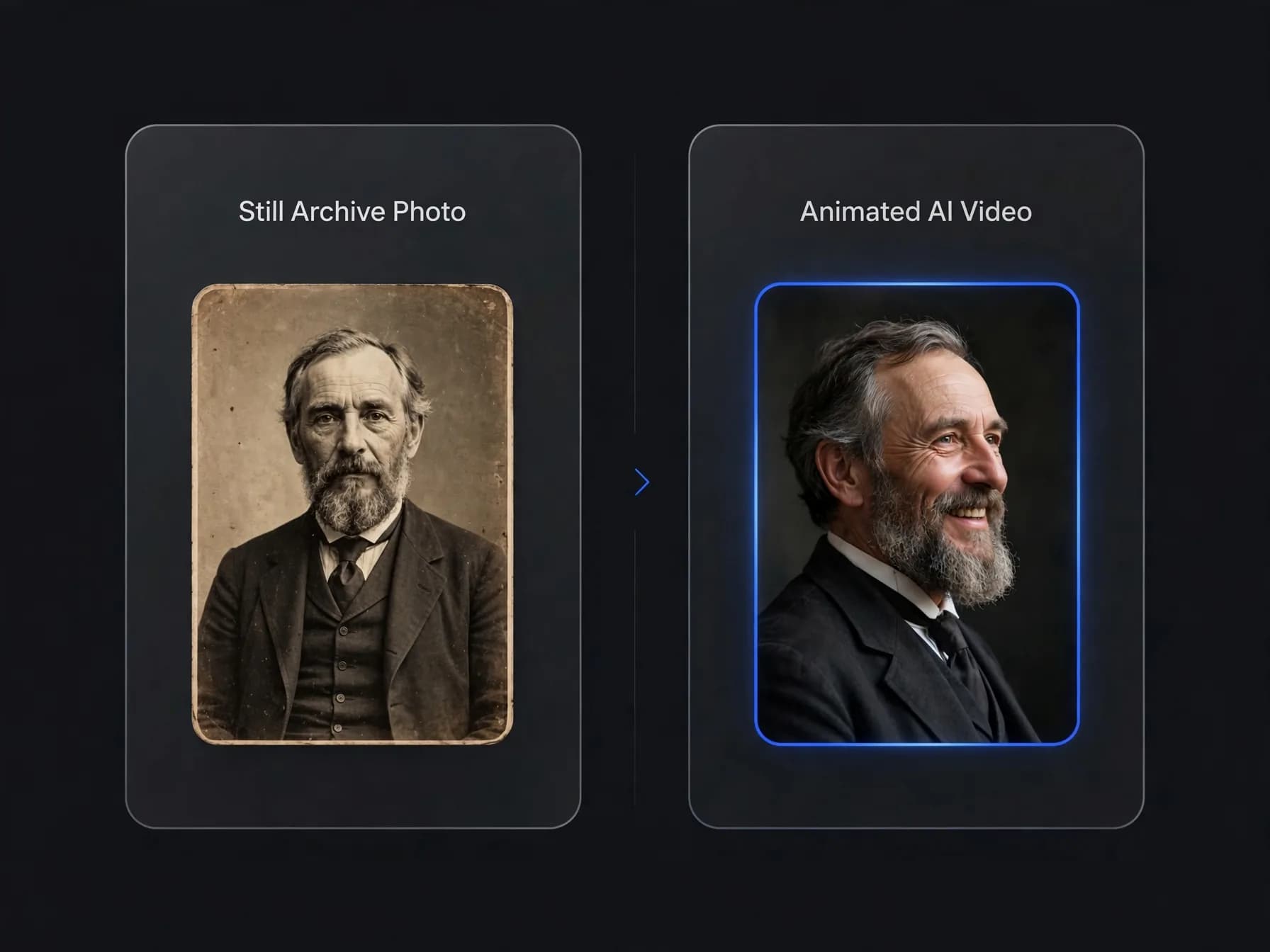
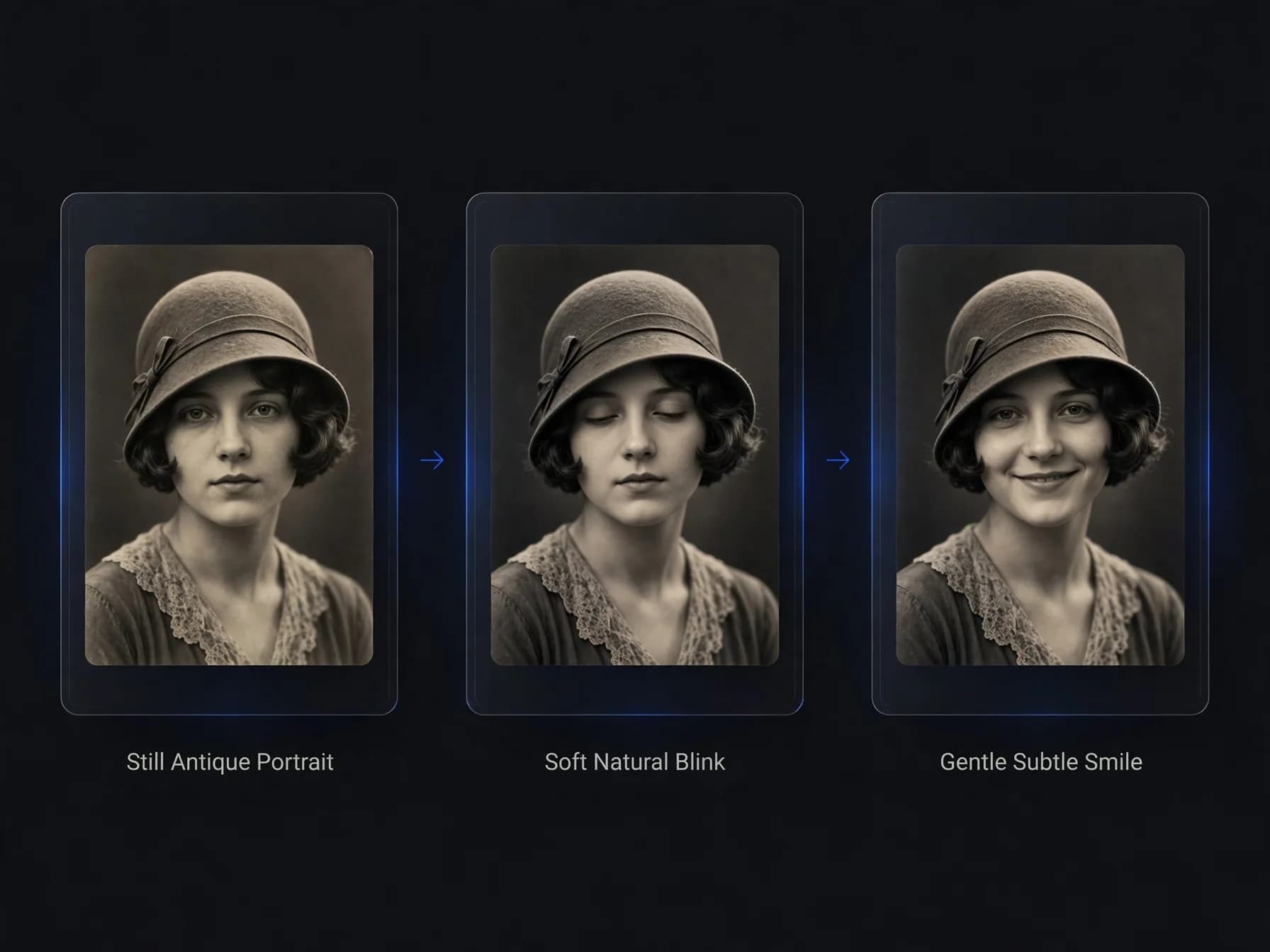
Modern generative tools let anyone animate old photos into realistic moving clips by estimating natural depth, facial expressions, and subtle head motion from a single scanned still. You can preserve cherished family heritage and watch vintage portraits blink, smile, and look around without complex manual video editing.
Learning how to animate old photos allows families to experience heritage portraits through realistic facial movement and natural camera angles. Static cabinet cards and black-and-white snapshots gain gentle motion such as blinking, smiling, and head turns. This process turns archived albums into lively digital keepsakes that bridge generations.
Preserving family history becomes much more engaging when distant relatives feel present and active. Seeing an ancestor smile or look across the room helps younger family members connect directly with their roots. Just as creating a personalized Santa video brings festive magic to family celebrations, moving heirloom portraits bridge generational gaps during reunions. Historical researchers also use these techniques to visualize historical figures during educational presentations.
Modern generative software animates a still scan by predicting depth and facial topology from a single angle. You do not need classic filmmaking software or manual rigging skills to produce a clean clip. Modern pipelines handle the complex geometry while keeping the authentic look of the original print intact.
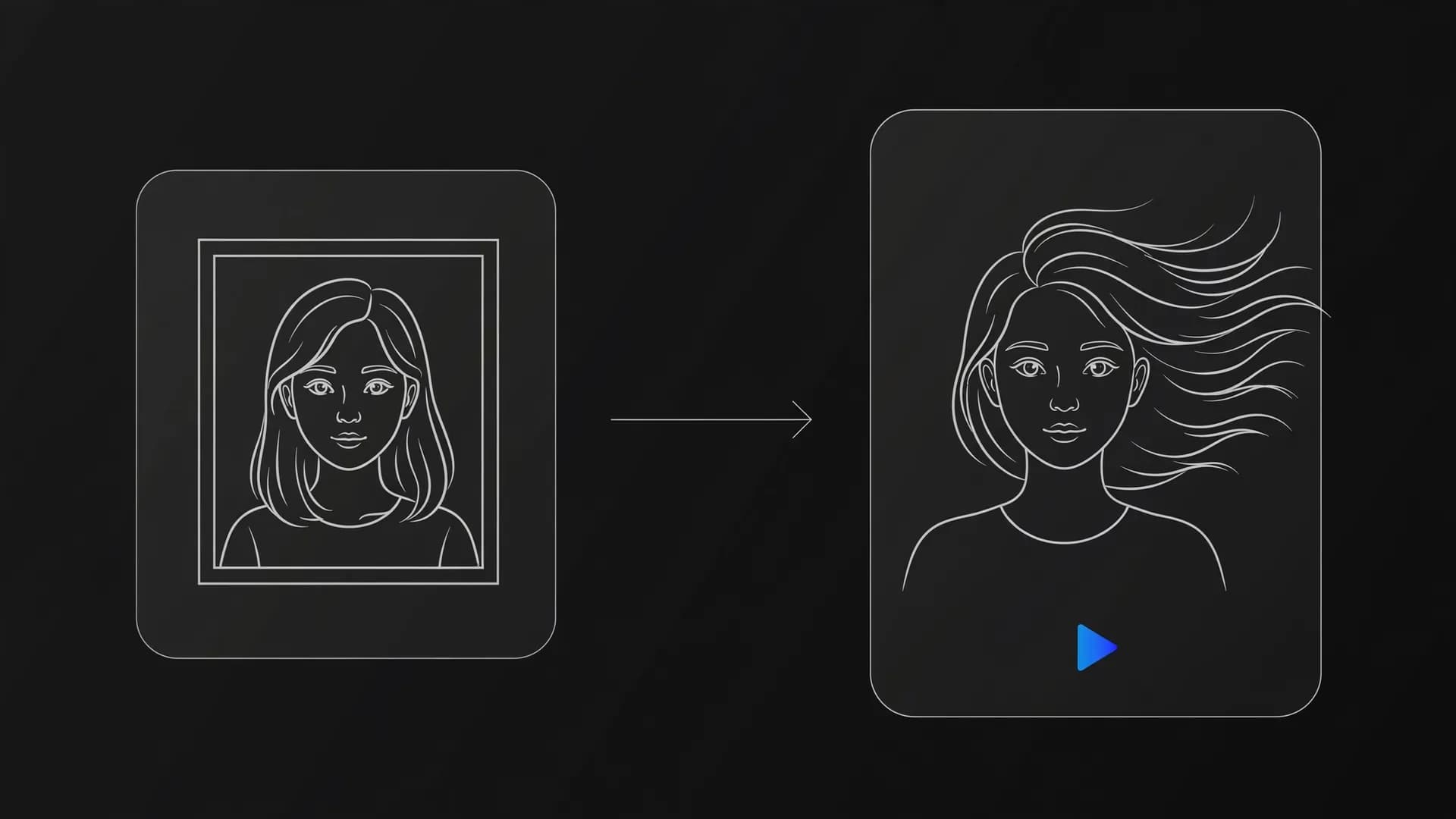
Vintage family portrait showing subtle animation motion lines on a dark digital canvas
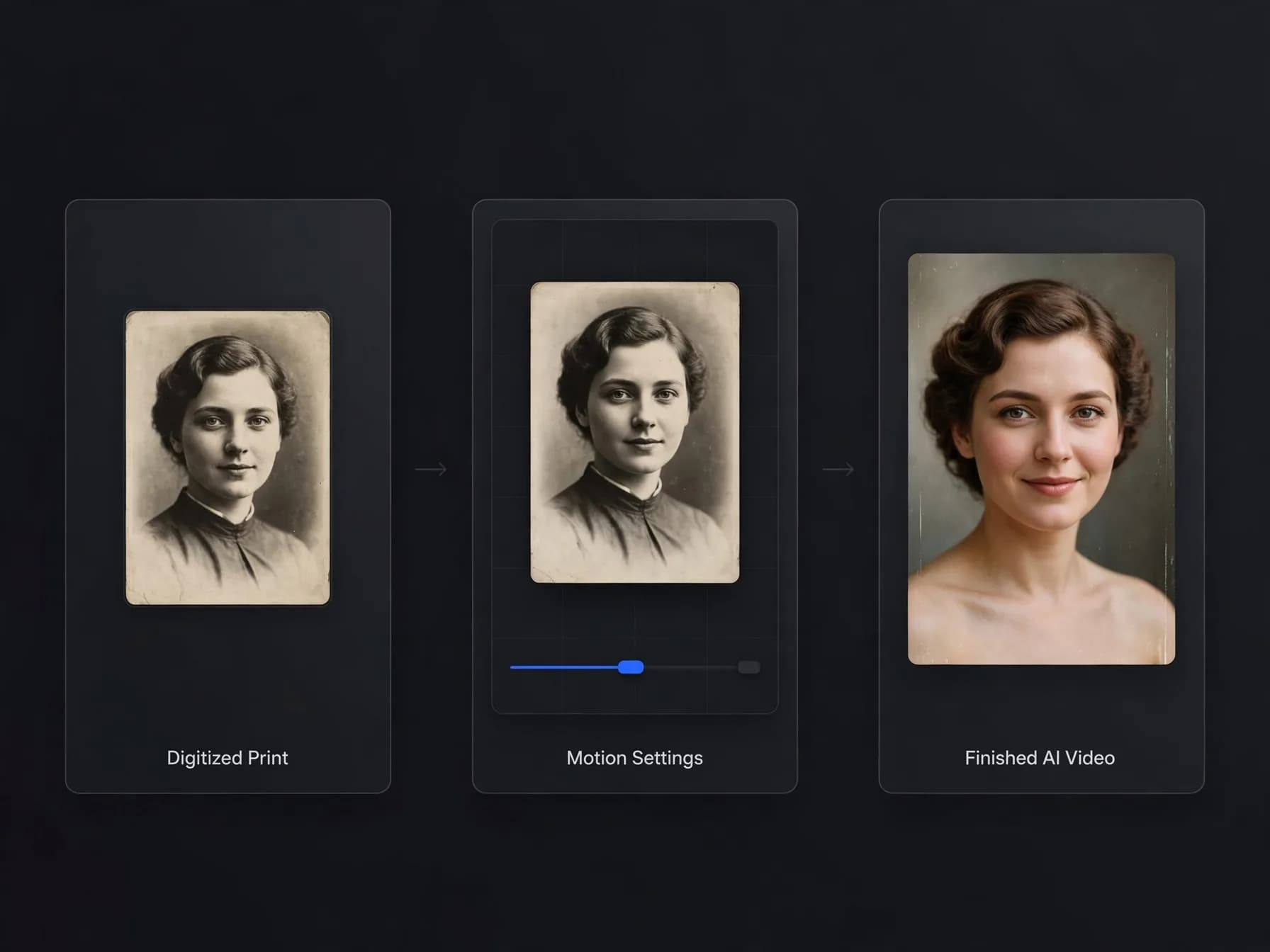
Step-by-step workflow to animate old photos
Step 1: Digitize your original print with a flatbed scanner or a dedicated scanning appl
Step 2: Upload your digital image into an image to video workspace and select your target duration
Describe natural actions in your prompt, such as a gentle nod, slow blink, or subtle smile. Giving clear instructions prevents exaggerated head turns that might distort antique textures or hair edges.
Step 3: Generate the finished AI video and review the facial consistency before downloading
Check that the eyes and jawline remain stable throughout the clip without warping the background paper grain. Once satisfied, download the high-definition file to store in your digital family archive.
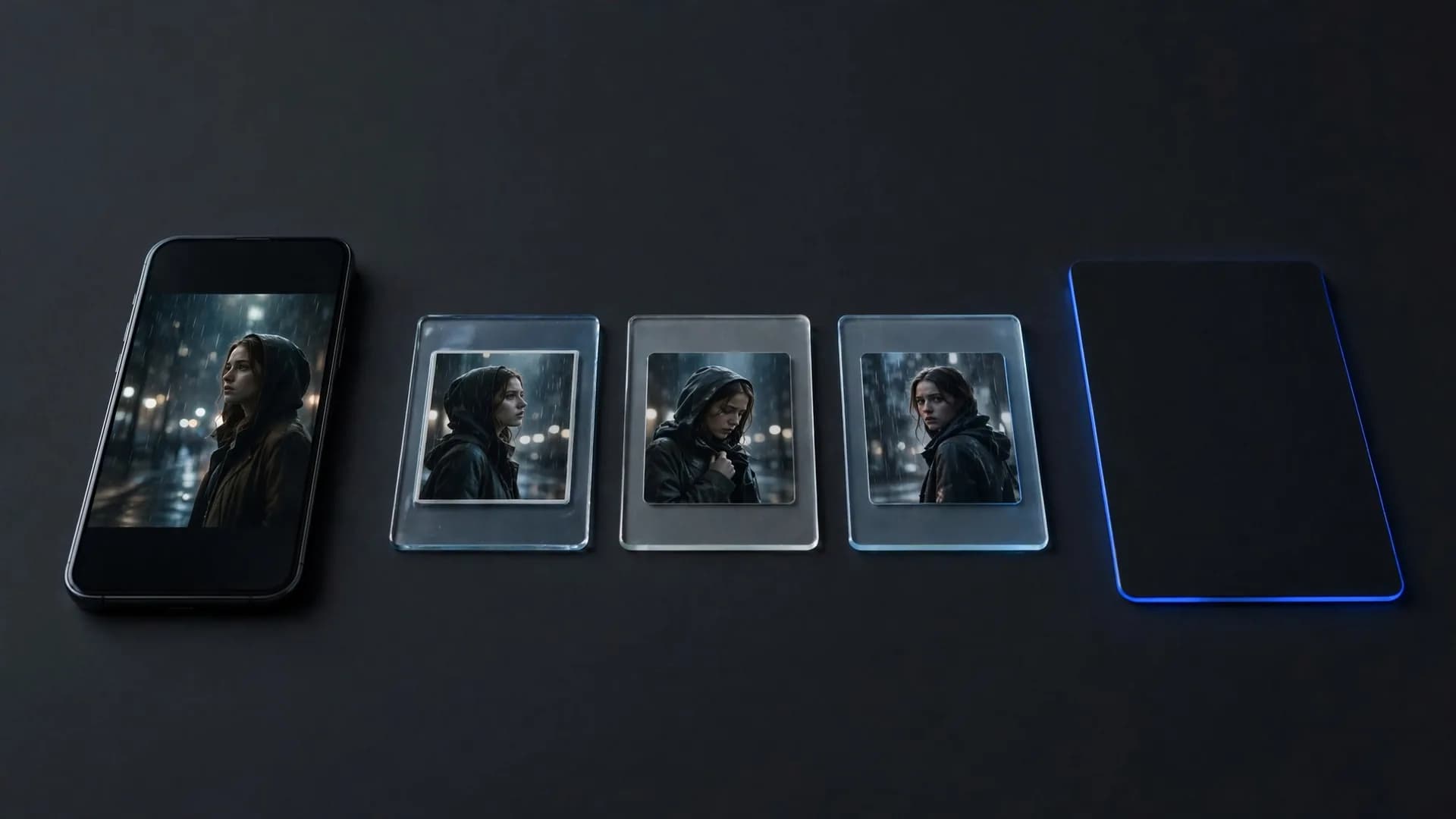
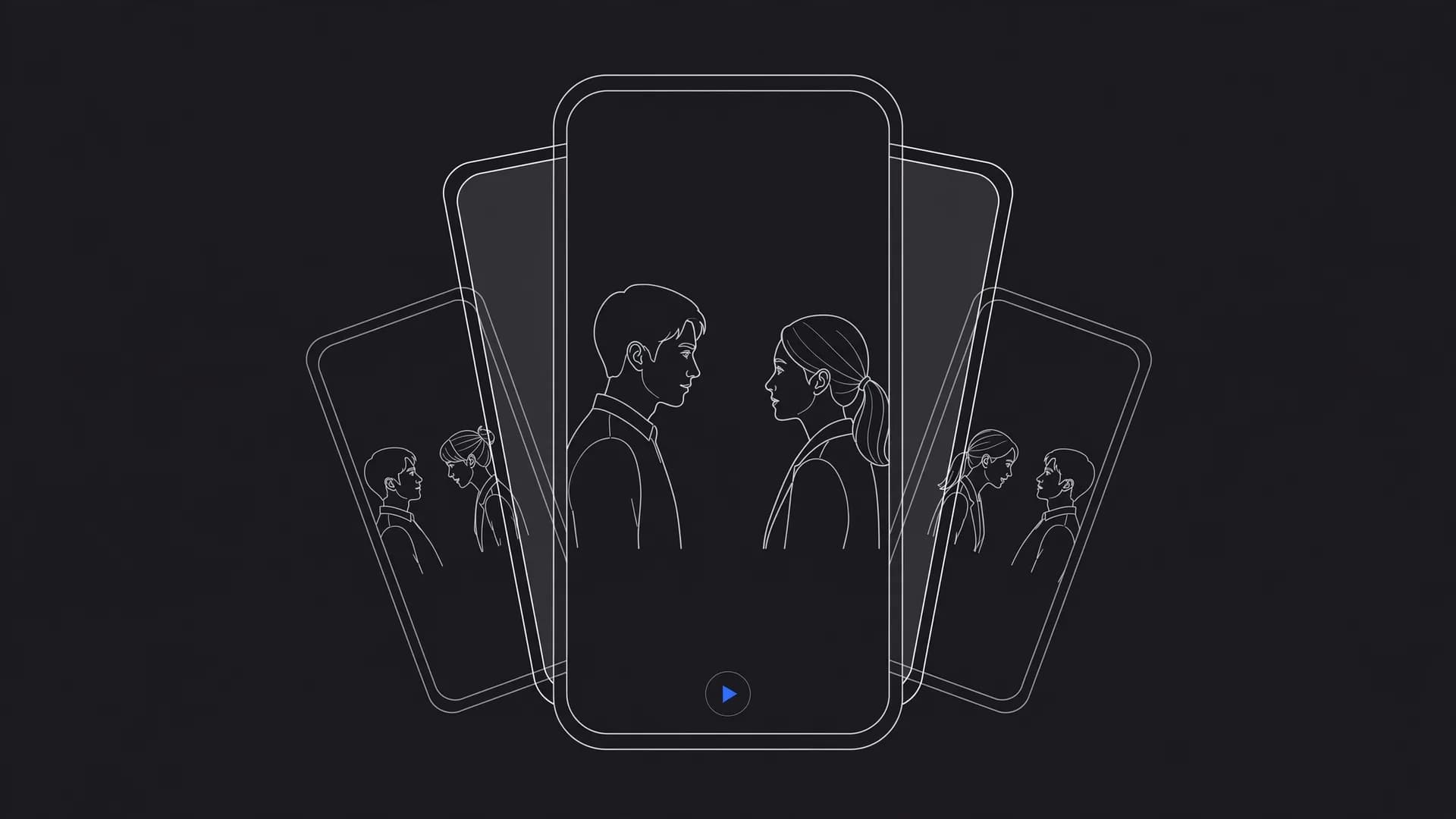
Three-step diagram showing photo scanning, prompt input, and animated video output
Can you animate old photos for free?
Most sites that promise to animate old photos free still ask you to sign up, and almost all of them cap or watermark free results, because rendering realistic motion takes a lot of computing power. Read the resolution, watermark and length limits before you upload a whole family album.
Signing up for OnVid is free. Generating videos uses credits from the Pro or Max plan, charged per second of video, and a failed video refunds its credits. Pro starts at $7.99 a week or $14.99 a month, and both paid plans give HD downloads with no watermark.
To spend as little as possible, test one well-scanned portrait with a short clip first. Once the face stays stable and the motion looks natural, use the same prompt for the rest of the album.
Digital dashboard displaying starting credits and a restored portrait preview
Preparing vintage prints for clean AI video results
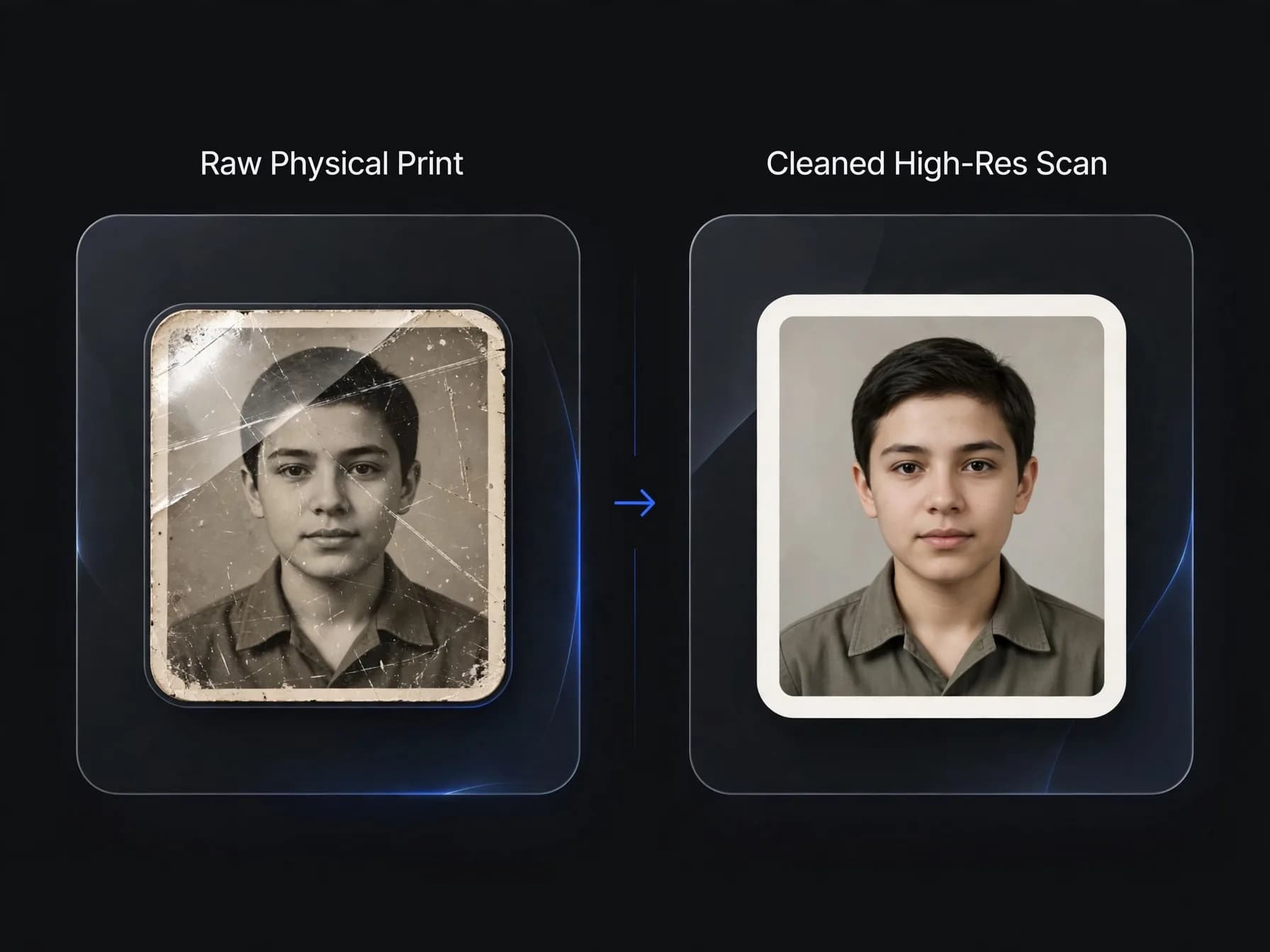
Preparing your source media correctly makes animating old photos significantly cleaner and more realistic. Physical prints often collect scratches, silver mirroring, and faded contrast over decades in storage. Taking time to repair surface cracks with a basic digital touch-up prevents the algorithm from treating tears as facial features.
High-resolution scans captured at three hundred dots per inch or higher provide the crispest foundation for motion synthesis. If you use a smartphone camera instead of a flatbed scanner, position the lens parallel to the picture to prevent perspective distortion. Diffused natural window light works best to eliminate surface glare on glossy Victorian or mid-century papers.
Centering the subject with balanced headroom gives the AI video model adequate space for natural movement. Leaving slight margins around shoulders prevents clipping when the subject turns or tilts slightly. Clean source images produce smooth, natural motion that honors the original print.
Comparison between a dusty antique photo and a cleaned digital file ready for motion processing
Writing natural motion prompts for historical portraits
Converting old photos to video requires understated motion prompts that match the quiet dignity of antique photography. Overly energetic prompts like dancing or rapid head spinning often warp historic clothing and facial contours. Simple instructions such as gentle breathing, soft blinking, and a warm smile create the most believable results.
If your goal is to make a portrait speak family memories aloud, an AI talking photo generator can synchronize historical photos with recorded voice clips. For silent heritage montages, standard camera motion like a slow push-in or gentle pan adds cinematic elegance. Specifying camera stability in your text prompt prevents background drift and keeps the focus entirely on your ancestor.
Choosing the right model parameters also ensures consistent lighting and texture fidelity across every second of footage. If an initial render looks unnatural, slightly reduce the motion intensity and generate another take. Thoughtful, restrained prompting delivers moving family keepsakes that feel respectful and remarkably lifelike.
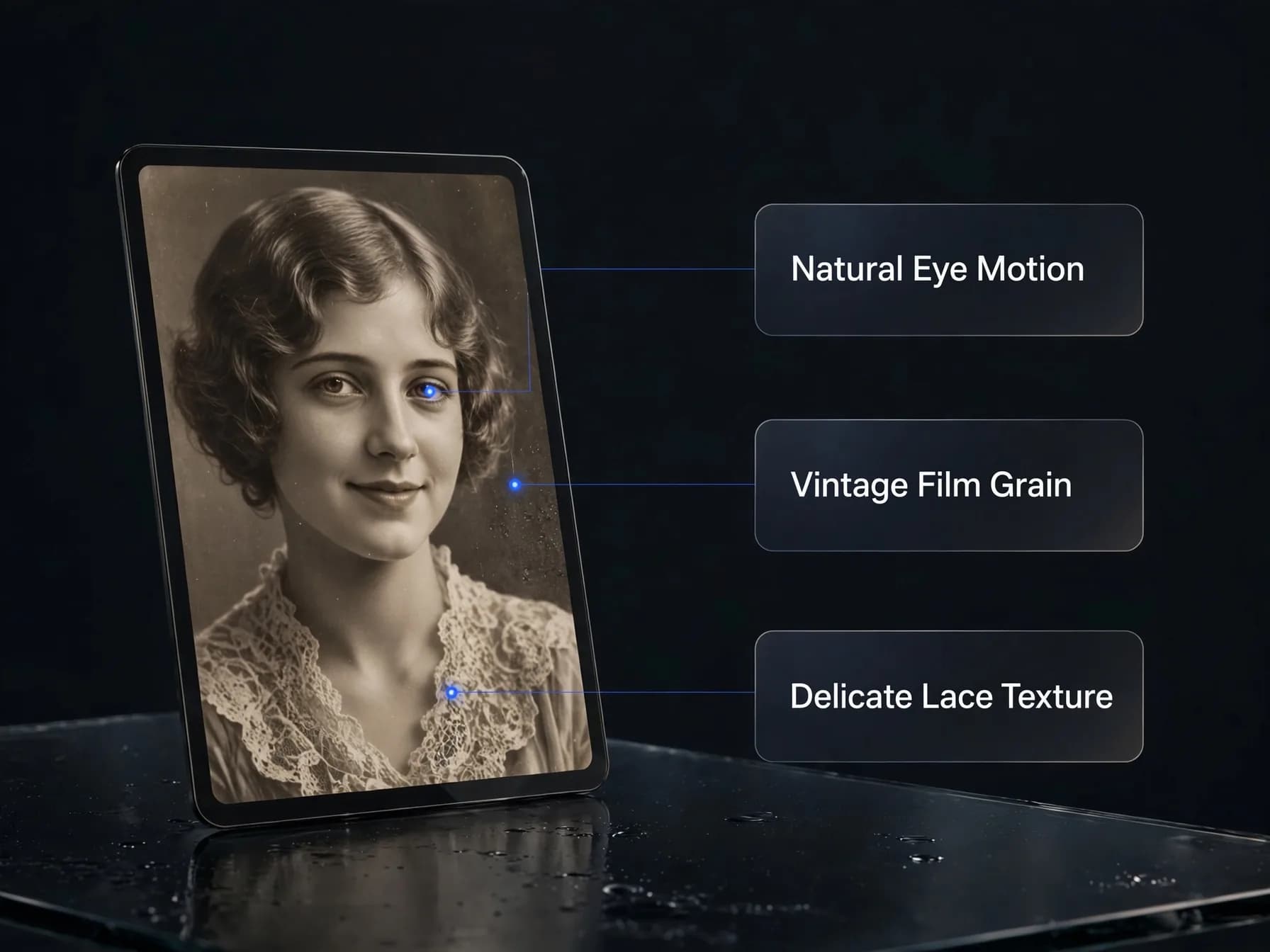
Text prompt interface showing subtle motion descriptions for an antique portrait
Final thoughts on how to animate old photos
Learning how to animate old photos lets you transform flat historical portraits into vivid moving moments without complex editing skills.
Starting with a clean scan and applying gentle motion prompts produces the most realistic facial expressions. With the right preparation, you can turn fragile keepsakes into dynamic AI videos that preserve your family history for future generations.
Common questions about how to animate old photos
Find straightforward answers below about file prep, prompt settings, and motion models when you animate old photos into moving clips.
What is the best way to animate old photos with AI?
The most effective method is using an image-to-video workflow inside an AI video generator. When you animate old photos, you upload a clear scan and write a descriptive prompt specifying subtle facial expressions or slow camera pans. OnVid's AI video generator turns the historical still into a smooth, high-definition moving clip.
How to animate old photos step by step?
To animate old photos, first scan or photograph your vintage print in even lighting and crop away any border damage. Next, upload the digital file to an AI video generator like OnVid and describe realistic micro-motions, such as a gentle blink or soft smile. Finally, choose your target clip length and generate your moving video.
Can you animate old family photos with multiple people?
Yes, you can animate old family photos by using multi-subject motion prompts or specialized multi-image models. Group portraits look best when you request subtle ambient motion, like light breathing and synchronized smiling, rather than dramatic movements. High-resolution scans ensure every family member retains their authentic facial contours.
What is an AI alive photo and how does it work?
An AI alive photo is a digital portrait brought to life through machine learning models that predict facial depth and natural muscle movement. The underlying vision models map key facial landmarks to produce realistic blinks, head turns, and smiles without distorting the original appearance. On OnVid you make one by uploading the photo to image to video and describing the motion.
Can I animate old photos for free?
Signing up for OnVid costs nothing. Generating videos uses credits from a Pro or Max plan, charged per second of video, and failed videos refund their credits. Pro costs $7.99 a week or $14.99 a month and also unlocks longer videos and watermark-free HD downloads.
How do you bring old photos to life without losing facial resemblance?
To bring old photos to life accurately, keep your motion prompts conservative and avoid requesting extreme head turns or rapid gestures. Specifying micro-expressions like a gentle smile, a natural blink, or a slight head tilt keeps the animation grounded in the original facial structure. Modern video models maintain historical features cleanly when movement remains subtle.
Which AI model produces the most realistic old photo animation?
Models like Kling 2.5 Turbo and Seedance 2.5 excel at realistic motion and texture preservation when you animate old photos. For speaking portraits, dedicated avatar tools on OnVid handle synchronized speech.
How should physical photos be prepared before uploading?
Physical prints should be scanned flat at 300 to 600 DPI or photographed straight-on under even daylight without flash glare. Wipe away dust and scanner smudges beforehand to prevent visual artifacts in the moving clip. Cropping out worn photo album edges before uploading helps the model focus entirely on the subject.
Can I make an old portrait speak historical words?
Yes, you can turn a vintage portrait into a speaking video using dedicated talking-photo tools. Upload a clear, front-facing portrait to OnVid's talking photo generator, provide an audio recording or text script, and the model syncs lip movement automatically. You can explore portrait motion further in our guide on how to animate a photo.
Do animated clips made from old photos include sound?
Basic photo animations generate silent video clips by default unless you select a model with native audio generation, such as Seedance 2.5. If you want ambient historical music, room tone, or voiceover narration, add it afterwards in any video editor, or use a talking-photo tool to give the portrait a voice.
How long can an animated old photo video clip be?
Default single generations typically produce 5 or 10 second clips to maintain visual stability and physical accuracy. On OnVid, Pro subscribers can generate videos up to 30 seconds, while Max plan members can create continuous videos up to 60 seconds. Starting with shorter clips helps you fine-tune motion prompts before committing more credits.
What should I do if an animated face looks distorted?
Facial warping usually occurs when the source photo is heavily blurred, low-resolution, or paired with an aggressive prompt. You can resolve this by lowering prompt intensity and requesting only gentle breathing or eye movement. Scanning the original image at higher resolution also gives the AI sharper facial contours to animate.
Can damaged, scratched, or sepia photos still be animated?
Yes, AI vision models interpret subjects across monochrome, sepia, and aged color prints reliably. However, deep tears or scratches directly crossing eyes, noses, or mouths can cause motion glitches. Lightly retouching surface cracks before uploading produces much smoother, more believable movement.
Can AI restore or colorize an old photo before animating it?
Restoring and colorizing are separate steps. OnVid animates the photo you upload, but it does not repair scratches, colorize black-and-white prints or upscale them. Do any touch-up in a photo editor first, then upload the cleaned scan; a black-and-white or sepia photo animates fine as it is.
Can I use animated vintage video clips commercially?
Commercial use depends on the model that made the video; check the OnVid Terms of Service and the model's terms before commercial use. If you plan to feature animated clips in commercial documentaries, advertisements, or paid media, always verify the specific rights associated with your selected generation engine.