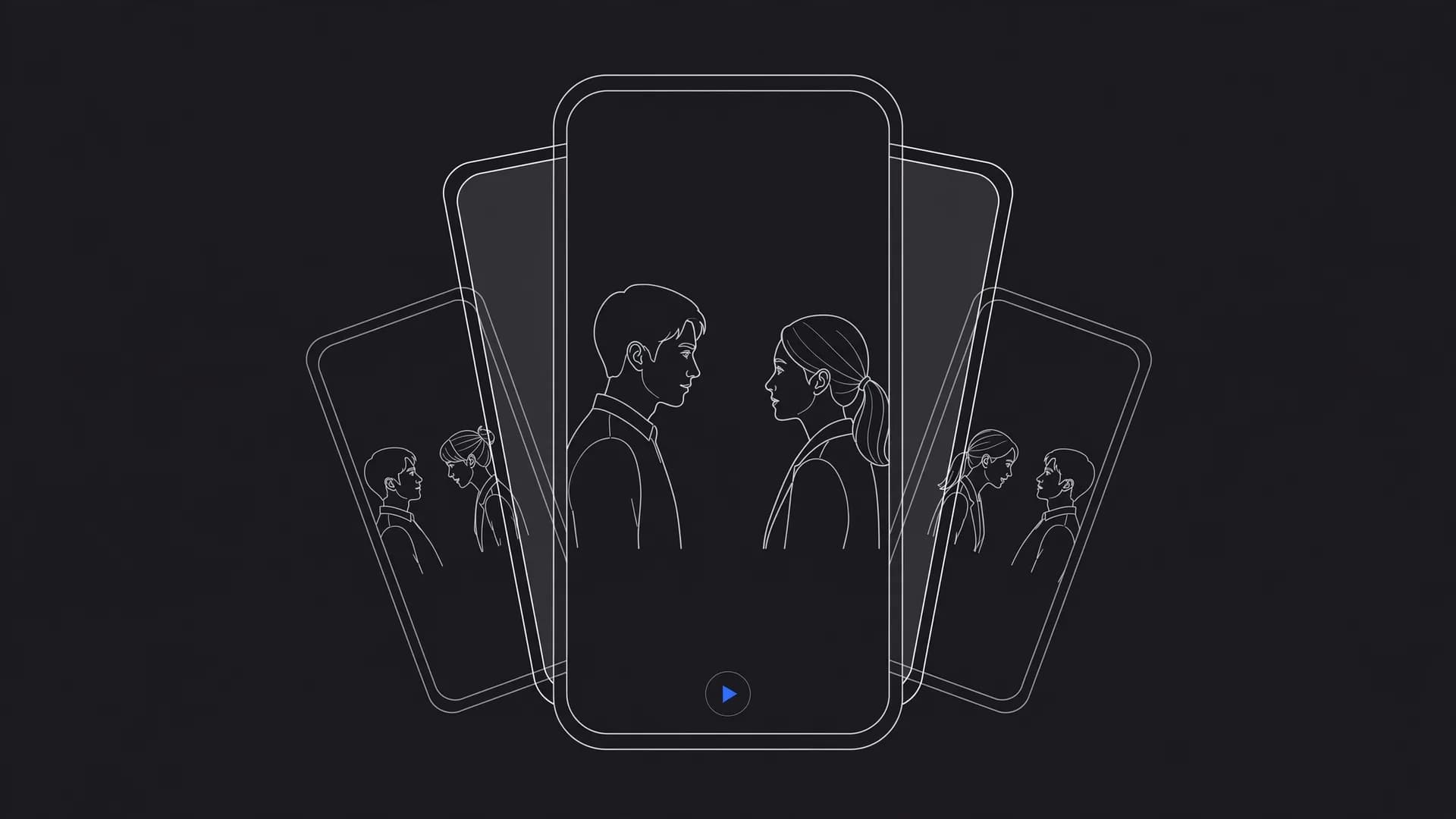
Learning how to make an AI music video requires matching generated visual clips to your song rhythm, pacing each scene to the track tempo, and assembling the final cut in an editor.
How to make AI music video projects start with the right track
Creating a successful project begins with breaking down your track into defined emotional segments and visual beats. Making a music video with an AI video generator starts with this early planning. Before opening any video creation software, export your finished song file and map out where the tempo changes, chorus drops, and instrumental breaks occur. This preparation ensures that every visual prompt aligns directly with the mood of your sound.
Many creators make the mistake of attempting to produce a three-minute song in one single prompt. Instead, successful artists slice their project into individual five-to-ten second scenes that reflect distinct lyrical moments. Similar to the scene-by-scene planning in how to make AI movies, structuring your music track into short beats gives you tighter visual rhythm. When you build your scenes in short segments, you gain precise control over lighting, camera motions, and pacing.
Gathering reference images or color palettes early gives your song a unified theme. Whether you want a gritty cyberpunk concert or a soft watercolor landscape, setting these aesthetic guidelines early keeps your clips cohesive from the opening intro to the final chord.
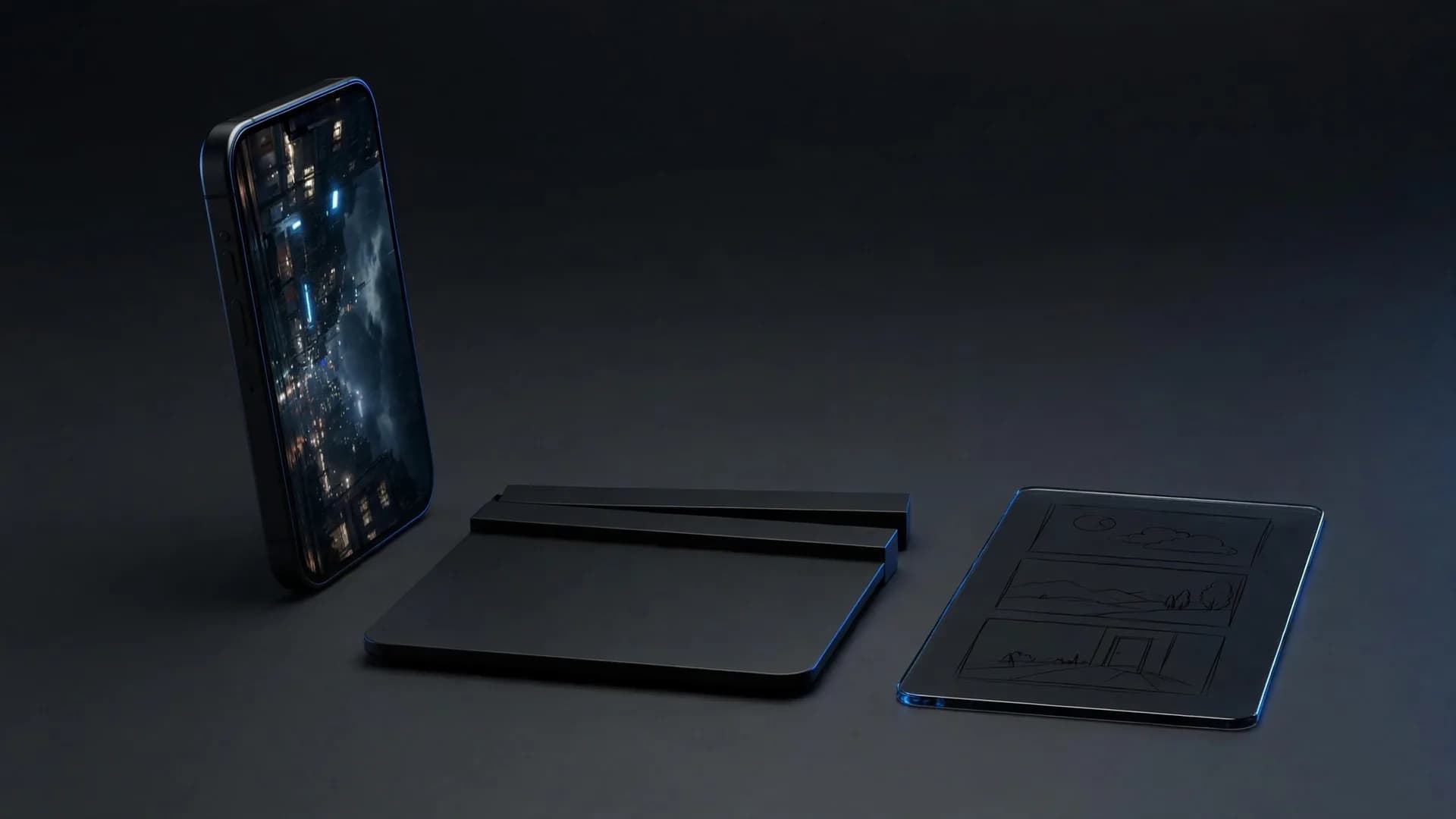
Audio timeline and visual storyboard for an AI music video project
The three-step method to produce AI video scenes
Step 1: Write detailed scene prompts that describe camera movements, character actions,
Step 2: Create alternative takes for each chorus and bridge to test different visual transitions
Exploring varied angles or motion speeds gives you more creative flexibility when you later line up your footage against the rhythm of the track.
Step 3: Organize your resulting video files in chronological order and trim each cut to
Generating video clips from descriptive text prompts in a modern creative interface
What makes the best AI music video generator for your style?
Finding the right tool comes down to how well the platform handles camera movement, temporal consistency, and prompt detail. Different visual models excel at distinct aesthetics, ranging from photorealistic concert footage to stylized animated sequences. Evaluating which styles fit your genre helps you pick the right engine for your release.
If you want to feature consistent characters across your scenes, look for platforms that support image prompting and multi-frame continuity. Tools that let you upload an initial character photo ensure your lead singer or visual avatar stays recognizable across every verse and refrain.
Export capabilities and clip durations also define your workflow. Single AI clips usually run 5 to 10 seconds. OnVid's long video mode joins several shots into one video of up to 30 seconds on Pro or 60 seconds on Max, which cuts down the number of separate clips you need to stitch together.
Comparison of artistic visual styles for music video creation
Animating still images and character portraits into AI videos
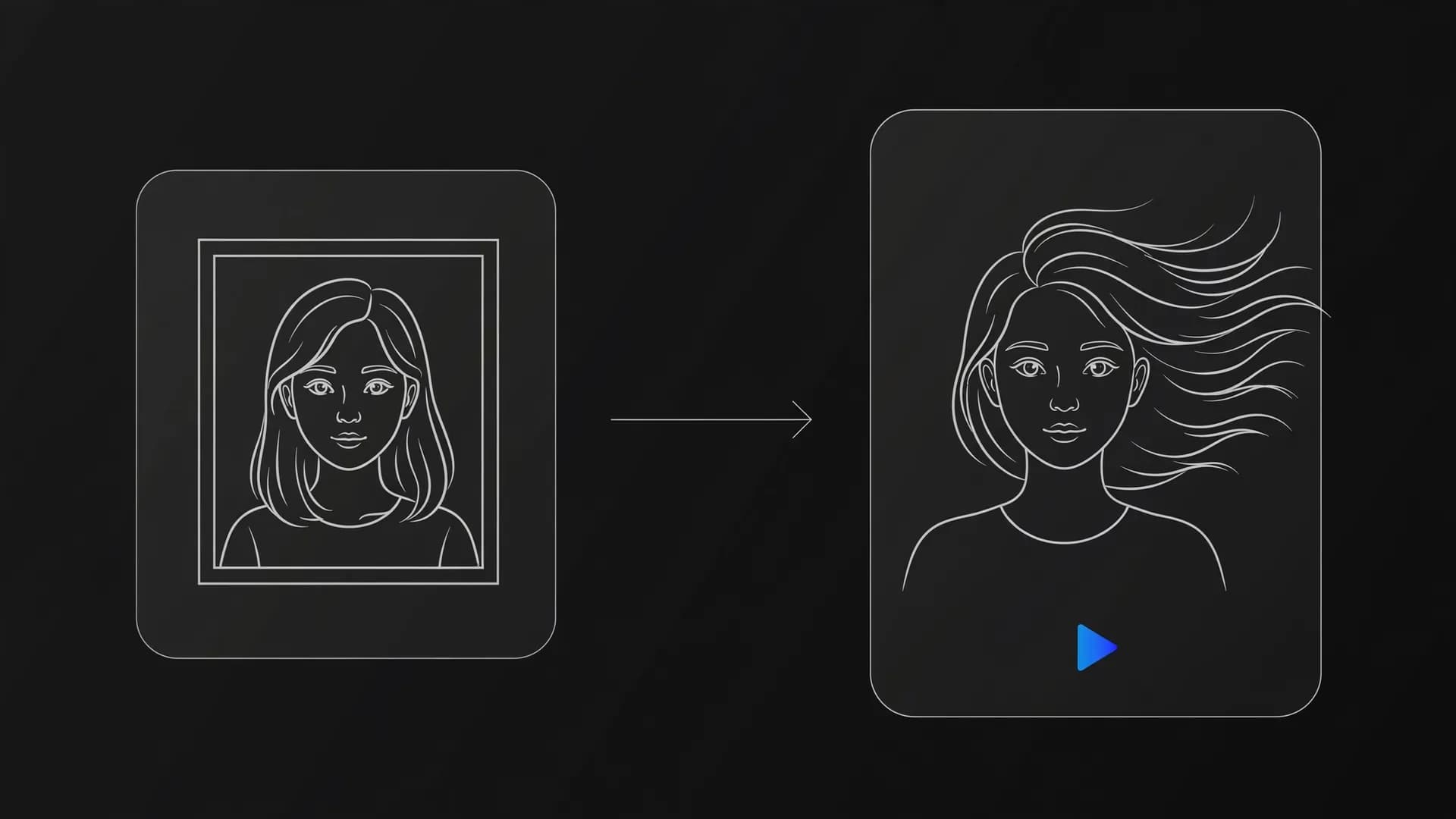
Bringing static album art or band photography to life is one of the most effective ways to craft engaging visuals. By feeding existing artwork into image to video generators, you can introduce subtle lens flares, panning camera angles, and atmospheric particle effects behind your subjects.
For vocal-heavy tracks where your character must sing along, an AI talking photo generator or dedicated AI lip sync tools match mouth shapes to your vocal stems with accurate timing. This technique gives solo artists and virtual bands the ability to present full performance sequences without booking a physical studio or filming crew.
Mixing animated character close-ups with wide landscape b-roll establishes professional music video dynamics. You can alternate between intimate vocal shots during the verses and sweeping motion shots during instrumental drops to keep viewers visually stimulated.
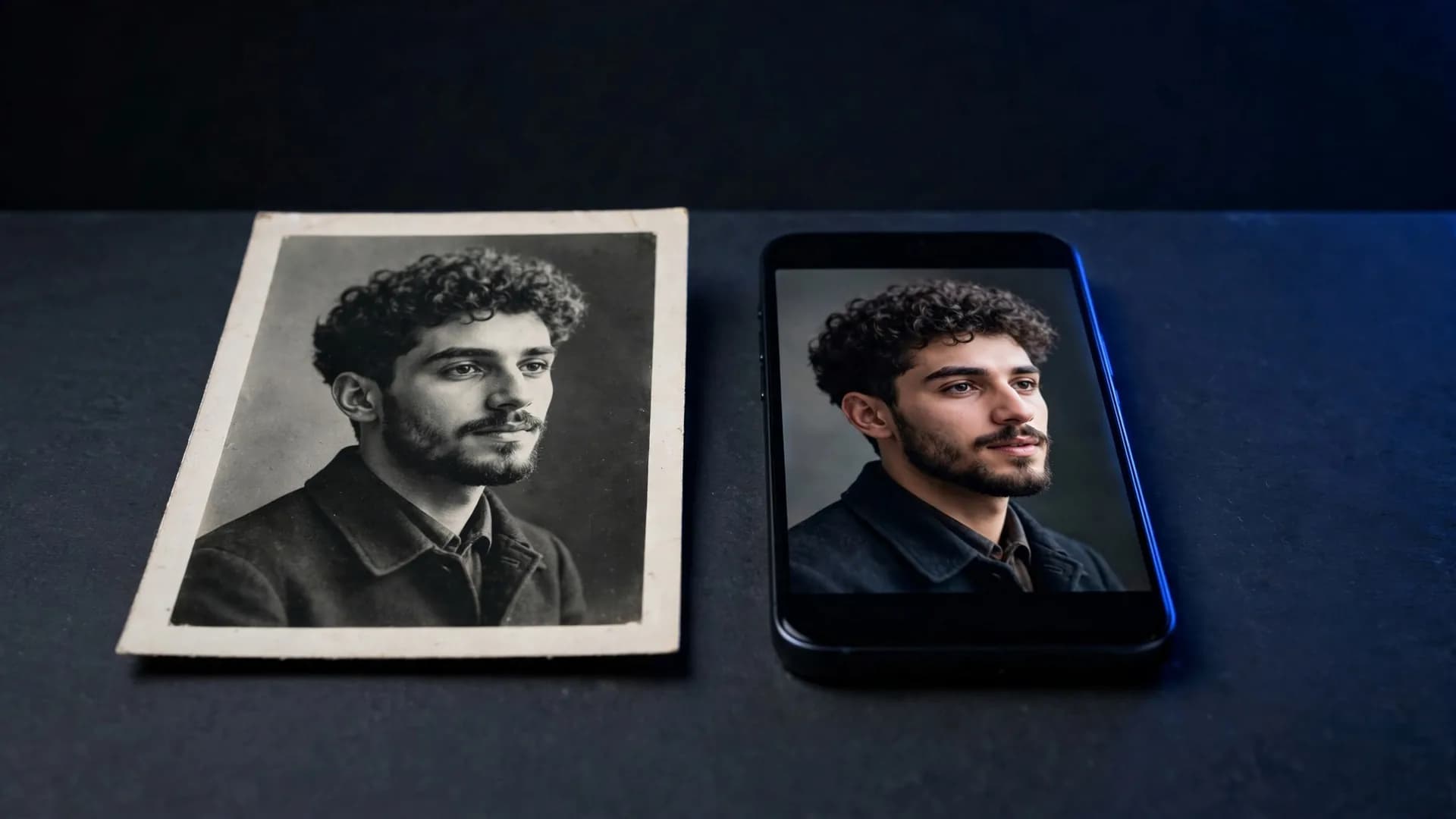
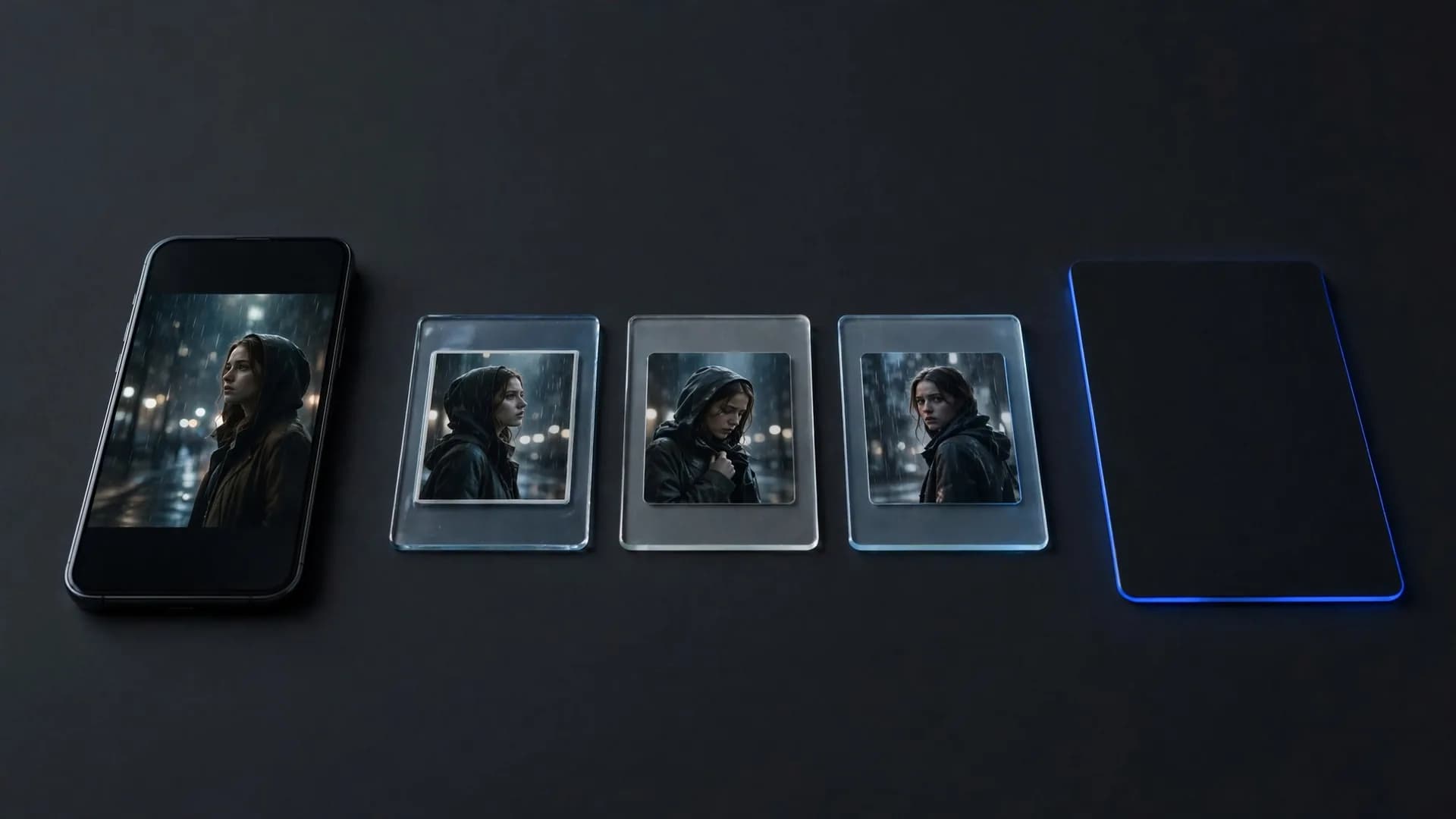
Musician portrait animated into a dynamic performance video clip
How to assemble your final AI videos without tempo drift
Synchronizing generated visuals with your audio master requires precise placement on a multitrack timeline. Import your song file alongside your visual assets, and set timeline markers on the primary downbeats of your percussion track to guide where cuts should land.
Match the speed of each cut to the intensity of your song. Quick one-second or two-second cuts heighten the excitement during high-energy choruses, while smooth four-second panning shots help slower acoustic verses breathe naturally.
Remember that commercial use depends on the model that made the video; check the OnVid Terms of Service and the model's terms before commercial use. Once your timing is locked and transitions are polished, export your finished video in high definition so it is ready to share on social channels.
Video editing timeline aligning video scenes with audio waveform beats
Final thoughts on AI music video production
Learning how to make AI music video projects comes down to matching your song structure with clear visual scenes and consistent character references. By generating individual five or ten second clips and editing them to your audio track, you can produce a full visual accompaniment without professional filming gear or complex production sets. As you refine your workflow, focused prompts and deliberate shot pacing will help your finished AI video feel cohesive from the opening beat to the final fade.
Common questions about how to make AI music video clips
Explore direct answers on audio alignment, visual pacing, and clip lengths to learn how to make AI music video scenes that match your track.
How to make AI music video projects sync tightly with a fast beat?
Planning how to make AI music video clips sync with a fast rhythm starts by breaking your song into distinct four-bar or eight-bar segments. Create visual clips that match those exact durations, then place your cut points directly on transient peaks or heavy drum beats in your editing timeline. OnVid lets you produce five-second and ten-second clips that fit neatly into standard musical bars.
How to make AI music video visuals look consistent across different scenes?
Visual consistency comes from locking your aesthetic details and color palette into every prompt you run. Describe identical lighting, art style, wardrobe, and camera angles across prompts, or use reference photos in multi-image models to preserve character identity. Mastering how to make AI music video scenes with repeated character motifs prevents jarring shifts between cuts.
Can an AI music video generator from audio create visual clips directly from an uploaded song?
Most models build clips from text prompts or photos rather than raw audio waveforms. When planning how to make AI music video projects, create your scene clips with text-to-video tools, then cut and sync the footage to your audio track in an external editor. Singing shots are the exception: an AI talking photo can lip sync a portrait to a vocal clip from your song.
What makes the best AI music video generator for indie artists?
The best AI music video generator combines flexible clip lengths, clean visual outputs, and multiple generative models in one workspace. Indie creators need the ability to produce both short cutaways and longer cinematic shots without complex 3D software. OnVid provides access to leading models like Seedance 2.5 and Kling, giving musicians cinematic variety for any song genre.
How does an AI music video generator from lyrics turn written verses into scenes?
An AI music video generator from lyrics relies on descriptive prompts adapted from your song lines rather than literal verse pastes. Poetic lyrics often contain metaphors that produce unexpected AI imagery, so translating emotional themes into concrete physical actions yields much better visuals. Once you convert evocative lyrics into clear scene descriptions, the generator produces matching atmospheric clips.
Is there a free AI music video generator without watermark available online?
OnVid is free to start after you sign up, while clean HD downloads with no watermark are available on Pro ($7.99 a week or $14.99 a month) and Max plans. Failed videos refund their credits automatically. You can compare the supported models on the AI video models page.
What aspect ratio should musicians choose for AI music videos?
The right aspect ratio depends on where you plan to publish your project. Use a 16:9 widescreen format for official YouTube uploads, widescreen monitors, and television screens. Pick a 9:16 vertical ratio if your primary release strategy focuses on TikTok, Instagram Reels, and YouTube Shorts.
Can a tool create lip-synced singing performances?
Yes. A talking photo model can animate a portrait so it sings along with an uploaded vocal clip of up to 30 seconds, so longer songs are made verse by verse. Intercut these close-up singing shots with your b-roll; the AI lip sync page explains the options.
What video clip lengths work best when cutting an AI music video?
Short clips between two and five seconds typically deliver the cleanest movement and keep viewers engaged. Cutting quickly between varied camera angles matches natural music video editing conventions and prevents AI motion drift. Single shots on OnVid run 5 to 10 seconds on most models, and long video mode joins shots into one video of up to 30 seconds on Pro or 60 seconds on Max.
Can creators use AI-generated music videos commercially on streaming platforms?
Commercial use depends on the model that made the video; check the OnVid Terms of Service and the model's terms before commercial use.
How can artists prevent morphing and distorted motion in generative music clips?
Distortions happen when prompts request too many conflicting actions at the same time. Keep your motion prompts focused on one primary action, such as a steady forward dolly camera move or a character turning their head slowly. Choosing high-fidelity models like Seedance 2.5 or Kling 2.5 Turbo on OnVid can also reduce visual artifacts.
What resolution are exported AI music video clips on OnVid?
Most models on OnVid export at up to 1080p on Pro and Max, and a few, such as Veo 3.1 and LTX-2.3, go up to 4K. These high-resolution files import into desktop video editors like Premiere Pro, DaVinci Resolve, or Final Cut.
Can still band photography be turned into moving music video footage?
Yes, image-to-video tools turn existing band photography, album cover art, or conceptual portraits into dynamic video scenes. You upload your original photo, specify camera panning or character movement in the prompt, and generate a moving clip. OnVid offers image-to-video generation across models like Seedance 2.5, Wan 2.7, and Kling 2.5 Turbo.
How long does it take to generate a complete three-minute AI music video?
Most of the time goes into planning and editing, not generating. A three-minute video usually needs thirty to forty separate clips, several takes of the key shots, and a careful pass in your editor to cut them to the beat. Planning your shot list against the song first, and generating section by section, keeps the work manageable.
What happens if an AI video fails to process?
If an AI video fails to complete due to a server interruption or processing issue, your credits are refunded to your account automatically. You can refine your prompt or adjust the duration before attempting the video again. This ensures you only spend your plan credits on completed, downloadable video files.
Can multiple still images be combined into a continuous narrative sequence?
Multi-image reference models allow creators to upload several sequential images to guide character consistency and environment layout. OnVid supports multi-image references with models like Kling O1, Seedance 2.5, and MiniMax H3 Max. This lets you establish consistent band members and stage lighting across your entire track.