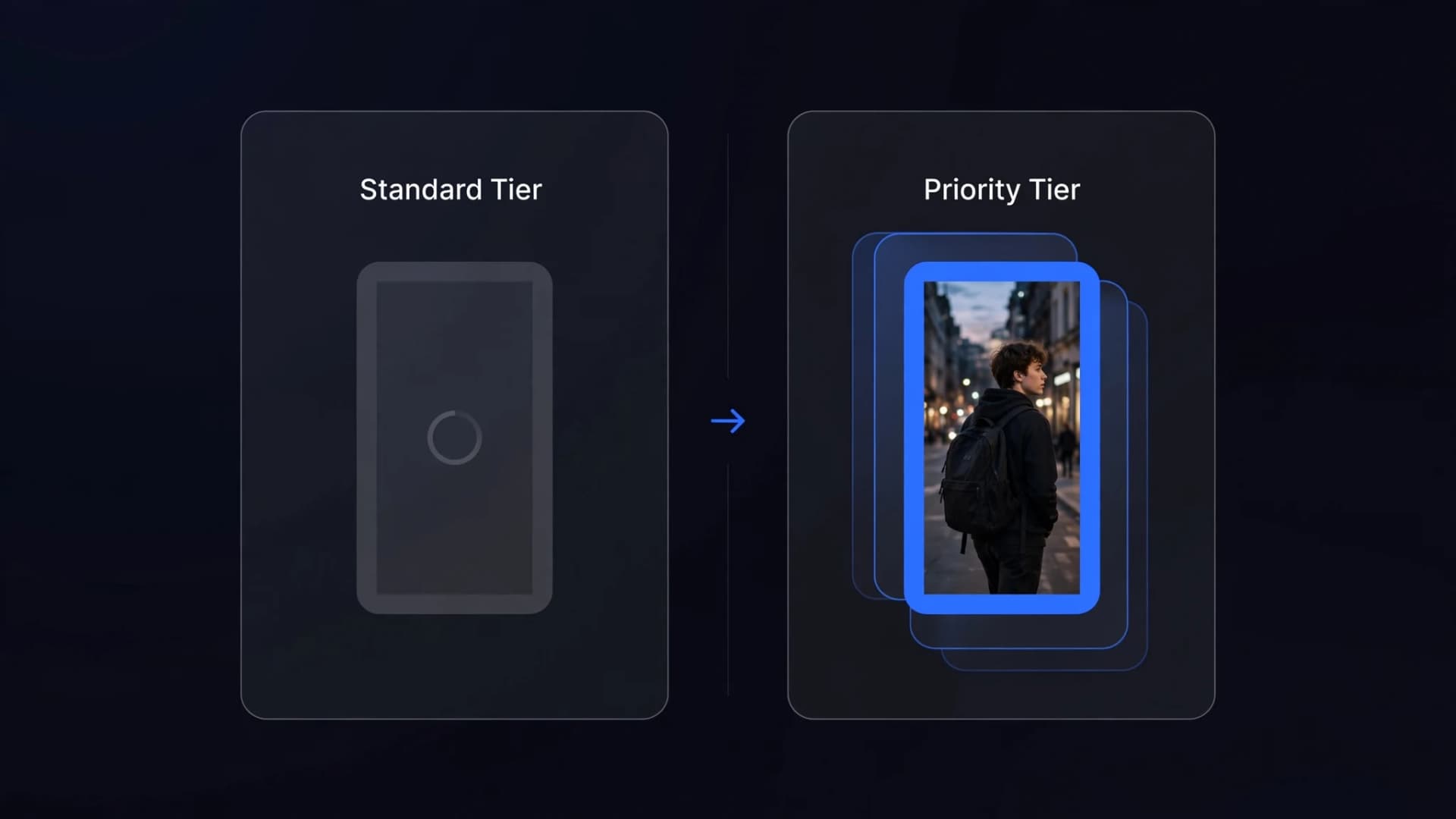
How to put your face in a video, two ways: as a facecam in the corner of a clip, or swapped into the scene itself with AI, from one photo. Here are the steps, the photo that works best and the mistakes that make a swap look fake.
People mean two different things when they want an app to put face in video clips, and the tools are different.
A facecam overlay. Your face sits in a small window on top of the video, like a reaction to gameplay, a tutorial or a duet. You film yourself separately (or with a front camera at the same time), then place that clip on a second video track and shrink it into a corner. Most phone and desktop editors call this picture-in-picture, overlay or "add layer". Crop it to a circle or rounded box, move it away from on-screen text and keep your audio in sync.
An AI face swap. Your face replaces the face of the person in the scene, so it looks as if you were filmed there: walking through a movie scene, singing on a stage or holding a product in an ad. This is what most people mean when they look for a way to insert face into video footage, and it only needs one photo of you. The rest of this guide covers that route.
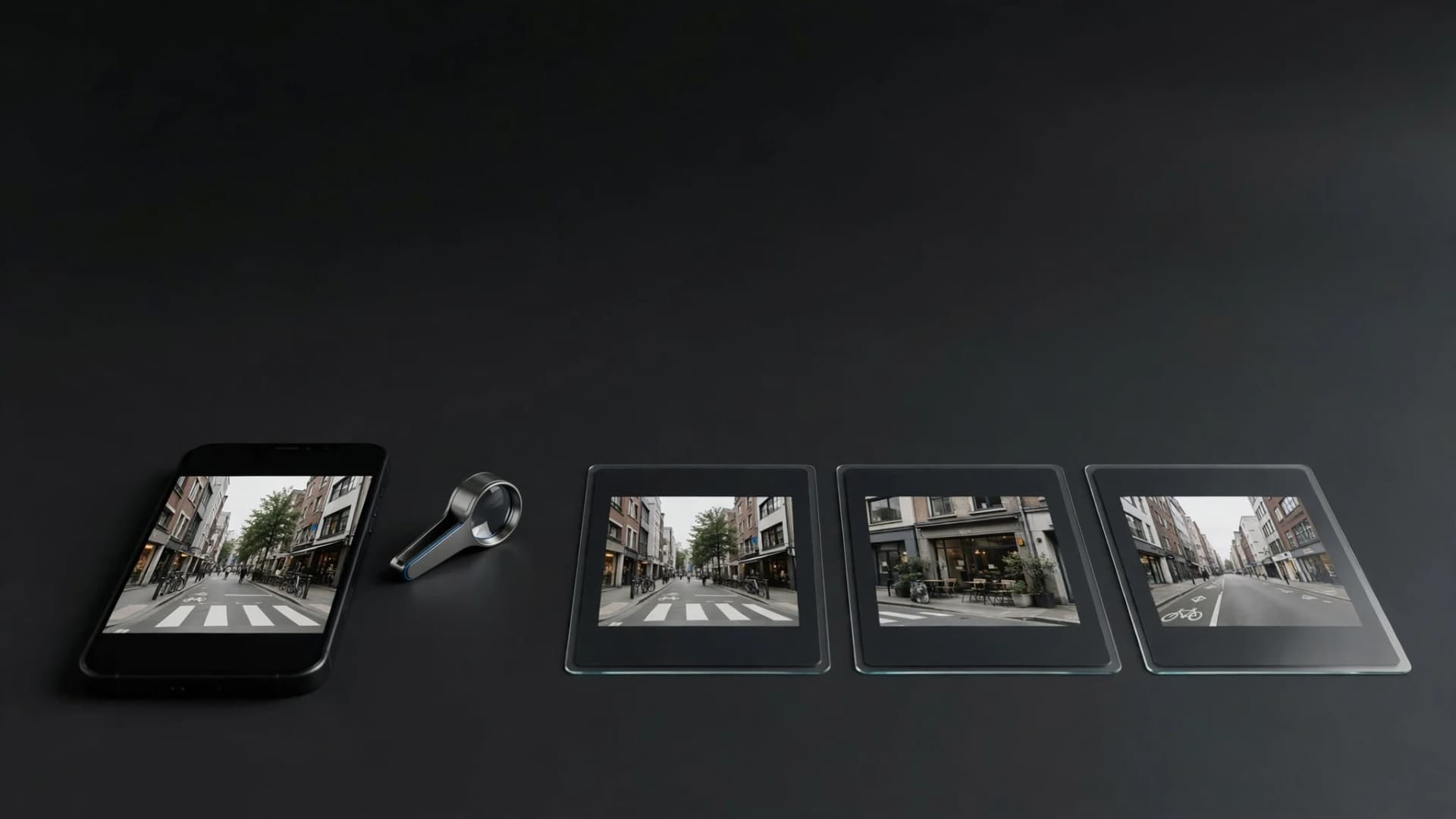
Smartphone showing a finished AI video with a new face in the scene
How to put your face in a video with AI, step by step
This is how it works with the OnVid AI video face swap tool, in your browser:
Upload one photo of your face. A sharp, front-facing photo with even light. A plain daylight selfie usually works better than an edited portrait.
Pick the scene. Choose a ready clip from the movie scene, music video or creator promo tabs, or open the Your video tab and upload your own clip of up to 50 MB.
Tap Swap my face. The credit cost shows on the button before you start. OnVid sends the photo and the scene to Wan 3.0, a reference-to-video model, which re-creates the shot with your face.
Check the result in your library. You get a 10 second clip at 720p. Watch it, then download it on a paid plan or keep editing.
The result is silent, even if your clip had audio, so add music, effects or a voice line before you post. If you want to change the whole look of a clip rather than only the face, video to video restyles everything, for example into anime or clay. Both run in the same OnVid account, so you don't have to move files between apps.
Step-by-step interface for adding a personal portrait into existing video footage
How to get the lighting and angle right
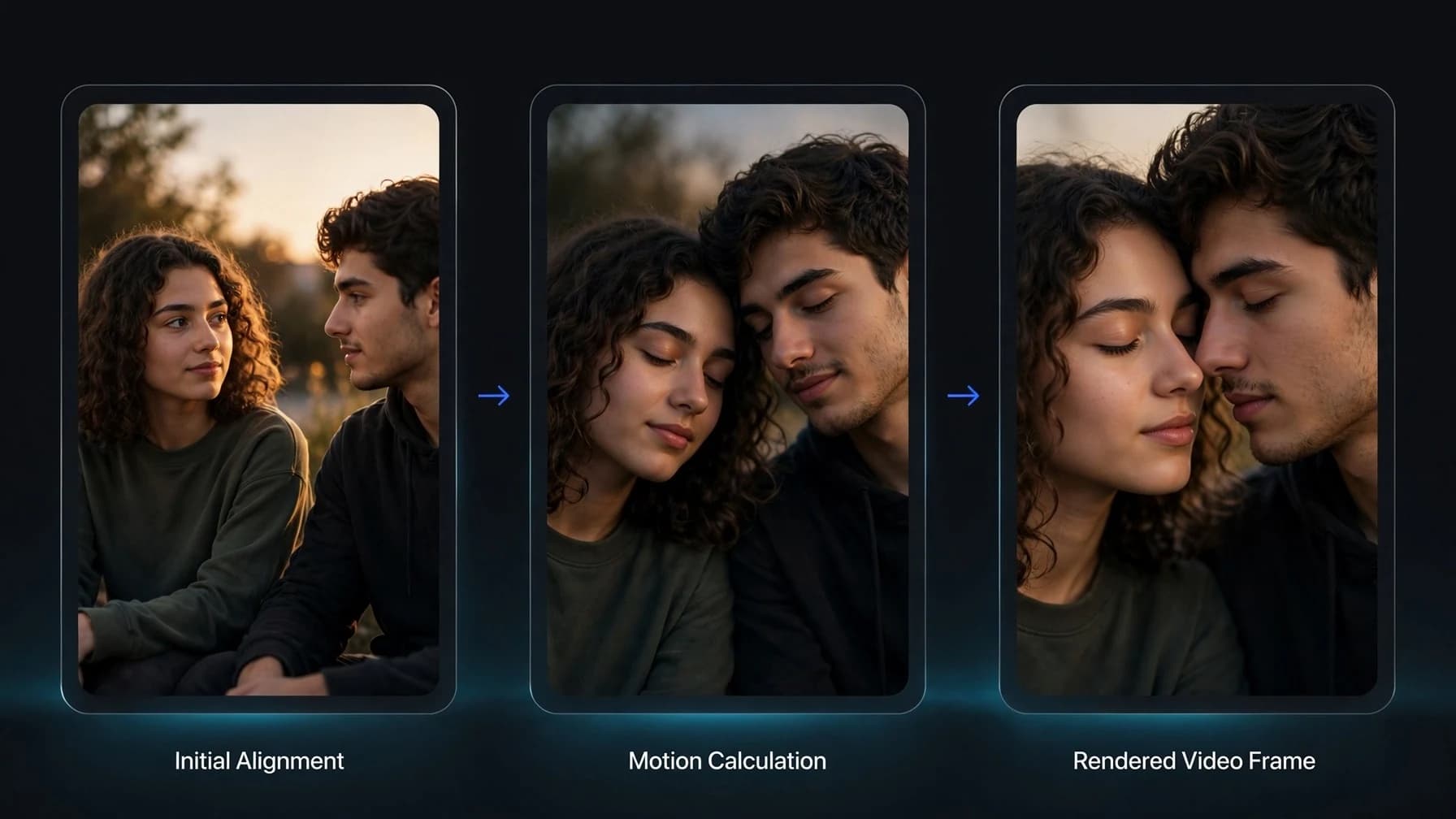
Older face swap apps paste a face over each frame and track it, which is why the edges slip when the head turns. OnVid's face swap works differently: the model reads your photo as the identity and the scene as the motion, framing and lighting, then generates a new clip in which you perform the same action. The light on your face follows the scene, so it looks less like a sticker.
You can still help it:
Match the angle. If the person in the scene looks mostly at the camera, a front-facing photo works. Long stretches of side profile give the model less to anchor to.
Pick a close shot. The face should be clearly visible and reasonably large in the frame, not a tiny figure in a wide shot.
Expect small changes. Because the whole shot is generated again, background textures or hand shapes can shift a little. The person, the movement and the camera stay the same.
Side-by-side comparison illustrating matched lighting between reference photo and target video
What photo works best for a face swap?
The model copies what it sees in your photo, so the photo decides most of the result.
Sharp and front-facing. Eyes and mouth clearly visible, taken at about eye level.
Even light. Daylight from a window works well. Avoid strong shadows across half of the face.
Nothing in the way. No sunglasses, hands or hair across the face, and no hats that hide the forehead.
No heavy filters. Beauty filters, strong makeup and masks carry into the video.
One person. Crop group photos down to just the face you want.
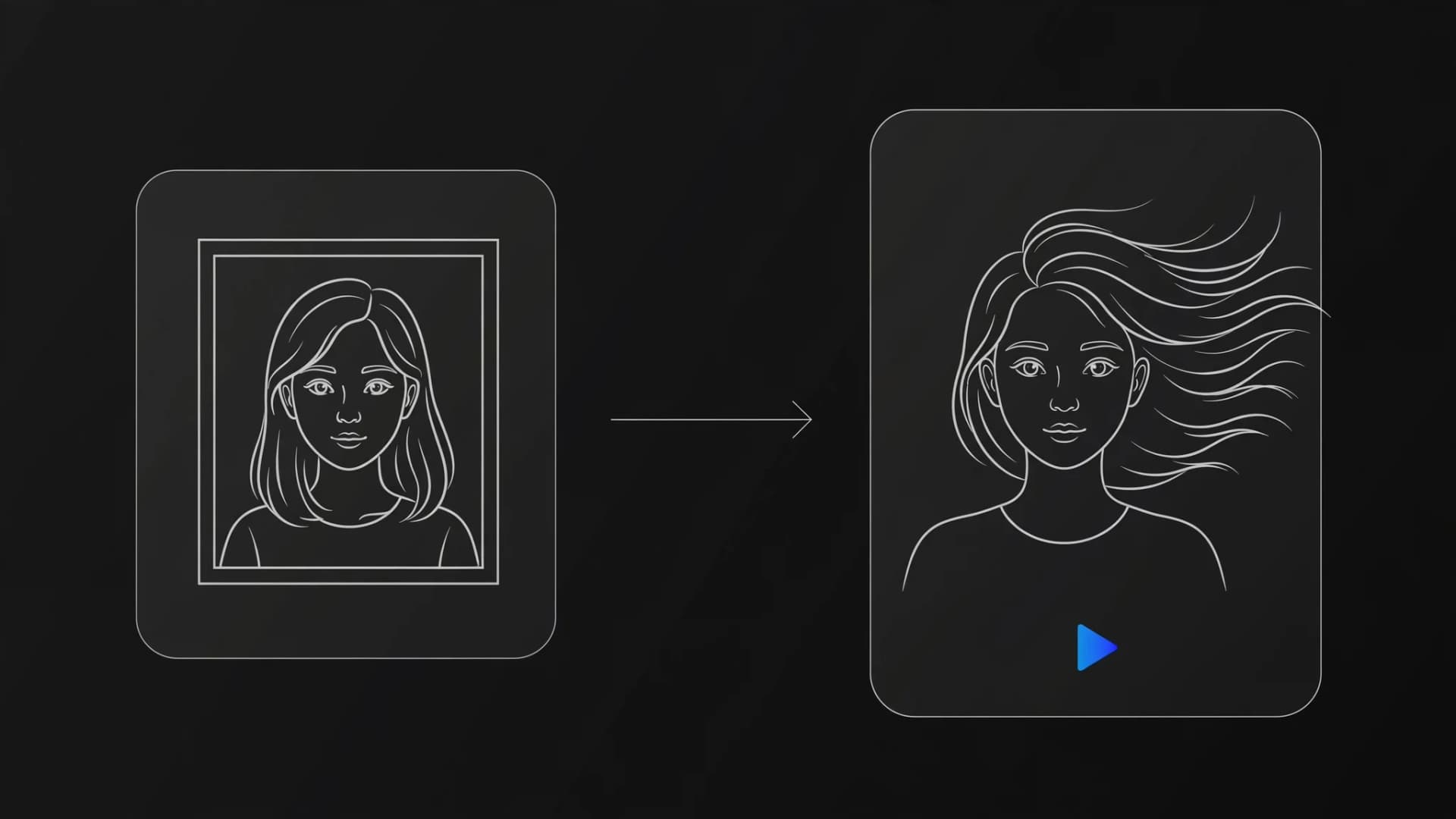
If you only have an old or low-quality photo, try a few and keep the best result. And if you want the photo itself to move instead of swapping it into a scene, use image to video, which animates the still picture.
Well-lit portrait photograph suitable for facial mapping in video projects
Common mistakes that make a face swap look fake
Most weak results come from the inputs, and most are easy to fix:
A blurry, dark or side-on photo. The face drifts between frames. Retake the photo in daylight, facing the camera.
A face that is covered, tiny or turned away. Pick a scene where the person stays close to the camera and faces it for most of the clip.
Crowded scenes. With several people, the model may change the wrong person or blend faces. Choose a shot that focuses on one person.
Long clips. Each swap makes 10 seconds. For a longer video, swap a few moments and join them in your editor.
There is also a rule that matters more than any setting: only use faces you have permission to use, and never use a swap to impersonate, harass or mislead people, to make sexual content or to show minors. If you want to swap whole characters, not just faces, see our guide to swapping characters in a video. And to see how viewers spot edits like these, read how to spot AI video.
Visual representation of motion tracking alignment and digital edge blending on a face
The bottom line on how to put your face in a video
If you only need your reaction on screen, a facecam overlay in any editor is enough. If you want to appear inside the scene, an AI face swap does it from one clear photo and a short clip, keeping the motion, framing and light of the original shot.
Start with a sharp, front-facing photo, pick a close shot of one person, add sound before you post, and only use faces you have permission to use.
Common questions about how to put your face in a video
Answers about face swaps, facecam overlays, photos and safe use.
How do I put my face in a video for free?
To put your face on a video as a facecam, most phone and desktop editors are free: film yourself, add the clip as a second layer and shrink it into a corner. An AI face swap that puts your face inside the scene usually uses credits. On OnVid, signing up is free, but generating a swap uses credits from a paid plan, and the cost shows before you start.
What app can put my face in a video?
For a facecam, any editor with picture-in-picture or overlay layers works. To put your face inside the scene, you need an AI face swap tool. OnVid's face swap tool runs in the browser on phone or computer: upload a photo, pick a scene or your own clip, and get a 10 second video.
How to put your face in a video on iPhone or Android?
For an AI swap, open OnVid in your phone's browser, upload a selfie from your camera roll and pick a scene or a clip from your phone (up to 50 MB). The processing happens online, so it works on any recent phone. For a facecam overlay, use an editor app with a picture-in-picture or overlay option.
How do I put my face in the corner of a video?
Record your face separately, then in your editor add that recording as an overlay on top of the main video, shrink it and move it to a corner. Crop it to a circle or box, keep it away from on-screen text and check that your voice stays in sync.
Can I replace a face in a video with my own?
Yes, as long as you have the right to use the video and the other person's likeness. Upload your clip and a photo of your face, and the AI re-creates the shot with your face while keeping the motion, framing and lighting.
How does AI face swap work?
On OnVid, the model reads your photo as the identity and the clip as the motion, framing and lighting, then generates a new clip in which you perform the same action. Because the whole shot is generated again, the light on your face matches the scene, though small background details can shift.
What photo works best for an AI face swap?
A sharp, front-facing photo of one person with even light. Avoid sunglasses, hands or hair across the face, heavy filters and side angles. A plain daylight selfie usually beats an edited portrait.
How long can a face swap video be?
Each face swap on OnVid makes a 10 second clip at 720p. For a longer video, make several clips from different moments and join them in your editor. For a 5 second clip or 1080p, use video to video mode with the same Wan 3.0 model.
Can I use my own video, not a ready scene?
Yes. Open the Your video tab and upload a clip of up to 50 MB. Pick footage where one person stays close to the camera and faces it for most of the shot.
Does the face swap keep the original sound?
No. The result is a silent video, even if your clip has audio. You can add music, sound effects or a voiceover afterwards with OnVid's sound tool. To use a song of your own, see how to add music to a video.
Can I swap faces in a video with several people?
The tool uses one face photo per clip and works best when one main person is in the scene. In crowded shots it may change the wrong person or blend faces, so pick a shot focused on one person.
Why does my face look different in the result?
Usually because of the photo or the scene: a blurry, dark or side-on photo, or a scene where the face is small, covered or turned away. Retake the photo in daylight facing the camera and choose a closer shot.
Can I make the new face talk?
A face swap copies the original motion, mouth included. To make your face say a new script, use AI lip sync on a talking shot instead.
Is putting someone else's face in a video legal?
Only with their permission, and the rules differ by country. Never use a swap to impersonate, harass or mislead, to make sexual content or to show minors. OnVid's content rules apply to every upload.
Can I use face swap videos commercially?
Commercial use depends on the model that made the video; check the OnVid Terms of Service and the model's terms. You also need permission from anyone whose face appears, and the rights to the footage you used.