
Why adding subtitles to an AI video expands your reach
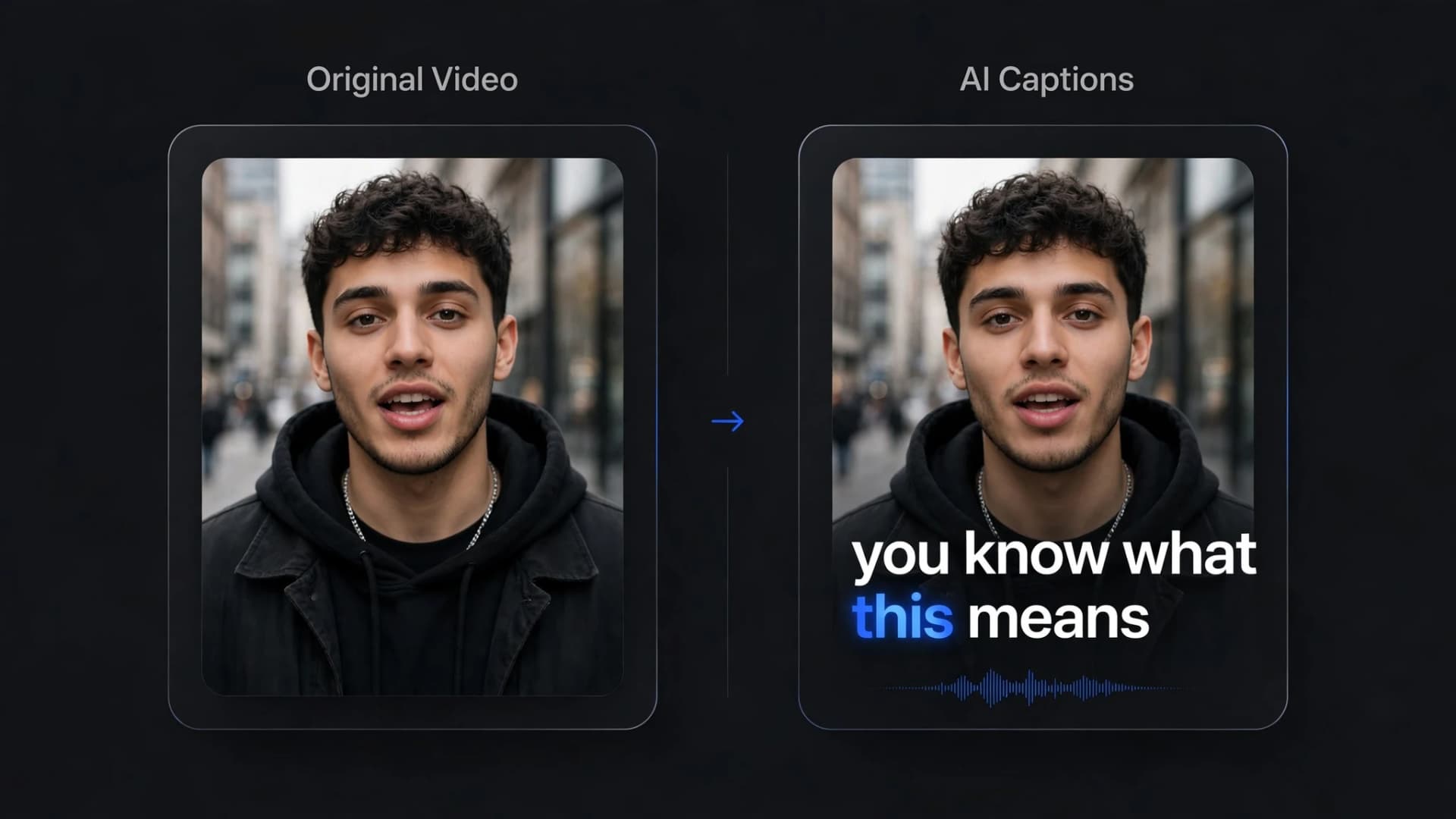
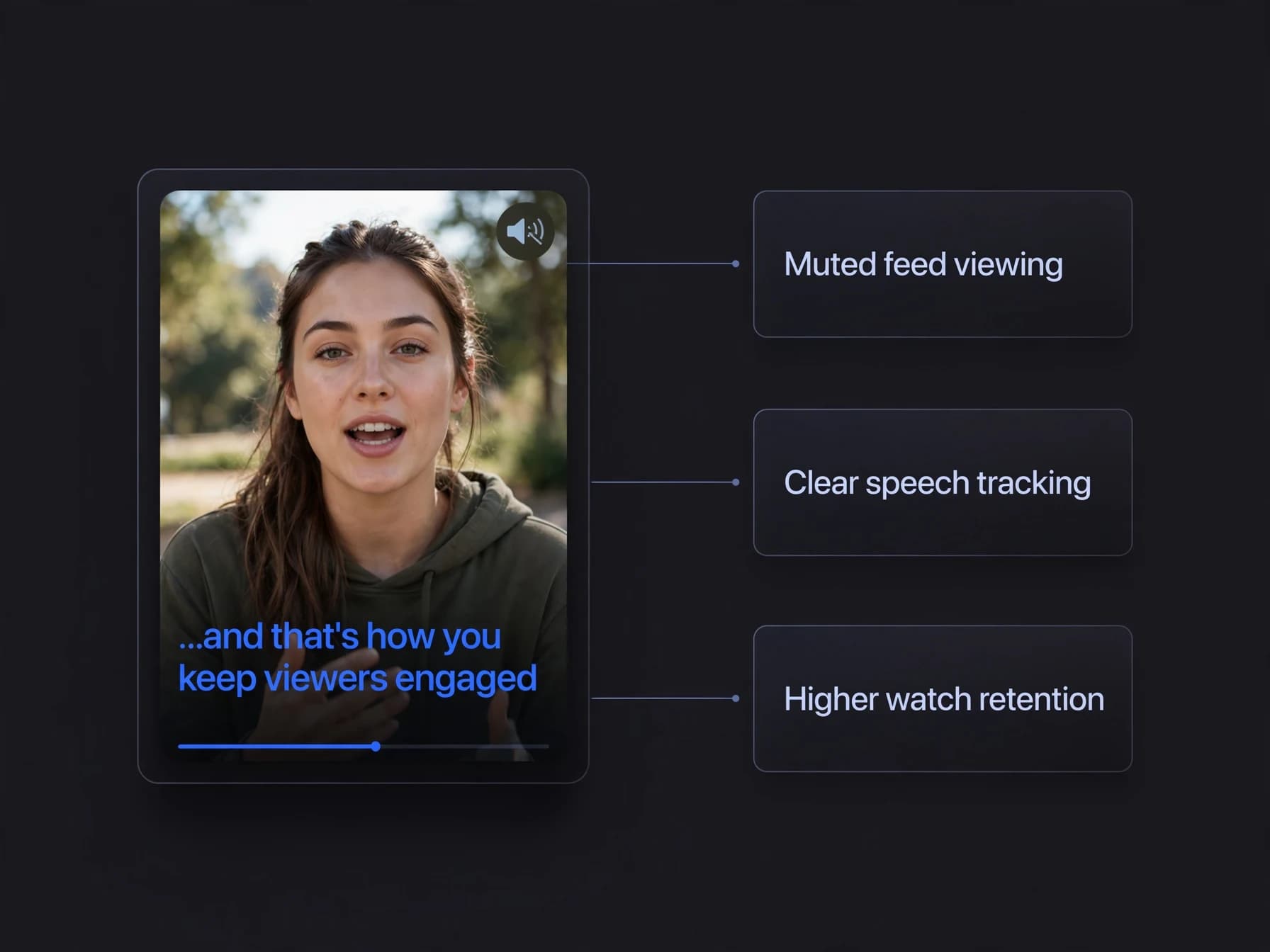
Subtitles make your content accessible to viewers watching with the sound turned off. Many people scroll social feeds on mute, so dialogue or voiceover without text is easy to skip past. Text on screen also works alongside audio: if you later layer in music or effects with a sound effects and music tool, muted and unmuted viewers both get the message.
Subtitles also support viewers who are deaf or hard of hearing, while clarifying spoken terms, regional accents, or technical jargon. Search engines and platform recommendation systems parse text layers far more reliably than raw audio tracks, giving your clip a better chance of matching relevant search queries.
Adding clear text to your finished clip transforms a passive viewing experience into an engaging one. Viewers follow along with the narrative pace, retain information longer, and complete more watch time across both vertical feeds and desktop players.
How to add subtitles to a video step by step
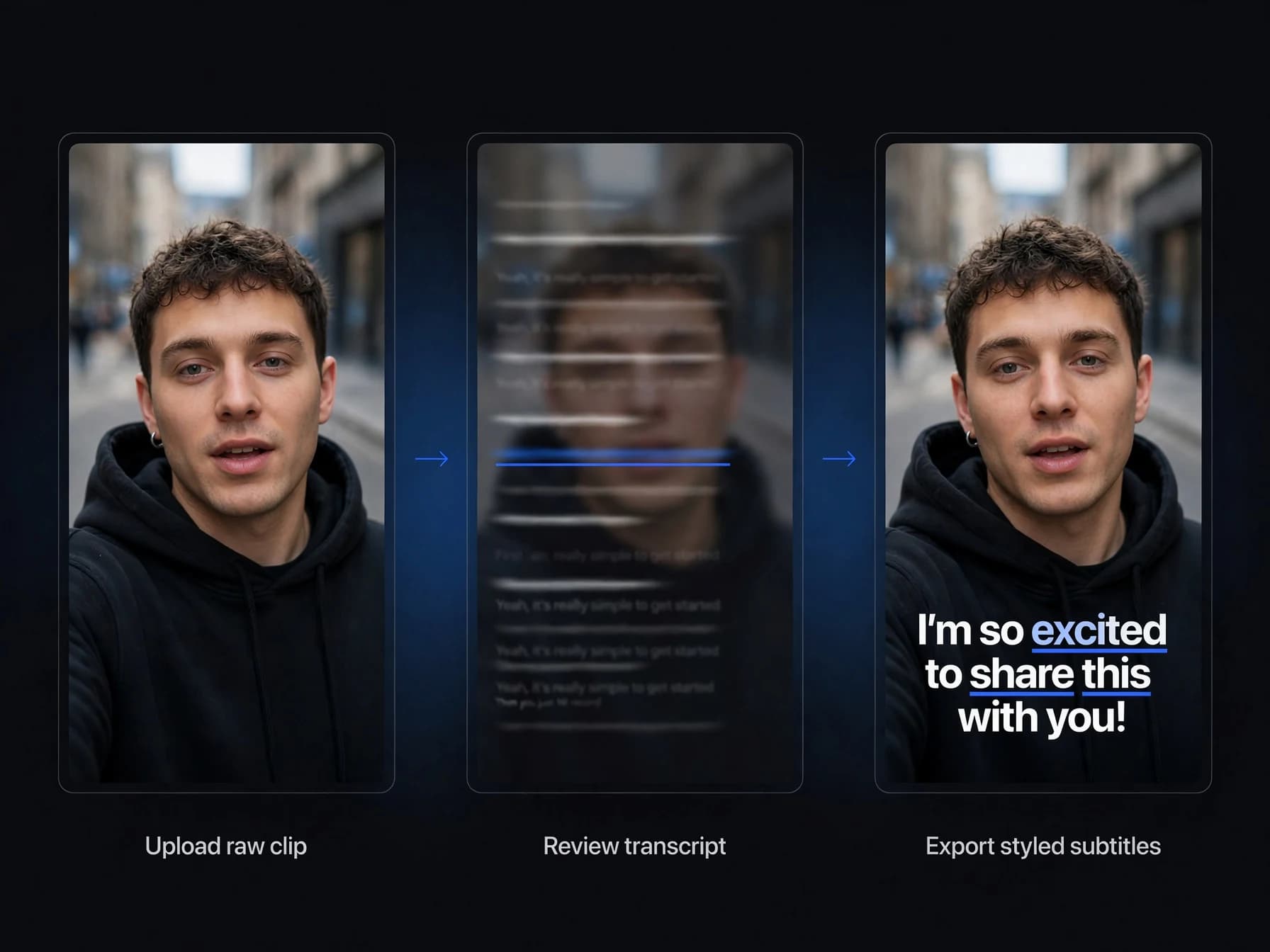
Step 1: Upload your source video to an online AI caption generator or choose a clip from
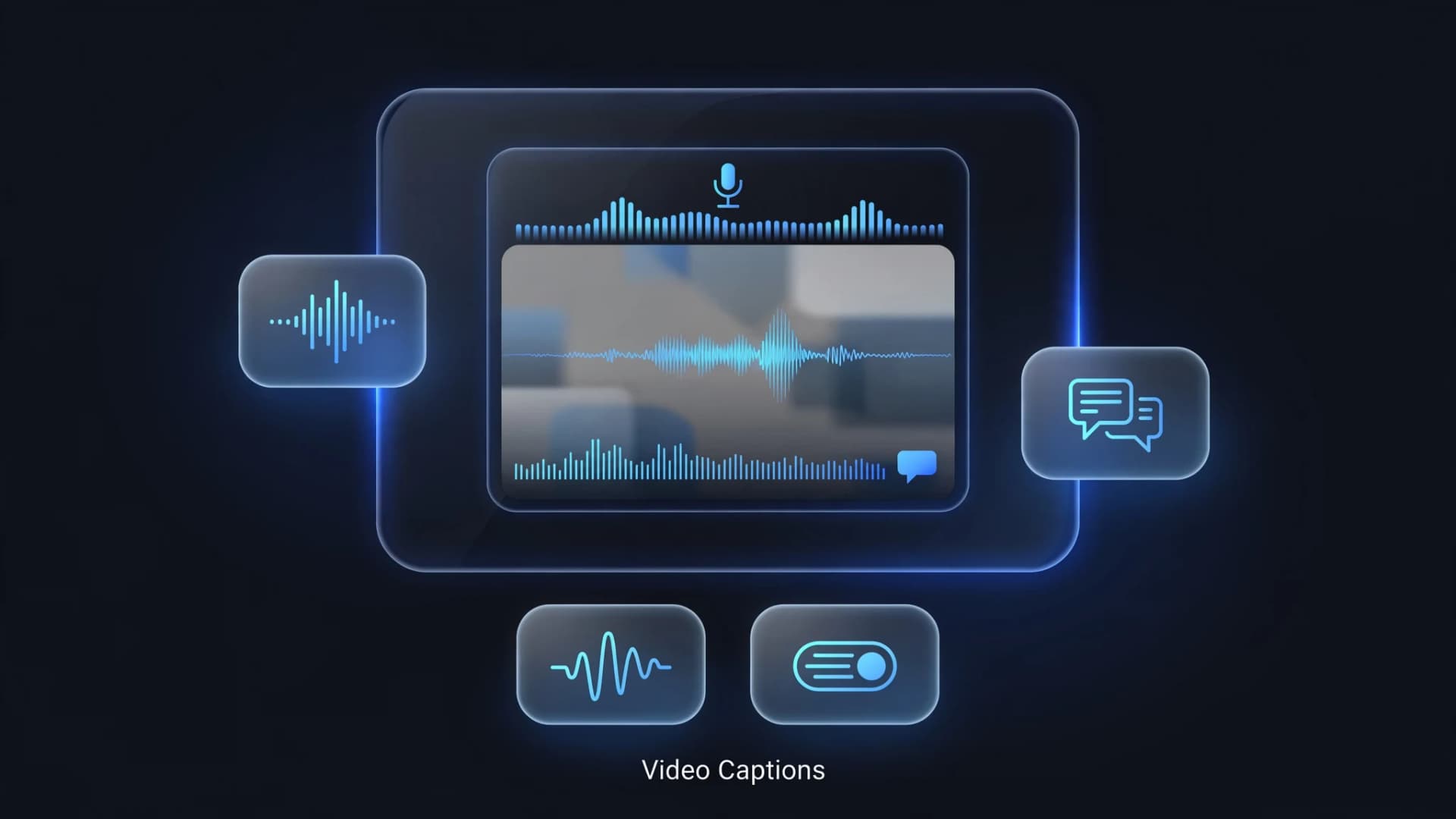
Step 2: Generate video subtitles with automated speech recognition and review the transc
Step 3: Select a visual style such as bold kinetic text or clean bottom-aligned cards, t
Can you add subtitles to AI video files automatically?
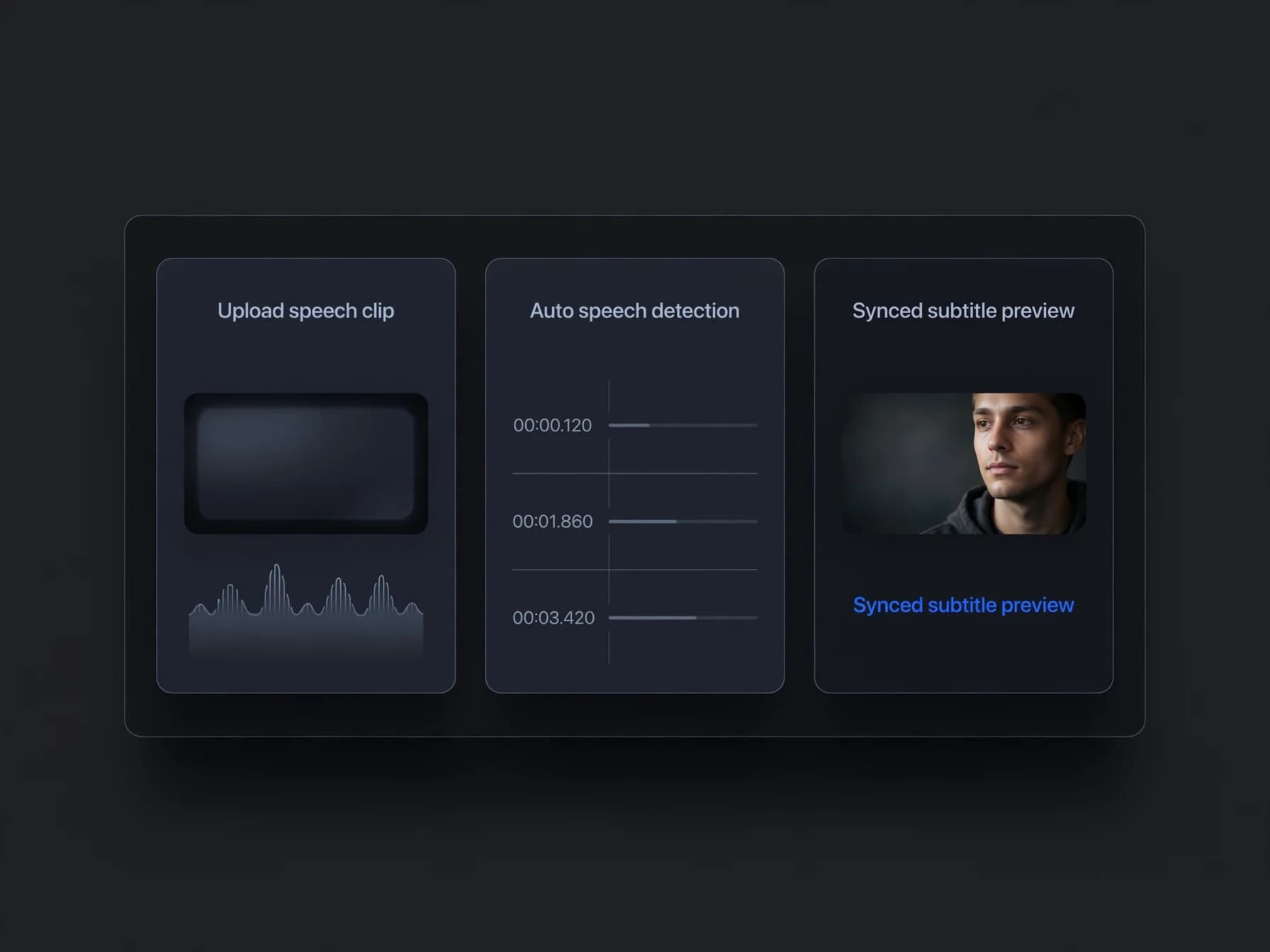
Modern automated tools make it simple to add subtitles to video clips without spending hours transcribing every spoken sentence by hand. Cloud-based speech-to-text models detect spoken languages automatically, map words to exact millisecond timestamps, and generate synchronized lines for you to review.
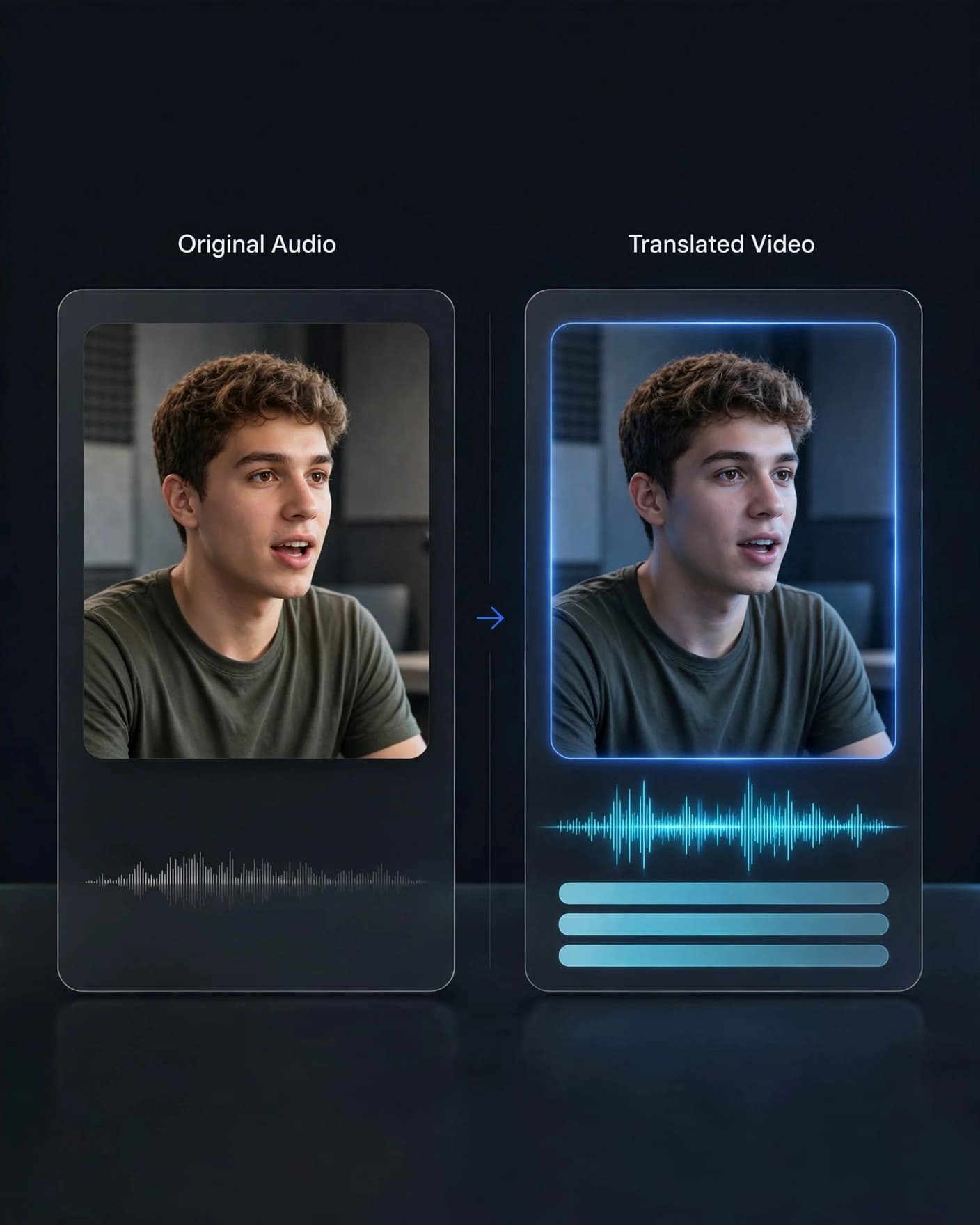
Automated caption workflows also let you translate dialogue across dozens of languages without recording new voice tracks. If your project targets global audiences, an AI video translator can transcribe the speech, convert the text into another language, and apply the new captions directly to your video file.
Because automated transcription handles the heavy lifting, your primary task is simply reviewing proper nouns and timing boundaries. The result is a fast, reliable production rhythm that keeps your content calendar moving forward without tedious manual typing.
How to add subtitles to a video on iPhone
Adding on-screen captions on iPhone gives creators the freedom to record, caption, and publish clips entirely from a phone. You do not need desktop workstation software to achieve clean typographic overlays before uploading to TikTok, Instagram Reels, or YouTube Shorts.
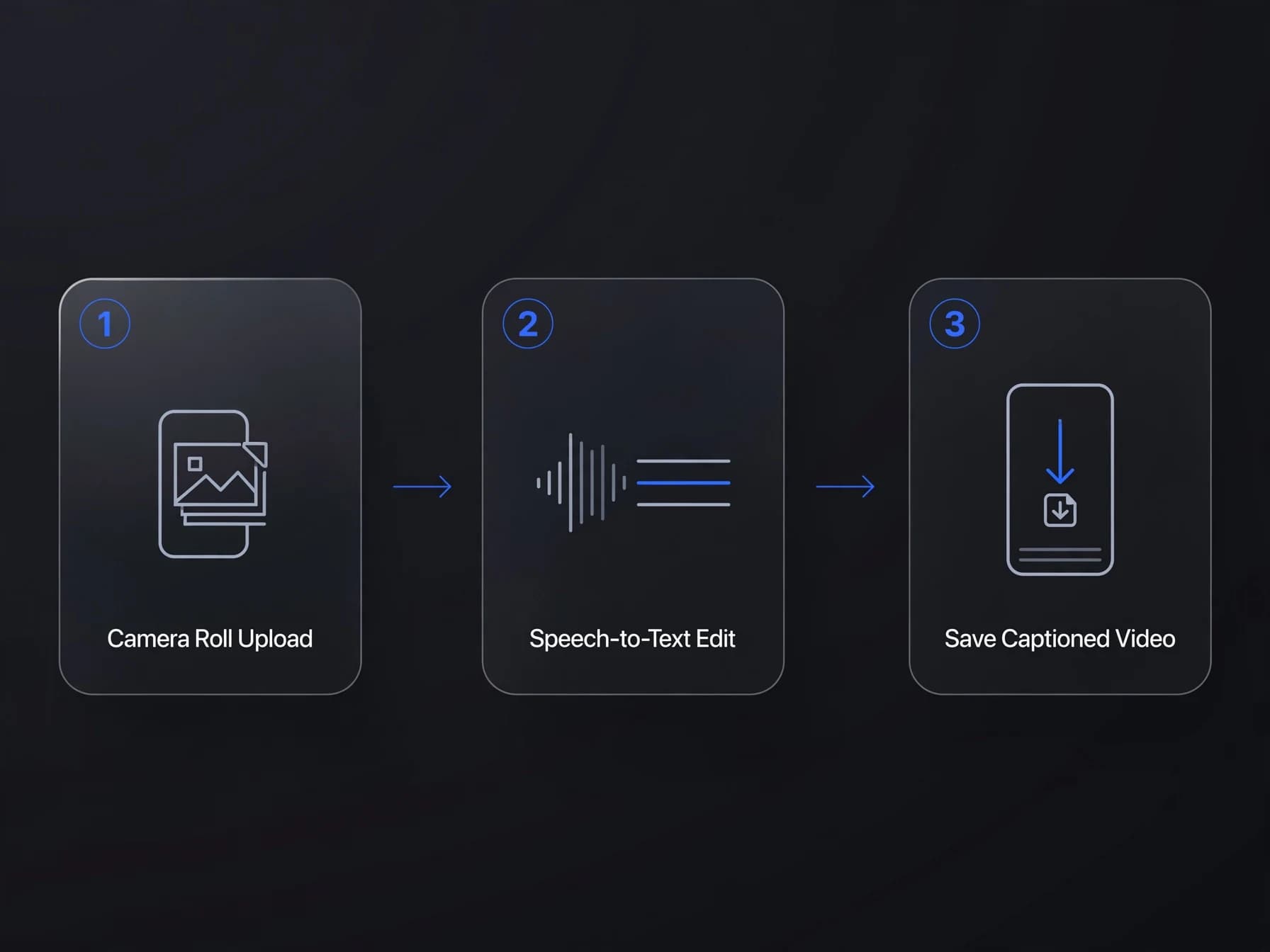
Opening a browser-based AI video editor or mobile creation tool allows you to import recorded video directly from your camera roll. The speech engine transcribes spoken words on the fly, allowing you to tap any line to fix typos, change text placement, or switch to centered vertical layouts suited for short-form mobile viewing.
Once formatted, save the updated clip directly back to your photos app or download the caption file for external players. Creating captioned clips directly on your mobile device keeps your publishing workflow fast, responsive, and completely portable.
Formatting rules for readable on-screen text
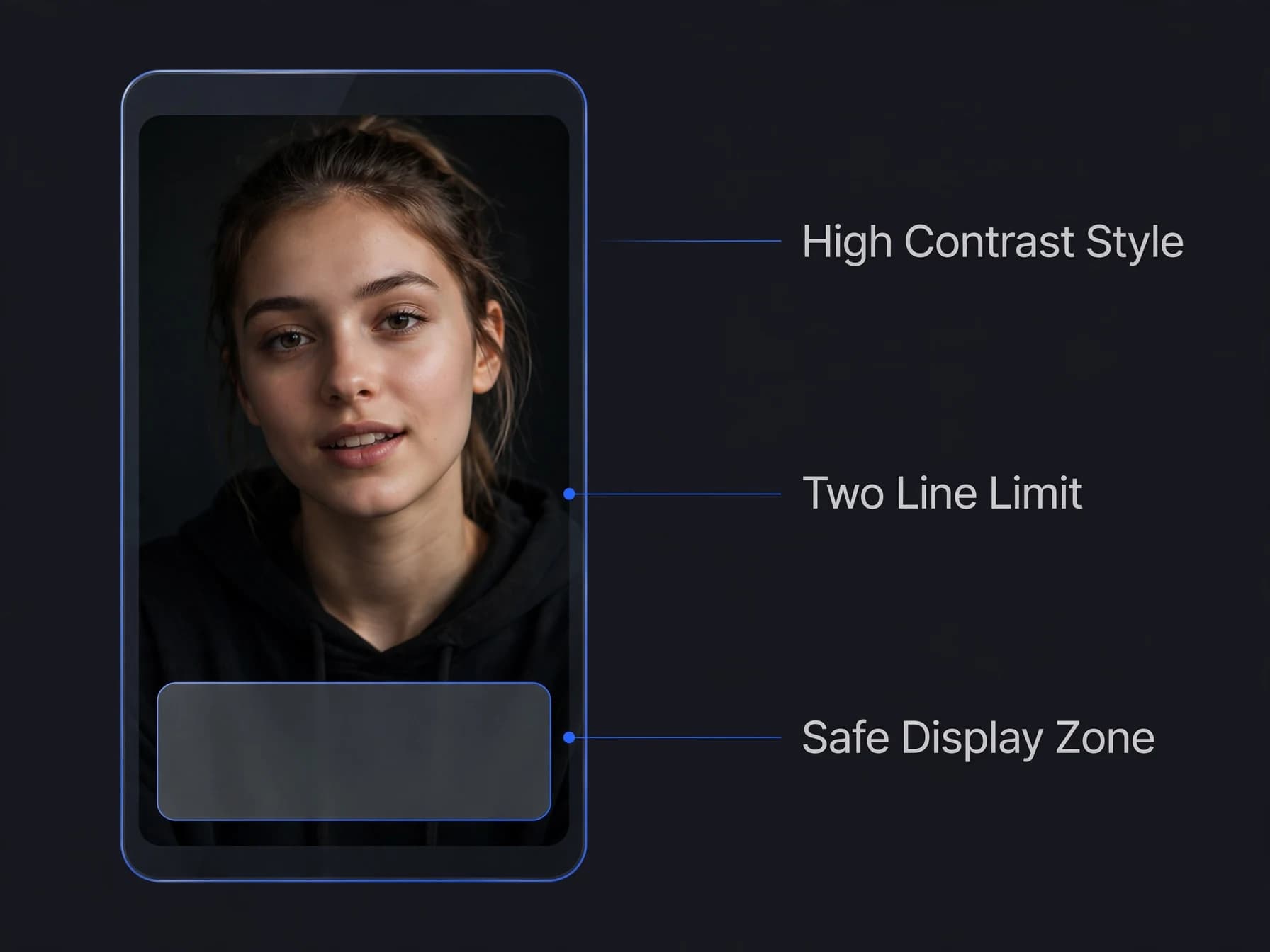
Legibility should always dictate your visual style choices when you put subtitles on video projects. High contrast between text letters and background video footage is critical, which is why bold typefaces paired with subtle black outlines or boxed backgrounds perform best across variable scenes.
Limit each subtitle card to two short lines of text and keep line durations between one and four seconds. If text flashes on and off too quickly, viewers miss key dialogue, while sprawling paragraphs crowd the visual composition and distract from facial expressions or on-screen action.
Position your text safely within platform boundaries, leaving plenty of margin away from side buttons, profile icons, and bottom progress bars. Sticking to safe display zones prevents social interface overlays from obscuring your carefully timed transcript.
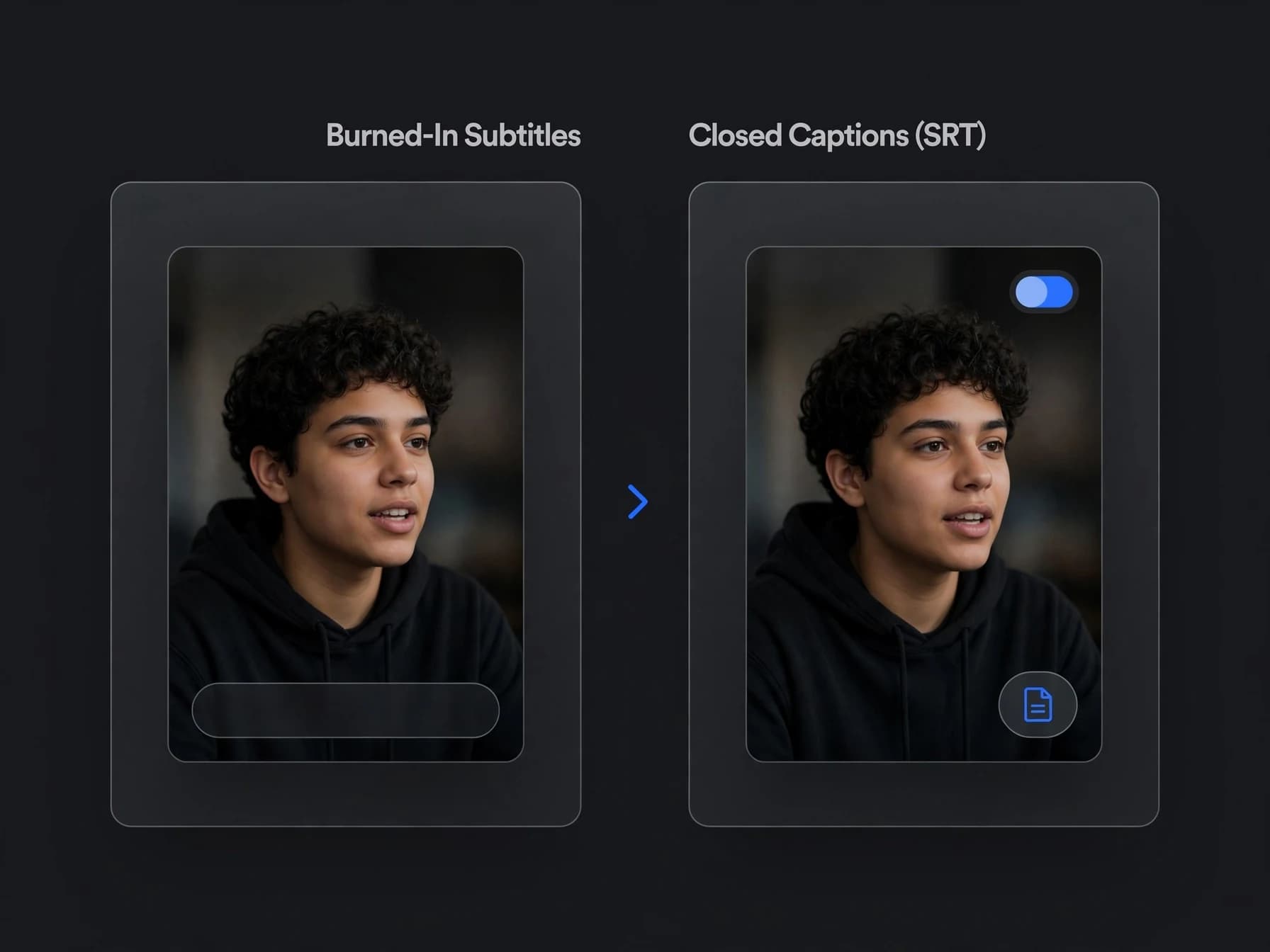
How do you choose between burned-in text and closed captions?
Deciding between open subtitles and closed captions depends on where your clip will be hosted and how viewers interact with your content. Burned-in open subtitles are permanently rendered directly onto the video frames, guaranteeing that styling, font selection, and word timing look identical across every player.
Closed captions, distributed as separate SRT or VTT text files, allow viewers to toggle text on or off and choose custom font sizes in their media player. Platforms like YouTube and professional streaming libraries favor closed caption files because they support multi-language selection and screen reader accessibility.
For vertical social video feeds, especially if you produce clips using the best AI video generator for TikTok, burned-in dynamic text is typically the preferred format because it ensures styling remains intact regardless of viewer settings. For long tutorials, product demos, or projects created with the best AI video generator for YouTube, offering both an MP4 with text and a downloadable subtitle file gives your audience the best possible viewing flexibility.