
7 AI Christmas video ideas
These are the ideas people make most when they make a Christmas video with AI, and each one takes a single photo or a short prompt:
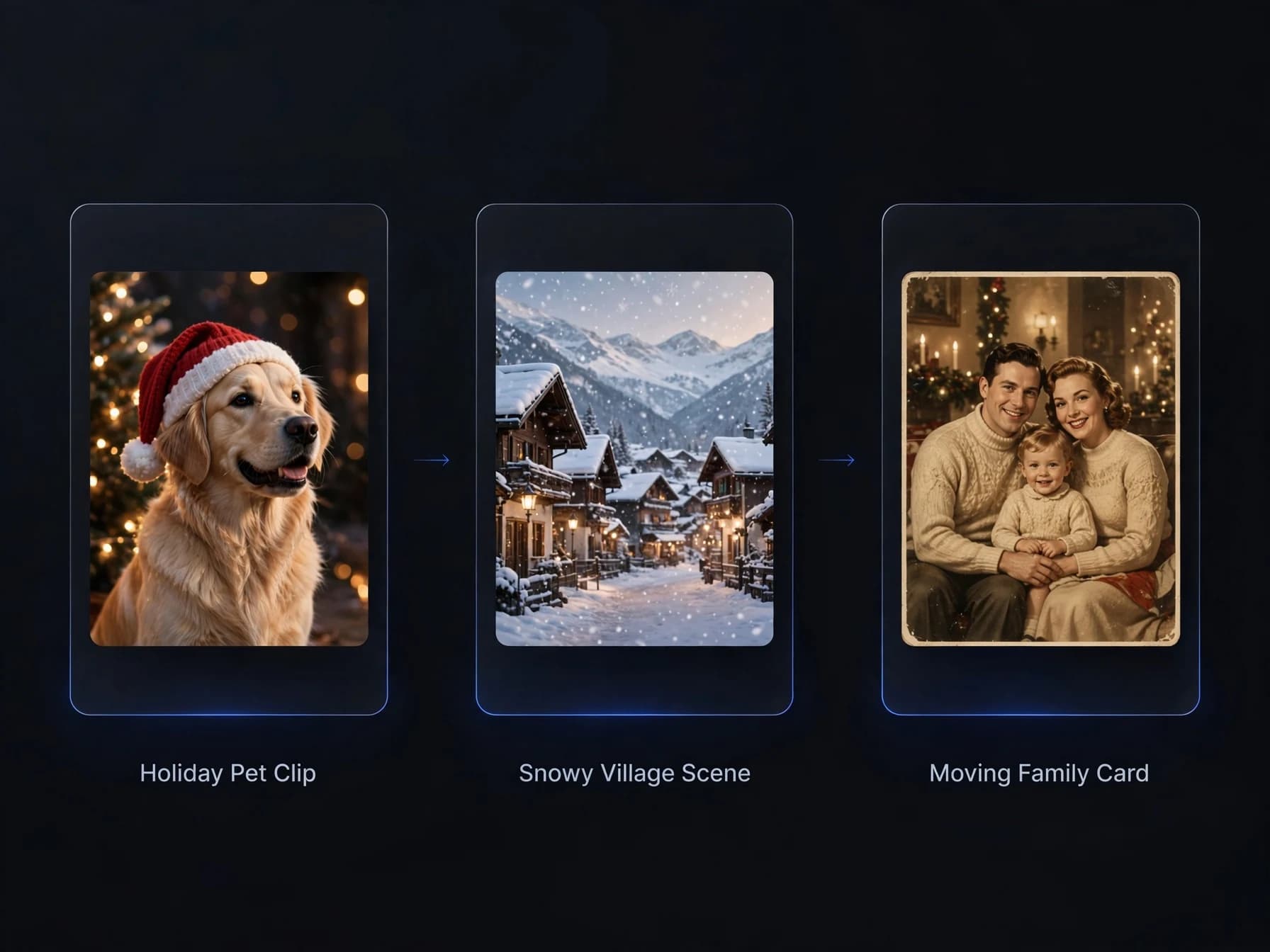
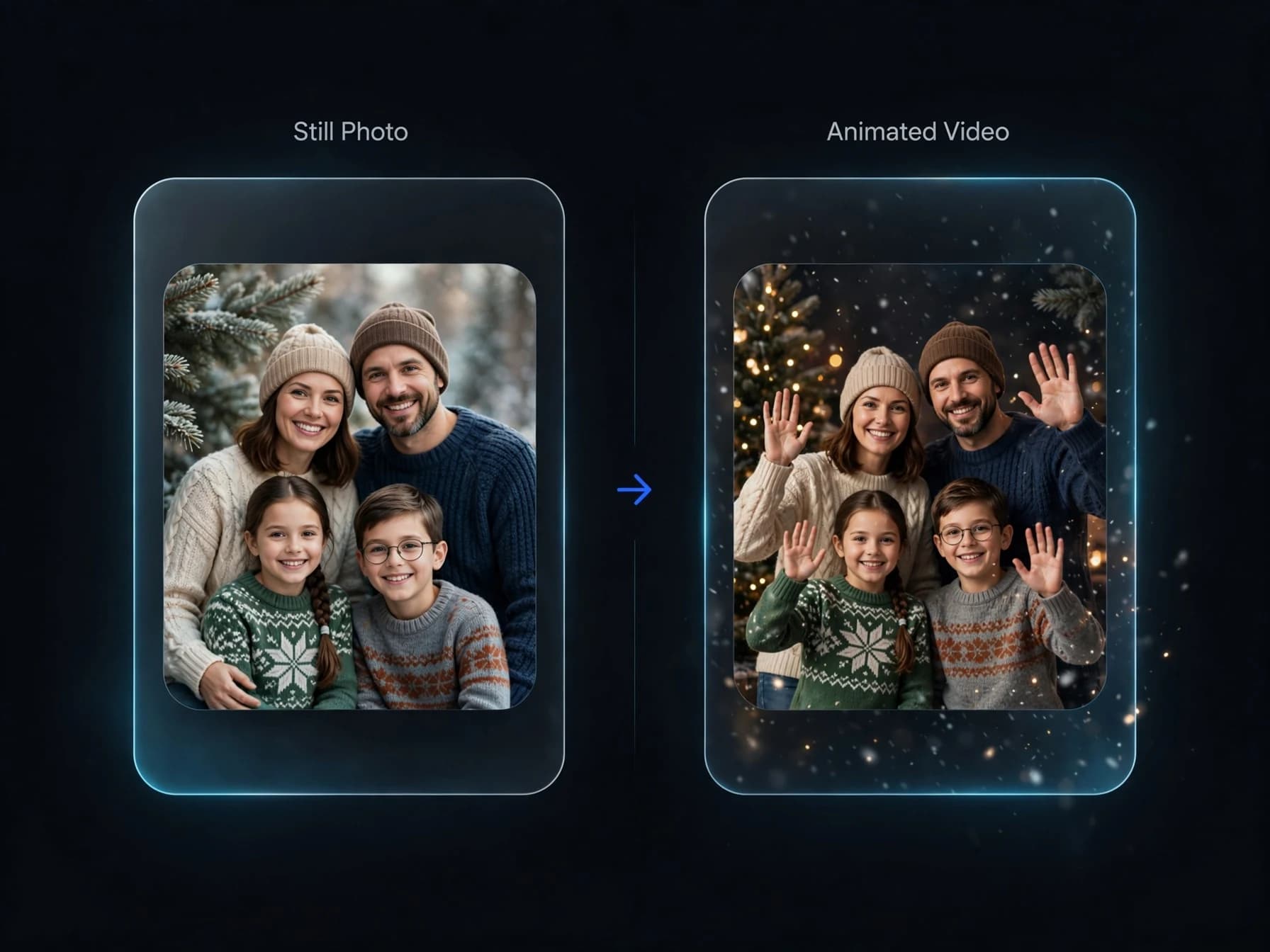
- A moving family Christmas card. Animate a family photo from this year into a short clip: snow falling, lights twinkling, everyone turning to wave. Use image to video.
- Your face in a Christmas scene. Put yourself on a sleigh, at a snowy cabin door or in a holiday movie scene with face swap. One clear photo is enough.
- A talking Christmas card. Type a short greeting, pick a voice, and a photo of you (or grandma) says it with matching lips. Our talking photo generator makes clips up to 30 seconds.
- A pet in a Santa hat. Upload a photo of your dog or cat and ask for a Santa hat, falling snow and a slow tail wag.
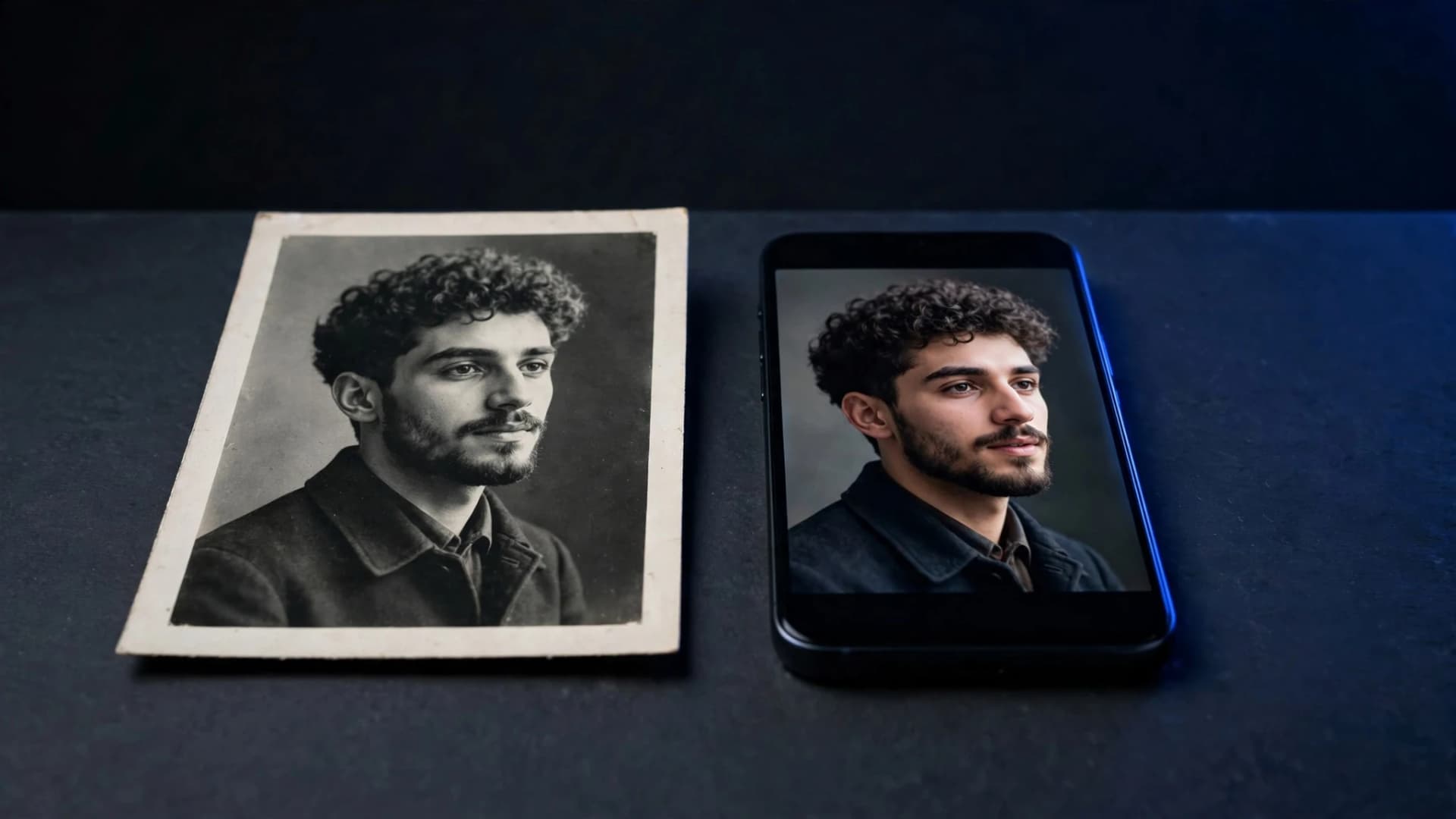
- An old family photo brought to life. A scanned photo of grandparents at Christmas, with a gentle smile and a slow camera push. Our guide to animating old photos covers scans and prompts.
- A snow globe or toy-town scene. No photo needed: describe a tiny snowy village inside a glass globe and let text to video build it.
- A festive dance. Make the whole family dance to a Christmas song with the AI dance video generator.
For a message from Santa himself, with your child's name and wish list, see our personalized Santa video guide.
How to make an AI Christmas video in 5 steps, and which size to use
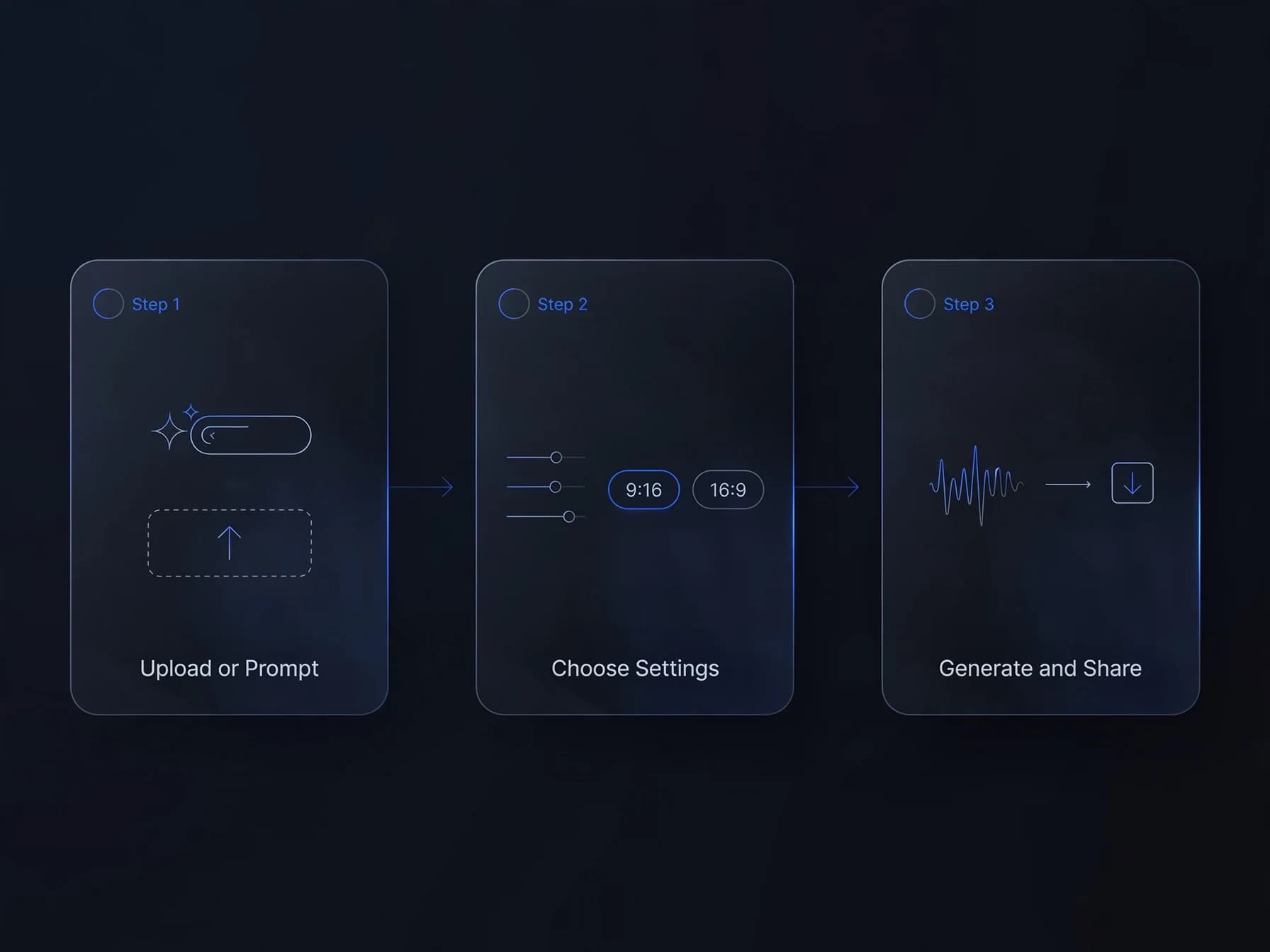
Every idea above follows the same five steps on OnVid:
- Pick your start. A photo (family card, pet, old photo), your own clip (face swap) or just a prompt (snow globe scene).
- Write one or two sentences of motion. Say what moves and how the camera moves, for example "snow falls, the family waves, slow push in". Short and specific beats long and vague.
- Choose a model and length. For a quick card, MiniMax H3 Max makes 10-second clips with sound. For more realism, use Kling 4.0 or Veo.
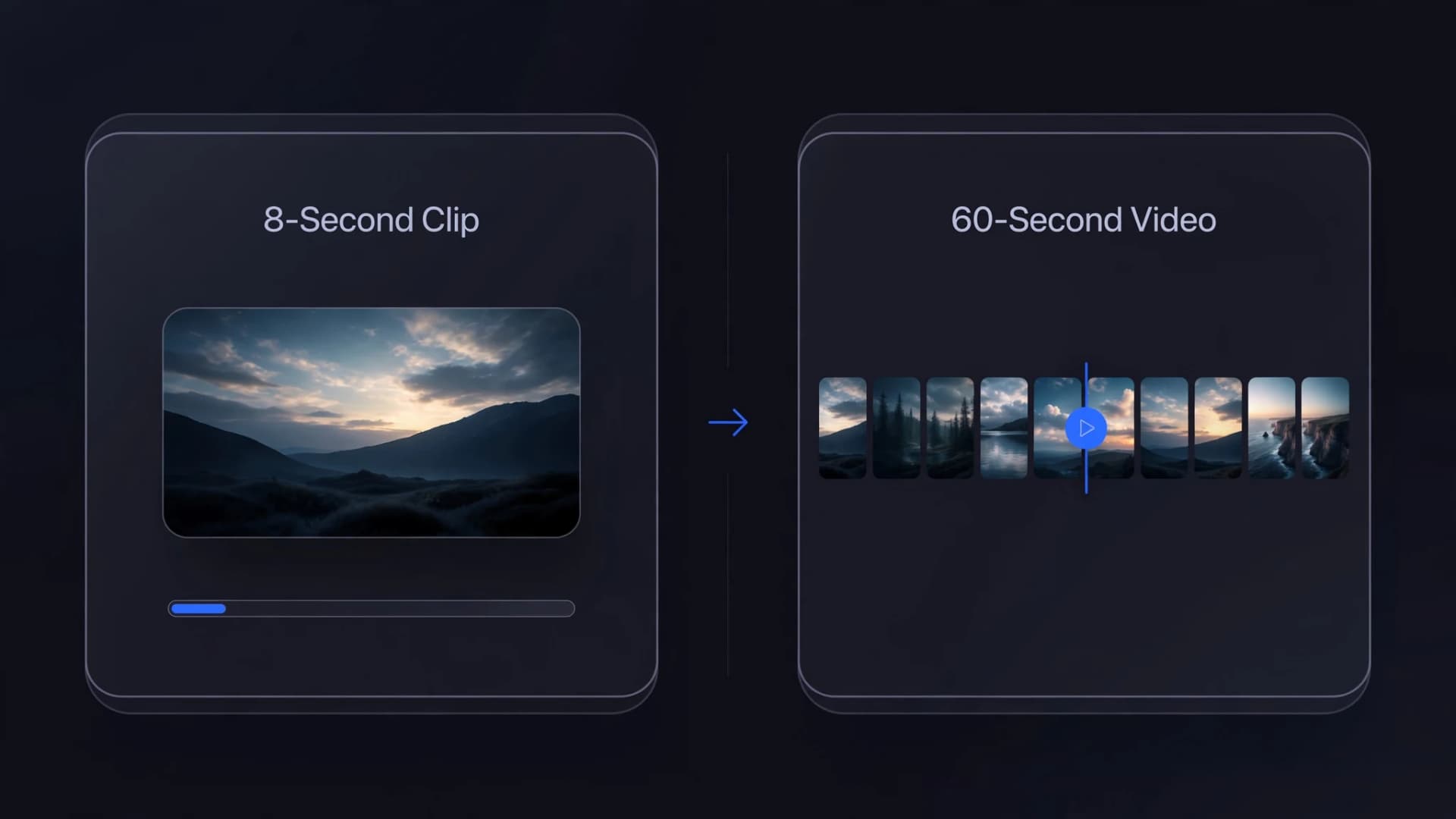
- Add sound. Most models make sound with the video. If yours is silent, the soundtrack tool adds music, sleigh bells or a voiceover to clips up to 60 seconds.
- Download and send. You get an MP4 you can post, send on WhatsApp or play on the TV. If you want it longer, the video extender adds a few seconds to the end.
Which size and length? Pick the shape before you generate (step 3), because cropping later cuts off heads and decorations:
| Where you share it | Shape | Good length |
|---|---|---|
| Instagram Reels, TikTok, YouTube Shorts | 9:16 vertical | 8 to 15 seconds |
| WhatsApp status and messages | 9:16 vertical | 5 to 10 seconds |
| Instagram or Facebook feed | 1:1 square or 4:5 | 5 to 10 seconds |
| TV, email, YouTube | 16:9 wide | 10 to 30 seconds |
Short clips are better for a Christmas video for Instagram or WhatsApp: people watch them to the end and replay them. For a longer family video on the TV, make several short clips and join them in order.
Christmas video prompts that work
Copy these Christmas video prompts and change the details for your own Christmas AI video. Each one names the subject, the motion and the camera, which is what makes AI video look deliberate:
- Family card: "The family in the photo smiles and waves at the camera, soft snow starts falling, warm Christmas lights glow behind them, slow push in."
- Pet: "The dog in the photo wears a red Santa hat, tilts its head and wags its tail, snowflakes drift past, cozy living room with a decorated tree."
- Old photo: "The couple in the old photo turn to each other and smile, gentle film grain, the camera slowly moves closer, warm light."
- Snow globe: "A tiny snowy village inside a glass snow globe, a small train circles the town square, snow swirls, macro shot, warm window lights."
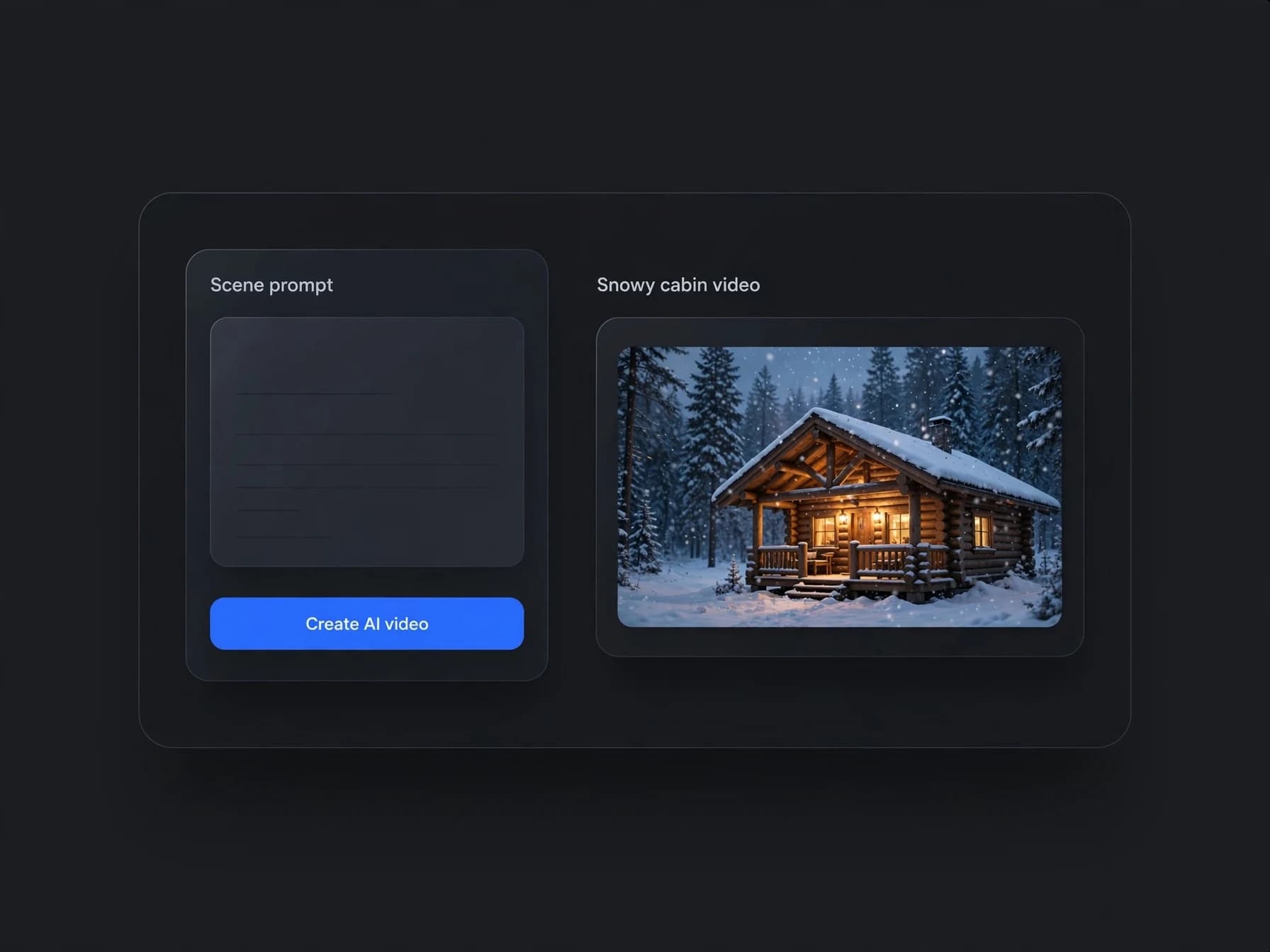
- Cabin: "A wooden cabin in a snowy forest at night, smoke from the chimney, lights in the windows, the camera glides toward the door."
- Fireplace: "Close-up of stockings hanging over a crackling fireplace, a cat sleeping on a rug, soft firelight, slow pan right."
- Sleigh: "A red sleigh pulled by reindeer flies over a snowy town at night under a full moon, wide shot, the camera follows the sleigh."
- Dinner: "A Christmas dinner table with candles and a roast, family hands passing plates, warm light, shallow depth of field."
Keep each prompt to one scene. If you want a story, make three short clips and join them, rather than asking one clip to do everything. Our prompt guide explains the structure in more detail.
Turn a family photo into a Christmas card video
A photo card is the most popular of all AI Christmas videos, and the photo matters more than the prompt:
- Use a sharp, well-lit photo. Faces should be clear and facing the camera. Group photos work best with five people or fewer.
- Leave space around people. A little room above heads and at the sides gives the model space for snow, lights and movement.
- Ask for small motion. Waving, smiling and falling snow look natural. Big movements like jumping or walking toward the camera can warp faces.
- Add text after. AI models still struggle to spell, so add "Merry Christmas from the Smiths" in your phone's video editor rather than in the prompt.
Then add music. A soft piano or sleigh bells track turns a moving photo into a card, and a song with the family dancing makes a Christmas music video, and our music guide covers phones, PCs and AI.
Put your face in a Christmas scene
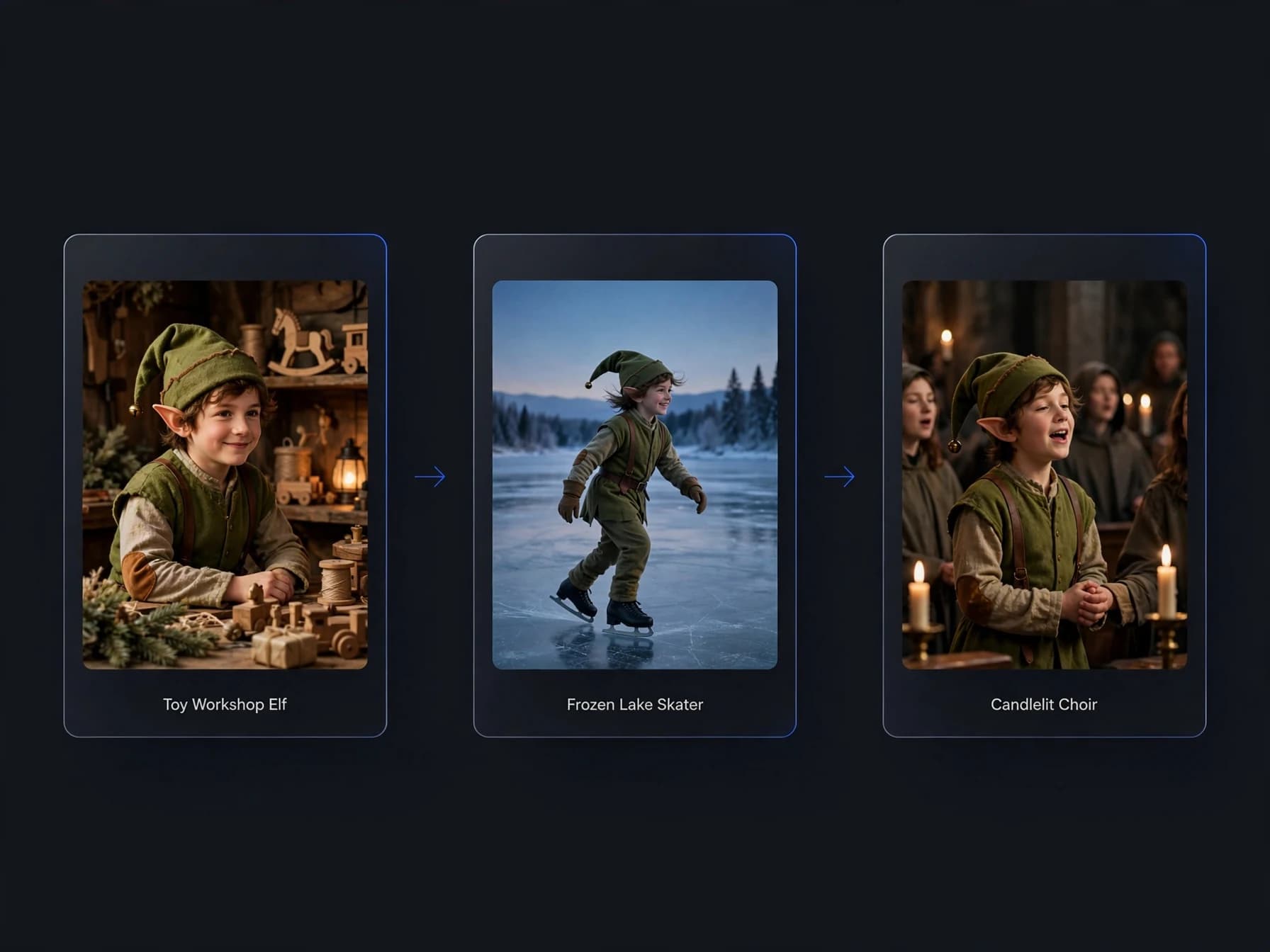
A Christmas face swap puts you, or the whole family, into a holiday scene: an elf at a workshop bench, a skater on a frozen lake, the lead in a classic holiday film moment.
With face swap you pick a scene or upload your own clip, add one clear photo of a face and get a 10-second HD video. Front-facing photos with even light give the best match. For a full walkthrough, see our face-in-video guide.
Only use faces of people who are happy to be in the video. Ask before you put a friend or relative into a clip you plan to post, and never use someone's face to make them seem to say or do something they wouldn't.
What an AI Christmas video costs on OnVid
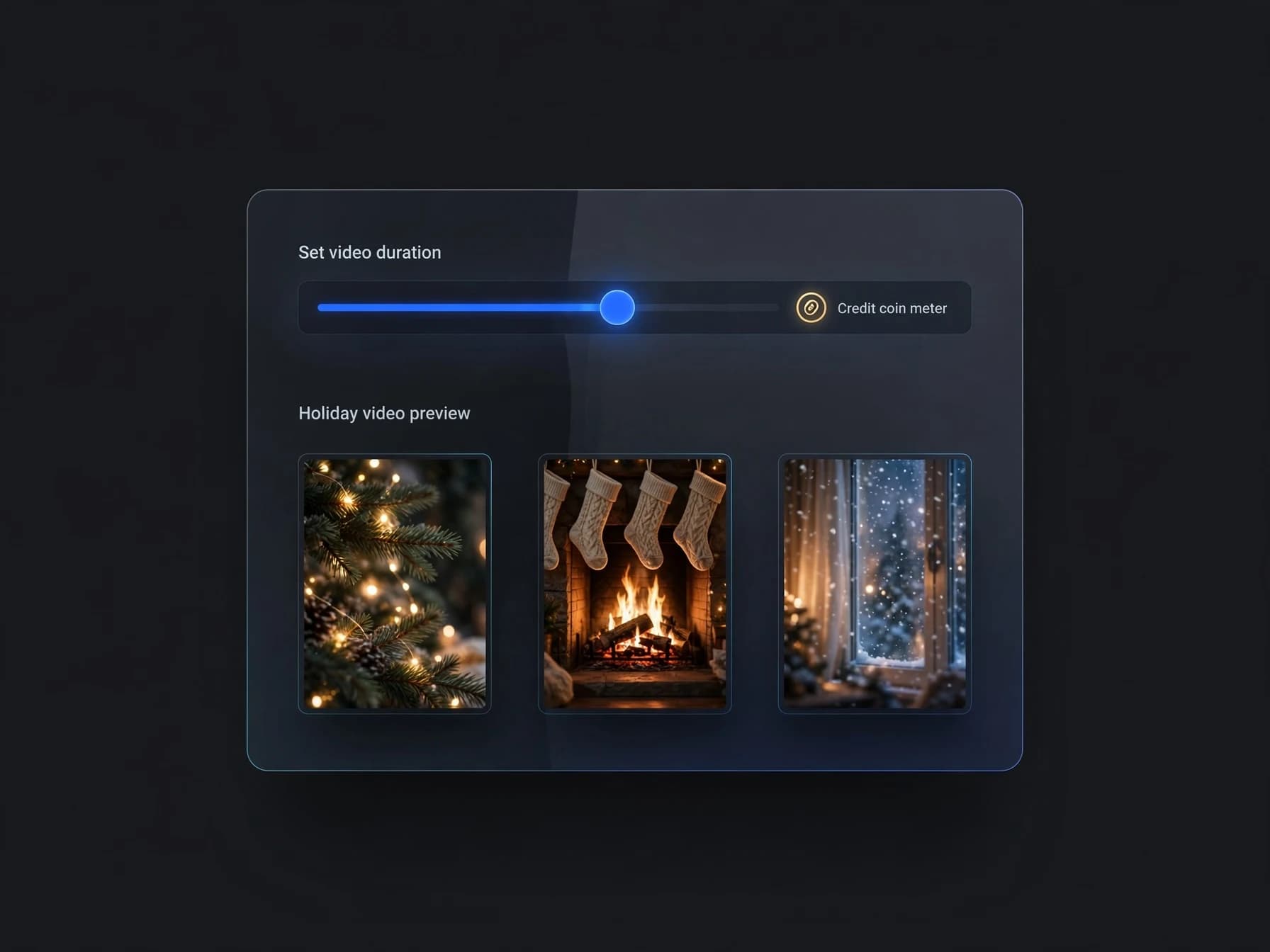
OnVid charges credits per second of video, you see the exact cost before you generate, and a failed video gives its credits back. Typical clips at 720p with sound:
| Clip | Credits |
|---|---|
| MiniMax H3 Max, 10 seconds | 690 |
| Kling 4.0, 5 seconds | 1,024 |
| Veo 3.1 Fast, 8 seconds | 1,104 |
| Veo 3.1, 8 seconds | 1,840 |
A Pro plan includes 6,000 credits a month, enough for several Christmas cards and a few retakes. MiniMax H3 is the cheapest way to test an idea; switch to a more realistic model for the final version once the prompt works.